

How do I read the bookings planning?
- Manager v3
- Administrator
- Agency manager
- Rental agent
- 1:02
In short. The Planning shows one row per vehicle and one bar per rental, quote, intervention or block. The legend gives the colours; selecting a range creates a rental; dragging a bar opens the matching change.
The Planning is the calendar view of your fleet. It is in the menu, right under Home and the Dashboard.
Rows and bars
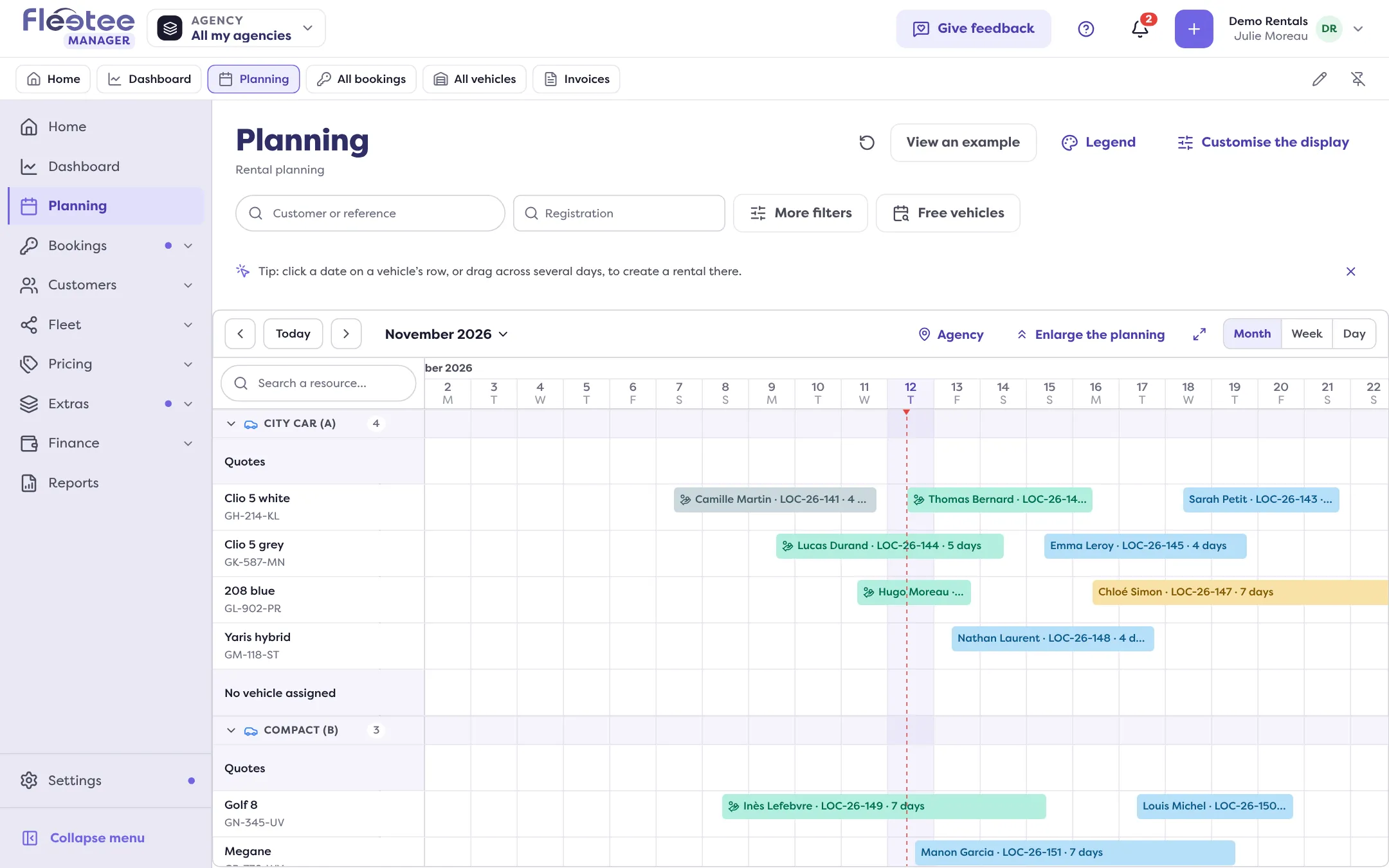
- Each row is a vehicle, sorted by category. Two special rows can be added: “Quotes” (quotes, which do not hold a vehicle) and “No vehicle assigned” (rentals taken without a specific vehicle).
- Each bar is a rental, a quote, an intervention (repair, servicing) or a calendar block. Hover a bar to read its details; click it to open the page.
- The colours of the rentals follow their status. See What do the booking statuses mean?
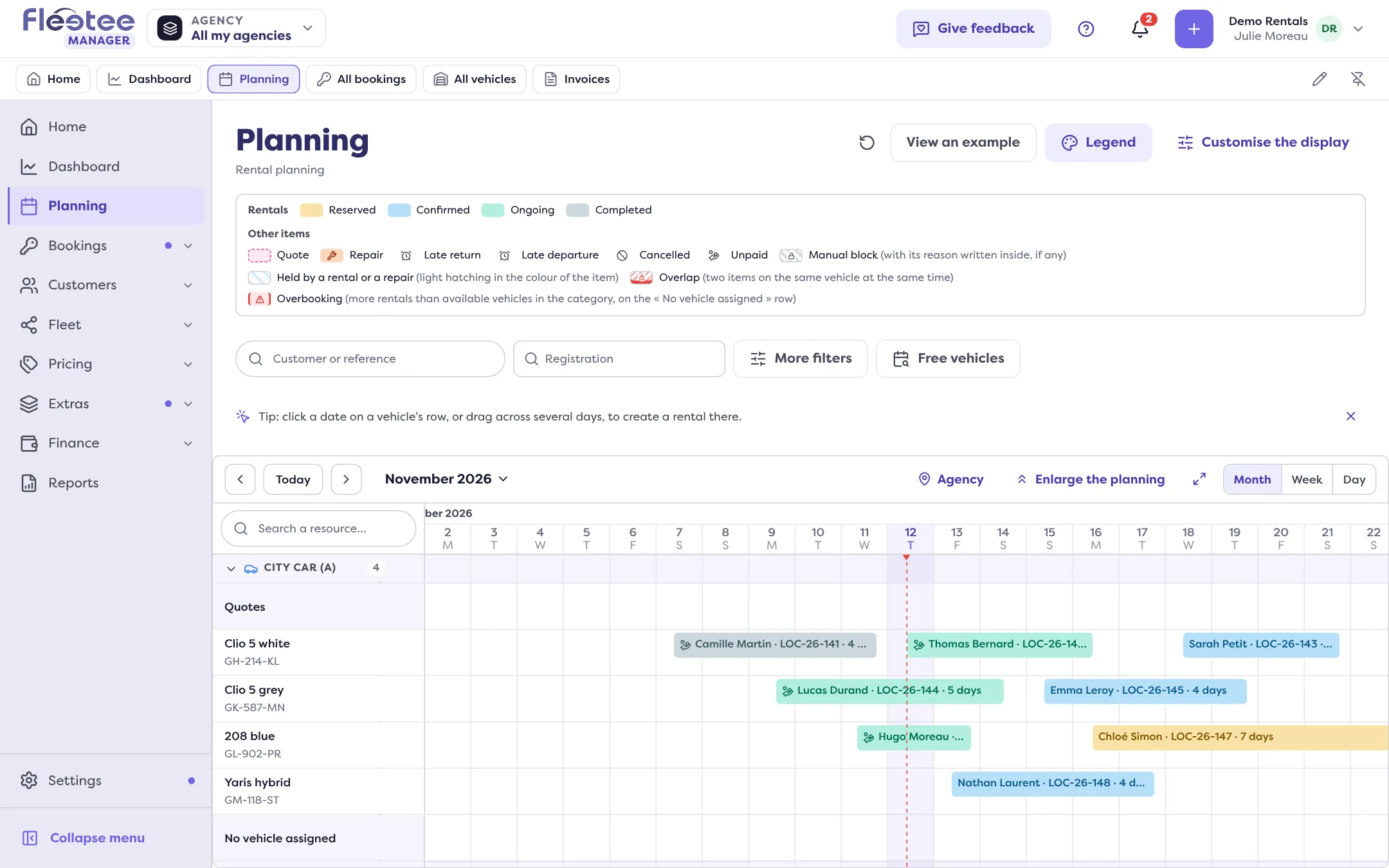
The legend
The “Legend” button opens the “Colour legend”. It tells apart in particular:
- Rentals: Cancelled, Unpaid, Late departure, Late return;
- Other items: Quote, Repair, Manual block (with its reason written inside, if any);
- Held by a rental or a repair: light hatching on the vehicle’s calendar;
- Overlap: two items on the same vehicle at the same time;
- Overbooking: more rentals than available vehicles in the category, spotted on the “No vehicle assigned” row.
Month, week or day
The planning shows in Month, Week or Day. “Customise the display” sets the Opening view, the order of the vehicles, hidden categories, the rows shown, scrolling (Continuous or Period by period), the drag step, and the colours and badges of the bars. In the Week view, you can show Full bars or only the Departures and returns.
A “Departures and returns on …” link leads to the page of the day: see Prepare today’s pick-ups and returns.
Search and filter
The “Customer or reference” field searches a rental or a quote. “More filters” adds filters by vehicle, rental, quote, intervention or block notes; “Clear filters” removes them. The “Free vehicles” button shows which vehicles are free over a range; those rented, blocked or under an intervention over part of the range are greyed out, and “Rent” creates the rental.
Act from the planning
Click a date on a vehicle’s row, or drag across several days: a card sums up the range (departure, return, number of days, Estimated price) and offers:
- “Create a rental” (see Create a booking);
- “Create a quote”;
- “Create an intervention”;
- “Block the calendar” and “Free the calendar”;
- “Create a stop sales” (see Stop selling a category for a period).
Dragging a bar opens the matching change with the new values already filled in: over time, the dates page; onto another row, the vehicle page. A diagonal move (another vehicle and other dates) is refused: move the rental onto the vehicle first, then change its dates. A rental that is “Ongoing” keeps its start: you can only stretch its end; a rental past “Ongoing” can no longer be moved from the planning. To lengthen a rental without overbooking, see Extend a booking without overbooking.
Where to find it: Planning, in the Fleetee Manager menu
Where to find it: Planning, in the Fleetee Manager menu