

How do I move a booking in the planning?
- Manager v3
- Administrator
- Agency manager
- Rental agent
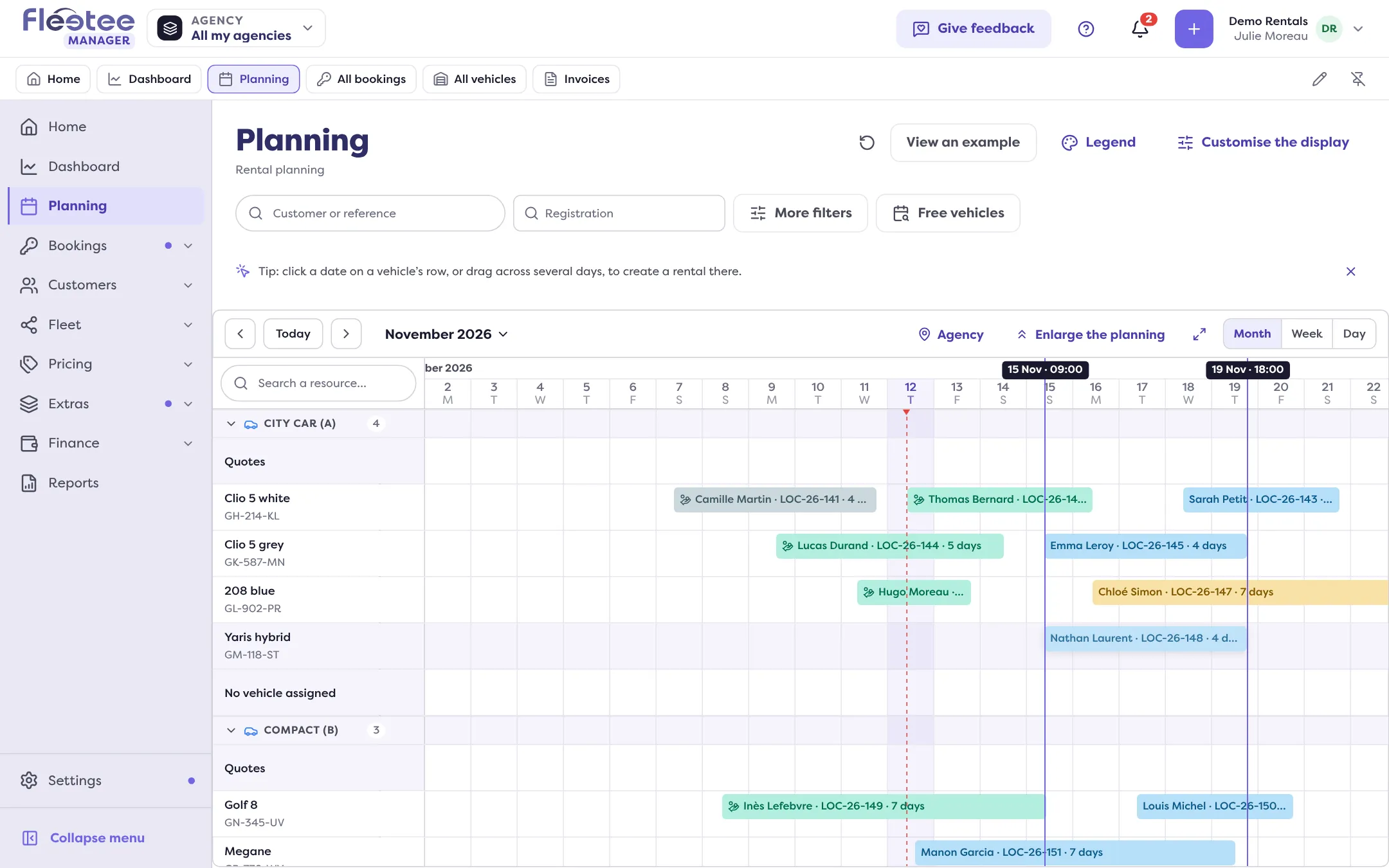
In short. Drag the booking’s bar: onto another date to change the dates, onto another vehicle’s row to change the vehicle, or stretch its edges to change the start or the return. An edit page opens: nothing is saved until you click “Save the dates” or “Save the vehicle”.
In the Planning, a booking moves with the mouse or a finger. Dragging changes nothing by itself: it opens the edit page with the new values already filled in, which you confirm or not.
Open the Planning
Find the booking’s bar on its vehicle’s row.
Drag the bar, or stretch it
- Onto another date, same row: the “Change the dates” page opens with the new start and return.
- Onto another vehicle’s row: the “Change the vehicle” page opens with that vehicle (or its category, for a “No vehicle assigned” row).
- By pulling the left or right edge: you change the start or the return, and the “Change the dates” page opens.
Read what changes, then save
The page shows the recalculated price and what the change causes. While the page is open, the bar stays where you dropped it. If you close the page without saving, the bar goes back to its original place.
What the planning refuses to do in one gesture
- Change vehicle and dates at the same time: first move the booking onto the vehicle, then change its dates.
- Drop a booking onto the “Quotes” row.
- Move the start of an ongoing booking: the vehicle has left. You can only stretch its end.
- A booking past “In progress” (finished, cancelled…), or a booking that has a replacement.
A quote and an intervention do not move either. Each refusal is explained in Why can’t I move a booking in the planning?.
If the slot is already taken
When the new dates fall on another booking of the same vehicle, the dates edit page offers a solution: move the other booking onto another vehicle, or overbook if your company allows it. See How do I extend a booking without overbooking?. If your company’s Overbooking setting forbids it, the planning refuses the drop with “This slot is already taken on this vehicle.”
To replace the vehicle of a booking that has already left, use a replacement, from the booking file.
Where to find it: Planning
Where to find it: Planning