

How do I add or remove a vehicle from a group?
- Manager v3
- Administrator
- Agency manager
- Rental agent
In short. In the group file, “Vehicles” section, “Add a vehicle” creates a booking in the group; the cross on a row “Takes it out of the group” without cancelling it. No need to rebuild the group.
A group is not fixed: you can add a booking to it, or take one out, without recreating it. First open the group file with “View group” (What does a booking group file show?).
Add a vehicle
Click “Add a vehicle”
The button is under the list of the group’s vehicles.
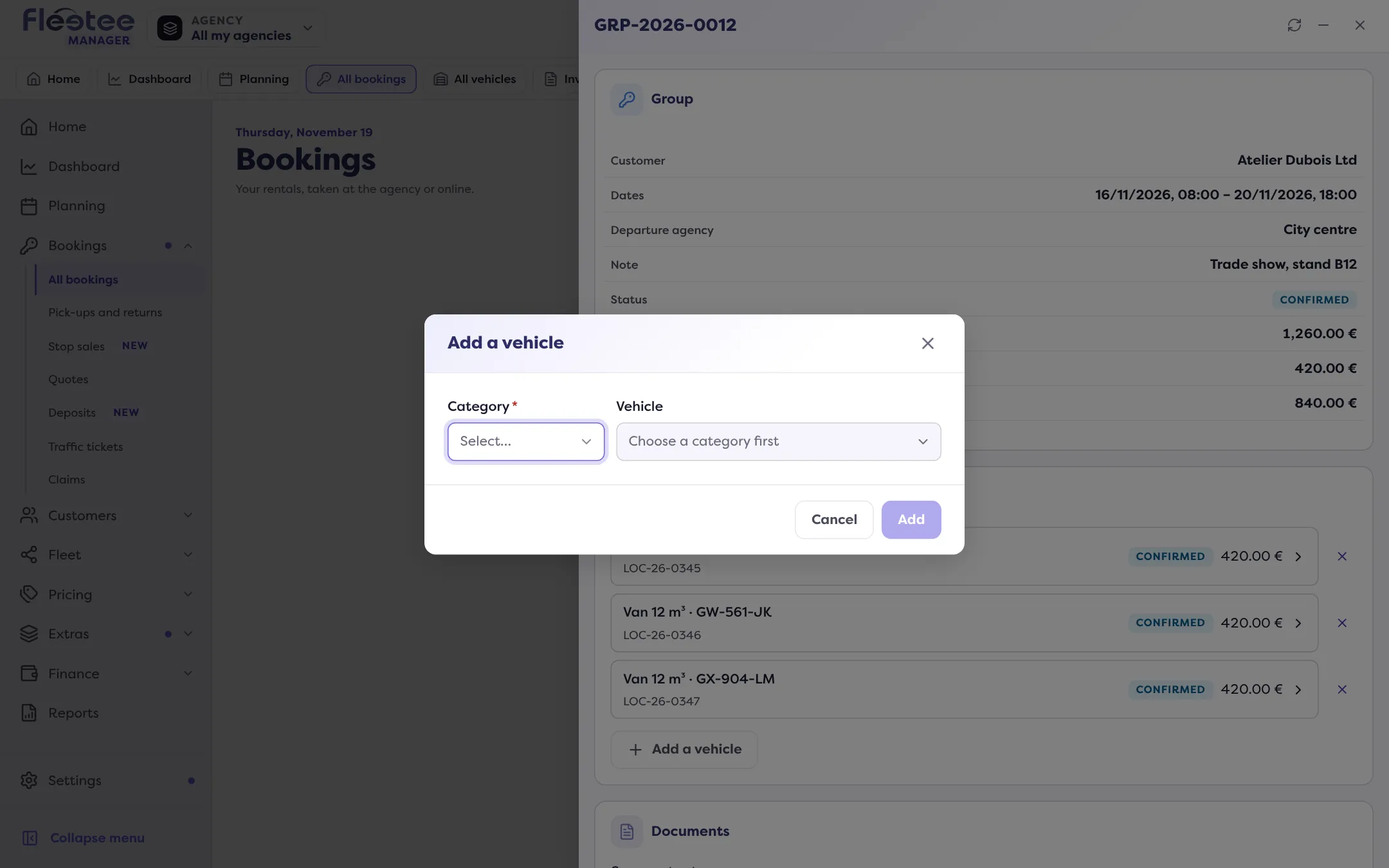
Choose the category, then the vehicle
Fleetee offers the vehicles that are free on the lead booking’s dates, from the group’s agency. Vehicles already in the group are not offered. You can also choose “Do not assign a vehicle” to assign it later. A vehicle that is not free cannot be chosen: a group never creates an overbooking.
Click “Add”
The Manager confirms “Vehicle added to the group”. The new booking takes the group’s customer, billing customer, agencies, dates and price list.
If the vehicle was taken meanwhile, the Manager answers “This vehicle is no longer free on these dates” or “No vehicle of this category is free on these dates any more”: choose another one.
Take a booking out of the group
Click the row’s cross
Each row has a cross “Take … out of the group”.
Confirm “Take out”
The “Take out of the group?” window says: the booking leaves the group and stays a booking of its own, it is not cancelled. For a quote: it stays a quote of its own.
To cancel a booking, cancel it itself (How do I cancel a whole group at once? for the whole group).
When it is refused
- “This rental carries the deposit of the group: release it first.”
- “This rental holds a share of a payment of the group: refund or transfer it first.”
- “Main invoice already issued for a rental of the group.”
- “A group holds quotes or rentals, not both.”
Each message says what to do before trying again. For other changes (splitting a group, merging two), see the group file: “Split” and “Merge”.
These actions are reserved for the roles that can create a booking.
Where to find it: Group file › “Vehicles” section › “Add a vehicle” or a row’s cross
Where to find it: Group file › “Vehicles” section › “Add a vehicle” or a row’s cross
Go further
Updated on 18 November 2026 with version 3.0