

How do I spot a group on the planning?
- Manager v3
- Administrator
- Agency manager
- Rental agent
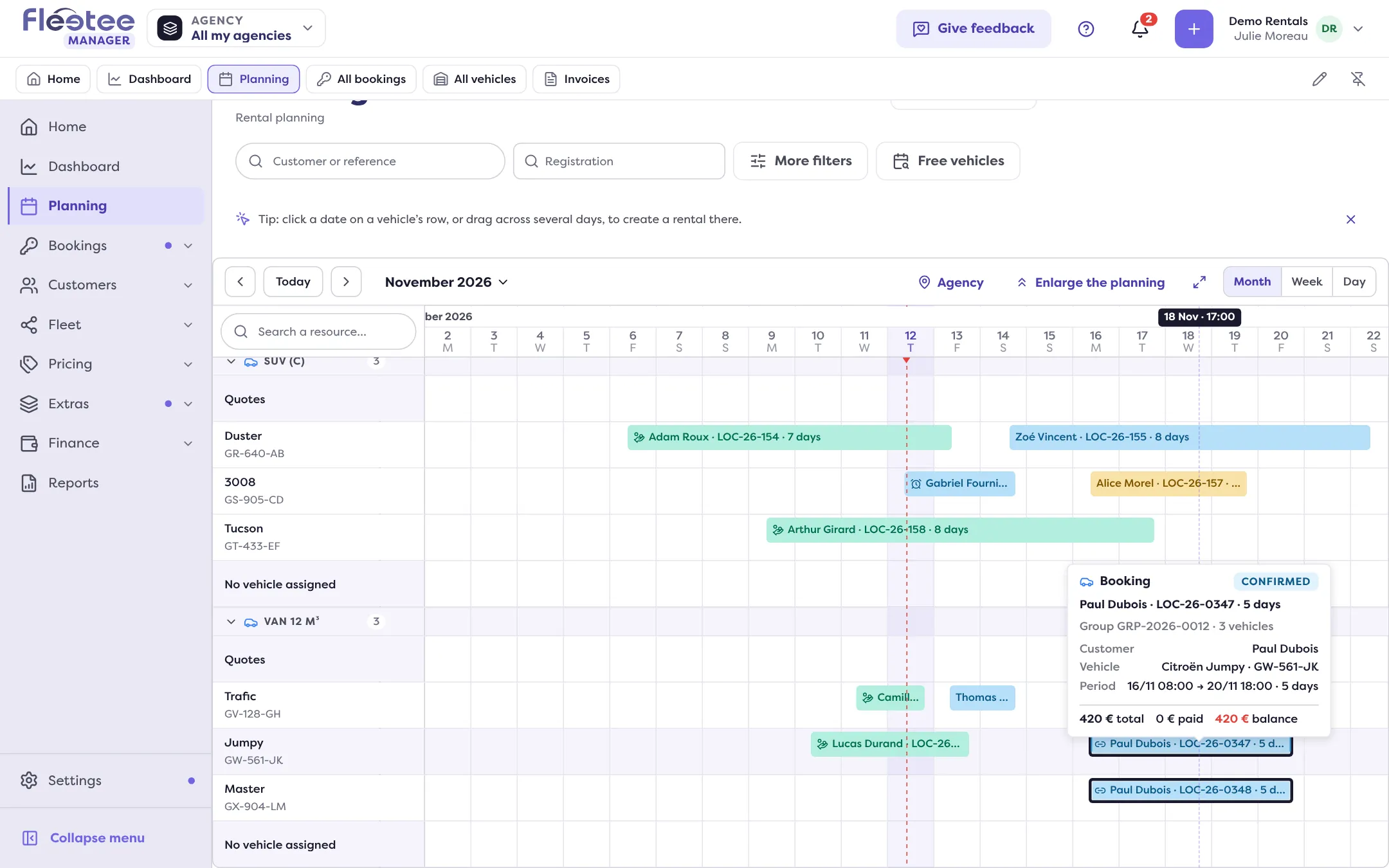
In short. Each bar of a group carries a “Group GRP-…” mark. On hover, the sister bars are ringed and the tooltip gives the group number and the number of vehicles.
On the How do I read the bookings planning?, the bookings of one group sit on different lines (one vehicle per line). Three hints link them.
- A mark on every bar. Each bar of a group carries a small link icon with “Group GRP-…”, whatever your display settings. A single booking has no mark.
- Sister bars are ringed. Hover a bar of the group: every bar of the same group is outlined on the planning.
- The tooltip. It gives “Group GRP-… · 3 vehicles”.
Click the bar to open the booking: its “View group” banner leads to the group file (How do I know a booking belongs to a group?).
Going further with the display
In the planning display, you can add the group to the bars’ text: the “Group” and “Group size” variables exist for titles, and “Group” is one of the criteria offered. See How do I set up the planning display?.
In the bookings list
The “Group” column gives the group’s reference, and the “In a group” filter keeps only grouped bookings (How do I read the bookings planning? for the planning itself).
Where to find it: Planning
Where to find it: Planning
Go further
Updated on 18 November 2026 with version 3.0