

Where do I see a group’s changes in the history?
- Manager v3
- Administrator
- Agency manager
- Rental agent
In short. In the file of each booking concerned, “Activity” panel: joining and leaving the group, settings changed, bulk changes (dates, options, agency…), payments, deposit and links sent, each with its author.
When you act on a group, Fleetee notes the action in the Activity of each booking concerned. Open the booking file, then the “Activity” panel (see also Where can I see the history of a booking?). Each line shows its author and what changed.
What you find there
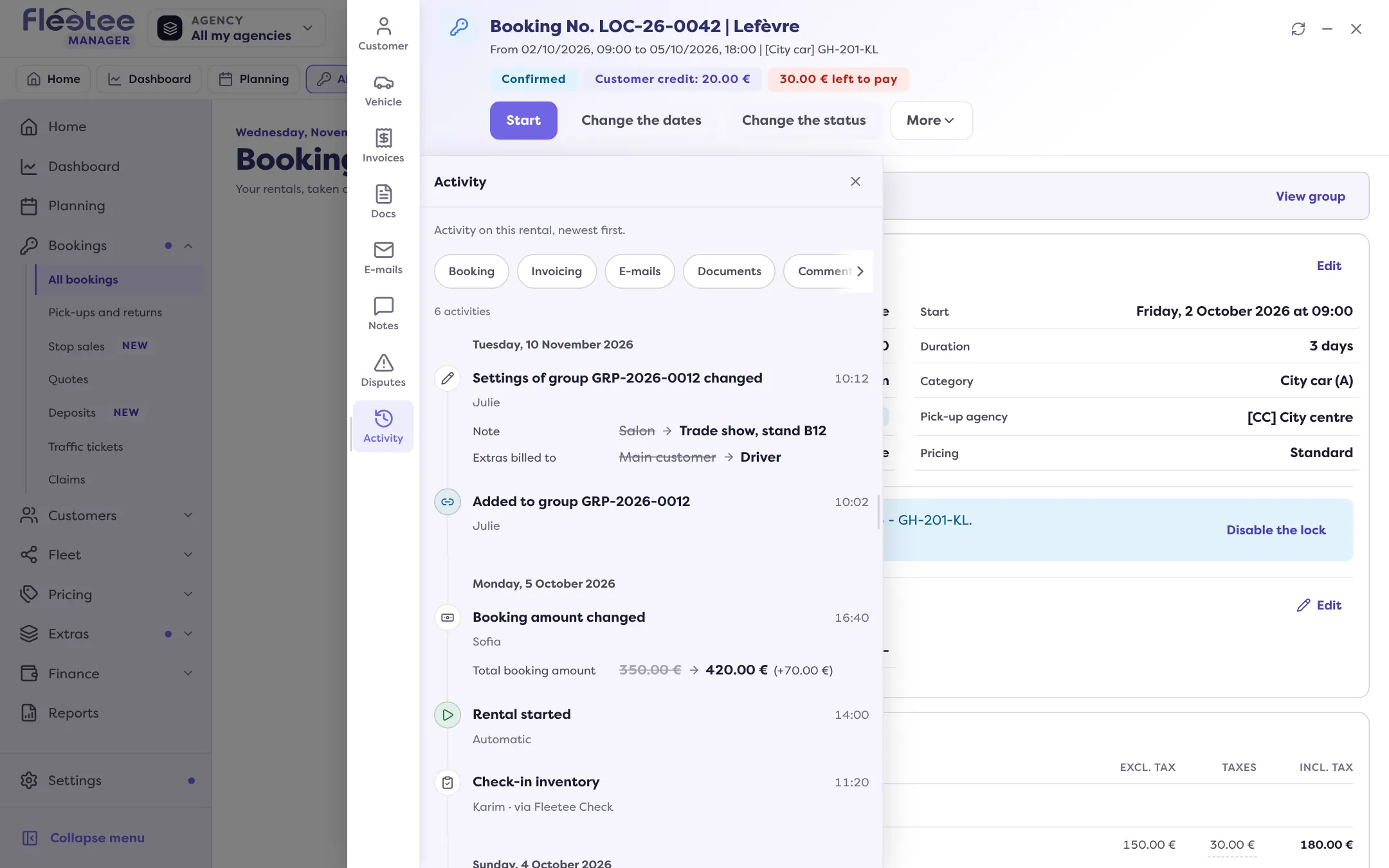
- Joining and leaving: “Added to group GRP-…”, “Taken out of group GRP-…”.
- Group settings: “Settings of group GRP-… changed”, with the detail (for example “Extras billed to”, “Deposit in the name of”, “Note”).
- Actions on the whole group: “Dates of group … changed”, “Return agency of group … changed”, “Options of group … changed”, “Grid of group … changed”, “Mileage package or franchise of group … changed”, “Main customer of group … changed”, “Departure of group …”, “Return of group …”.
- Split and merge: “Group … split”, “Groups merged”.
- Payments: “Payment of group … received”, “Share of a payment of group …”, “Share refunded of a payment of group …”, “Overpayment moved to group …”, “Payment link of group … sent” or “deleted”.
- Deposit: “Deposit of the group … changed”.
- Online check-in: “Online check-in of the group … sent”, “Link of a driver of the group … withdrawn”.
- Quotes: “Quotes of the group … converted into rentals”.
Good to know
These lines are in the Activity of the bookings concerned, not in a single list. To see the whole group, open its file (What does a booking group file show?).
Where to find it: Booking file › “Activity” panel
Where to find it: Booking file › “Activity” panel
Go further
Updated on 18 November 2026 with version 3.0