

What does a booking group file show?
- Manager v3
- Administrator
- Agency manager
- Rental agent
- 0:58
In short. A group file gathers the customer, dates, agency, status and the group’s total, paid and balance; each vehicle has its own line. It lets you act on the whole group (dates, contract, invoices, payments, deposit). Open it with “View group”.
A group gathers several bookings of the same customer leaving from the same agency, for example a fleet rented for an event. Each booking remains a full booking, with its own file. The group file is for seeing and managing the whole.
Where to open it
- From a rental of the group: a banner at the top of its file says “Group GRP-… · 3 vehicles”, with the “View group” button. The group file opens on top.
- From the bookings list: the “Group” column (add it with “Customize” if it is not shown) gives the group’s reference; click it. The “In a group” filter keeps only the grouped bookings.
- In the Planning: the bars of a group carry a mark, and the tooltip gives the group number and the number of vehicles.
What the file shows
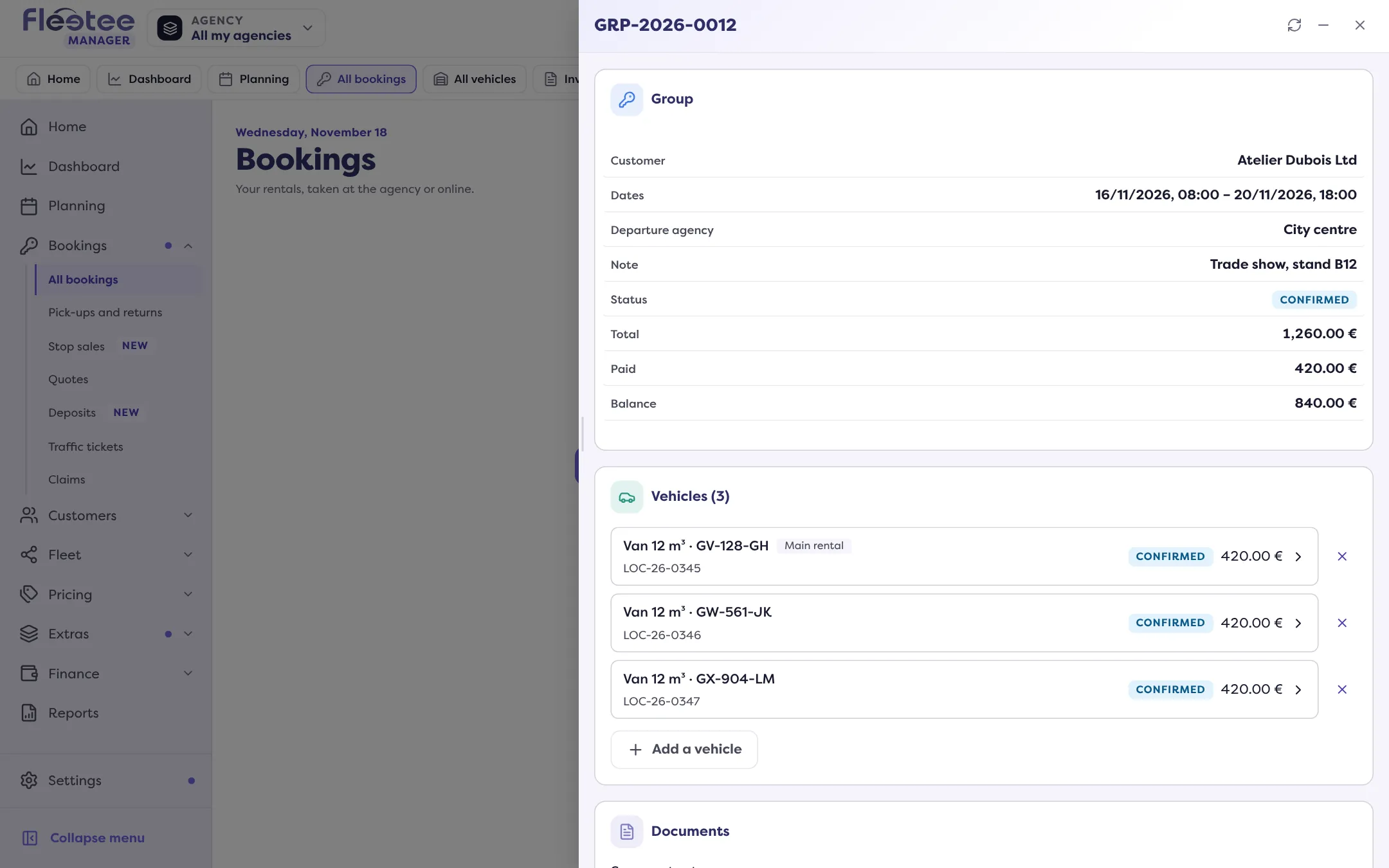
- Group: the Customer, the Billing customer, the Dates (or “different dates”), the Departure agency, a Note, the Status (Reserved, Confirmed, Ongoing, Completed, Cancelled, or “Mixed statuses”), then the group’s Total, Paid and Balance.
- Vehicles (3): one line per booking, with its reference, its vehicle (“No vehicle assigned” where relevant) and its status. The “Main rental” is marked. Each line opens its booking’s file.
- Actions on the whole group: “Change the dates of the group”, “Extend all”, “Move the departure”, “Return agency for all”, “Add an option to all”, “Remove an option from all”, “Pricing grid for all”, “Mileage package for all”, “Franchise for all”, “Main customer of the group”, “Start all”, “Return all”.
- Documents: “One contract for the group” or “One contract per rental”. The group contract can be previewed, validated, sent for signature, sent and downloaded.
- Invoices: “One invoice for the group” or “One invoice per rental”, and the “Left to invoice”. See How do I invoice a booking group?.
- The group’s Payments and Deposit.
- Group settings: who the extras are billed to, in whose name the deposit is, and “Cancel everything”. See How do I change who pays for the group? and How do I cancel all the bookings of a group at once?.
Adding, removing, splitting, merging
- “Add a vehicle” adds a booking to the group without redoing it. “Vehicle added to the group” confirms.
- Taking a booking out of the group: “Take out of the group?” The booking leaves the group and stays a booking of its own; it is not cancelled.
- “Split” creates a new group with some of the bookings; “Merge” joins two groups of the same customer and the same agency.
- To group existing bookings, see How do I group a customer’s bookings afterwards?.
In the history
Joining the group, leaving it and every change to the group’s settings appear in the Activity of each booking concerned, with their author. See Where can I see the history of a booking?.
Where to find it: “View group” from a rental of the group, or the “Group” column of the bookings list
Where to find it: “View group” from a rental of the group, or the “Group” column of the bookings list
Go further
Updated on 18 November 2026 with version 3.0