

How do I change who pays for the group?
- Manager v3
- Administrator
- Agency manager
- Rental agent
In short. In the group file, “Group settings” › “Change the invoicing customer”: search for the customer, who becomes the payer of the group and its bookings. Two other settings say who the extras go to and in whose name the deposit is.
A group’s billing customer is the one the group’s invoices are addressed to. It can be different from the customer who rents: a company paying for its employees, for example.
Open the group file
From a booking of the group, click “View group”. See What does a booking group file show?.
Go down to “Group settings”
The “Billing customer” line shows the current payer.
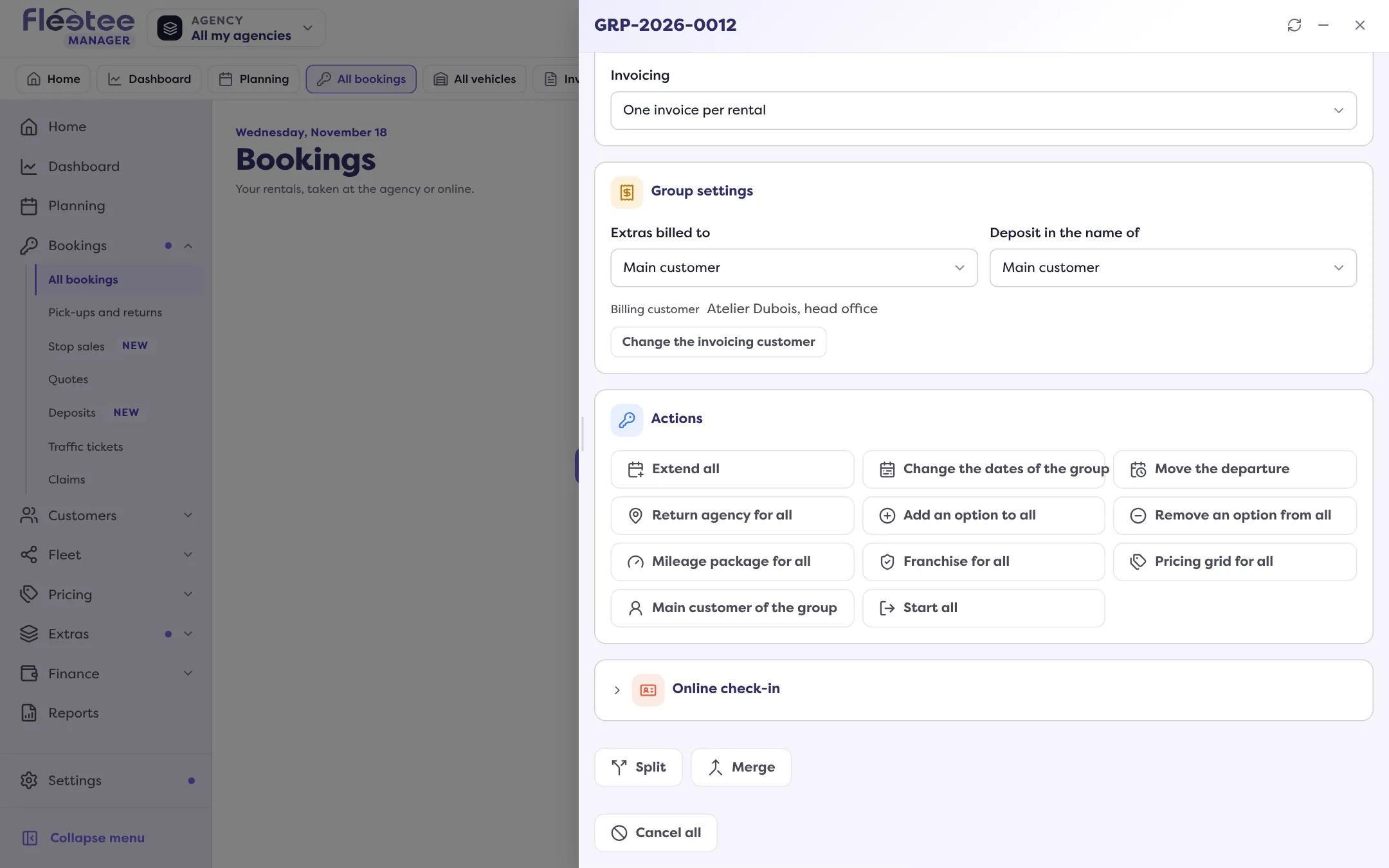
Click “Change the invoicing customer”
If the group has no payer yet, the button is called “Add an invoicing customer”. A search field opens: the customers of the departure agency are offered first. “Cancel” closes the search.
Choose the customer
The choice applies at once. Fleetee copies it onto the group’s bookings that had the group’s payer, or no payer. A booking for which you had chosen another payer keeps it.
The two other group settings
In the same card, two lists say how the group is split between the main customer and a driver:
- “Extras billed to”: “Main customer” or “Driver”.
- “Deposit in the name of”: “Main customer” or “Driver”.
These choices save as soon as you change them, and each change is recorded in the Activity of the group’s bookings (“Settings of group … changed”).
When the change is refused
- “Main invoice already issued: LOC-…”: the payer of a group can no longer be changed once one of its bookings has its main invoice. See How do I invoice a booking group?.
- “This billing customer is not accepted.”: choose another customer.
- “This customer is not attached to your agencies.”: the customer is not in your agencies.
These settings are reserved for those who can create a booking by hand.
Where to find it: Group file › “Group settings” › “Change the invoicing customer”
Where to find it: Group file › “Group settings” › “Change the invoicing customer”
Go further
Updated on 18 November 2026 with version 3.0