

How do I get a group contract signed and send the links to the drivers?
- Manager v3
- Administrator
- Agency manager
- Rental agent
In short. In the group file, “Documents” section: “Preview”, then “Send for signature” (an e-mail with the signing link) or “Validate”. “Online check-in” section: “Send the group link” or the drivers’ links.
A group can have one contract for the whole group: the customer signs once, instead of one contract per vehicle. First open the group file with “View group” (What does a booking group file show?).
Choose the contract type
In the “Documents” section, the “Contract type” setting offers “One contract for the group” or “One contract per rental”. Switching is confirmed, because it deletes what is in preparation: the group contract (or the contracts of rentals not yet validated), and a signing link already sent stops working. A group of quotes has no contract: convert it first.
Get the group contract signed
Review the contract
Click “Preview”. You can choose the template there (“By the rules” or “Default”). The contract is “To be drawn up” or “Awaiting validation”.
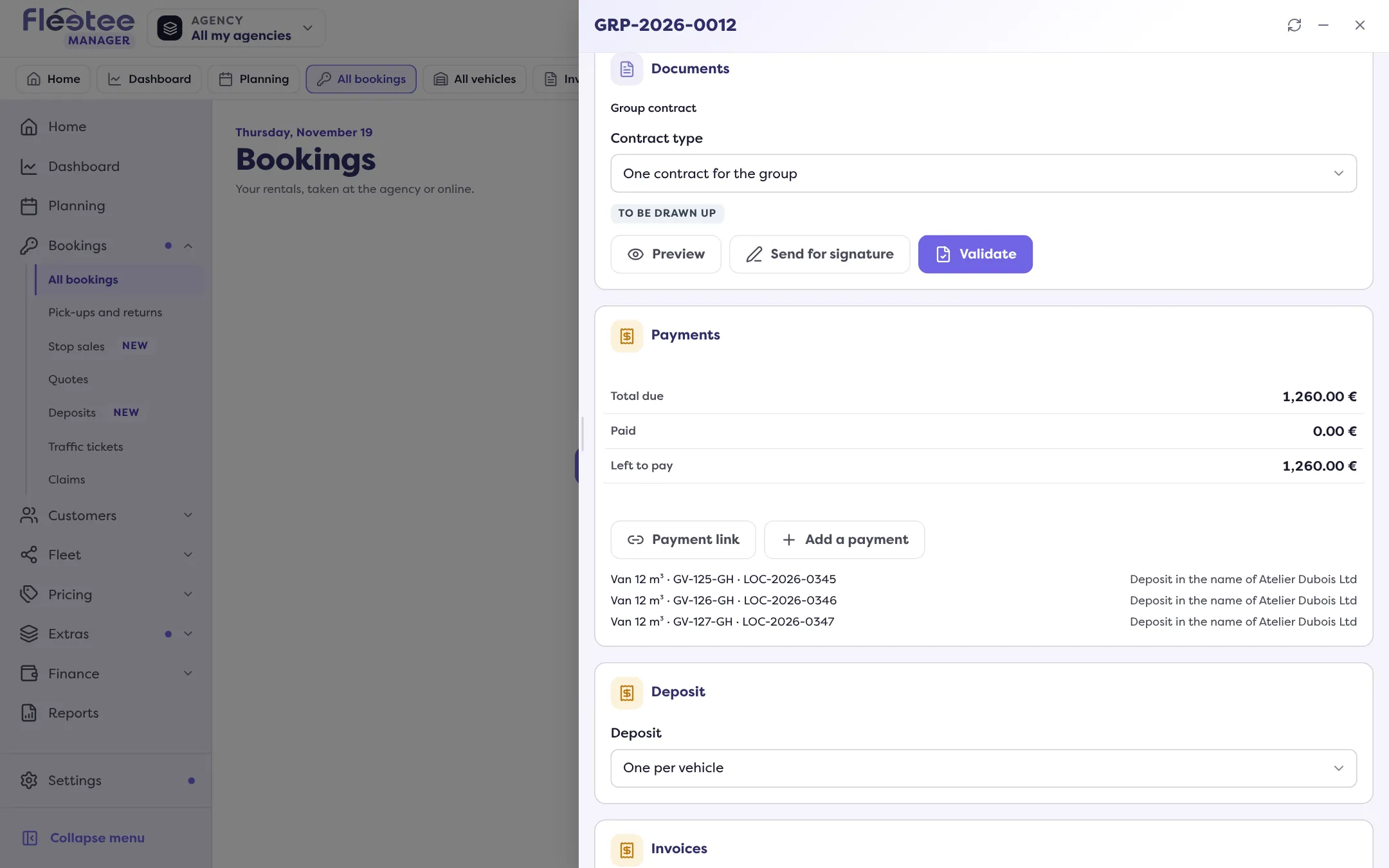
Click “Send for signature”
The “Send the group contract for signature” window offers the Recipient, the Subject and the Message.
Send
Click “Send”: “E-mail sent to …”. The customer signs the group contract from the link.
You can also click “Validate” (“Validate the group contract?”) to validate without going through the online signature, as for Can I validate a contract without a signature?. Once validated, “Group contract no. …” gets its number, can be sent or downloaded, and later changes go through a group amendment (“Amendment to validate”; each change to carry over is listed).
The buttons only show if the contract covers at least one rental and the price of each is known: otherwise “The price of a rental of the group is not known.”
Send the online check-in links
The “Online check-in” section (folded at first) shows the state of each rental and its drivers.
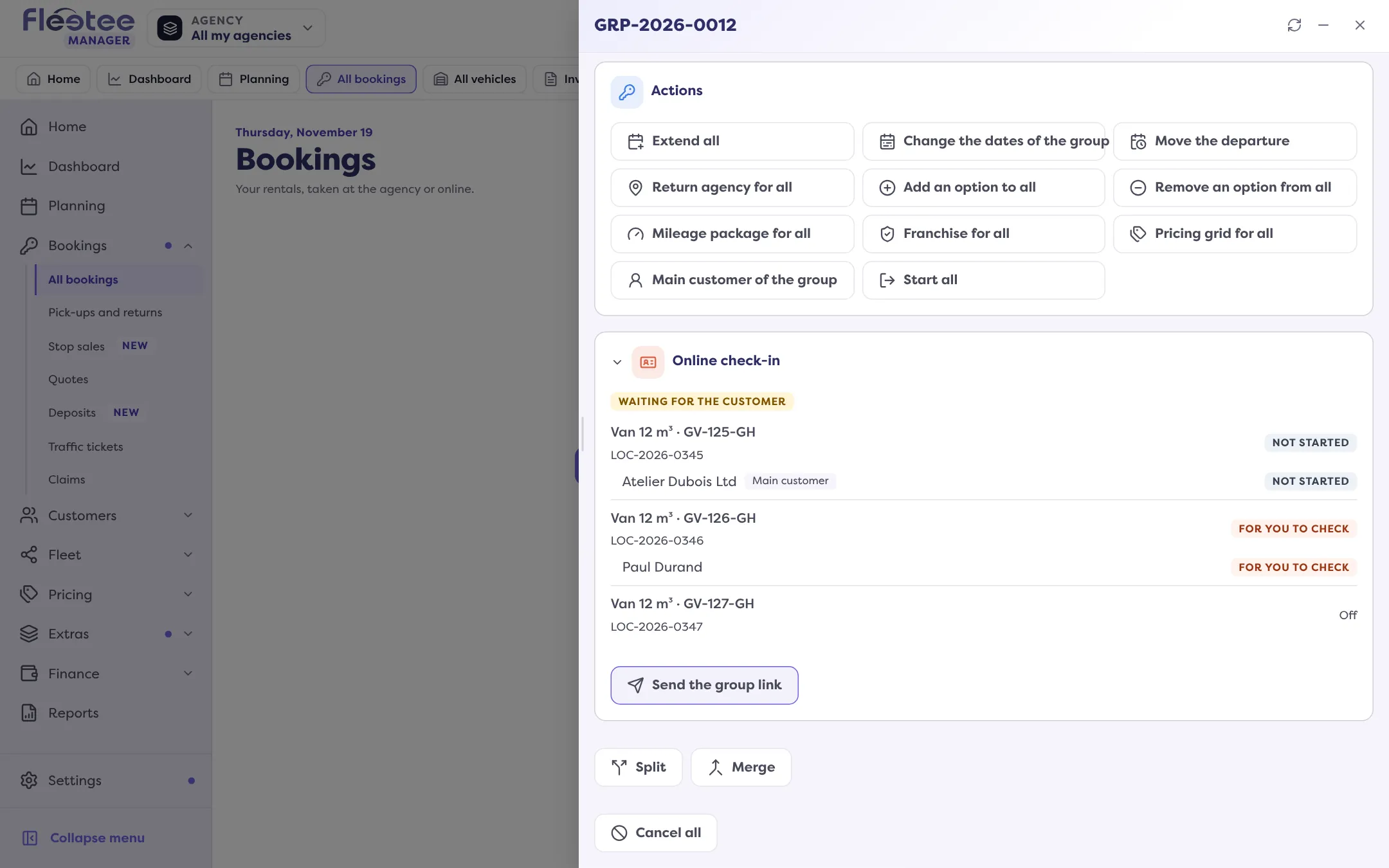
- “Send the group link”: one e-mail to the main customer, with the link of each rental.
- “Send the links to the drivers”: “Send N links” to the drivers who have an address. For one driver, “Send their link”; “Withdraw the link” cancels it.
Per-driver links are only offered once the driver page is online; otherwise the Manager answers “Links per driver are not available yet”. If no link leaves: “No e-mail address to send the link to”, or online check-in is off for the rental. The sending is noted in the Activity (Where do I see a group’s changes in the history?).
Where to find it: Group file › “Documents” section › “Send for signature”; “Online check-in” section › “Send the links to the drivers”
Where to find it: Group file › “Documents” section › “Send for signature”; “Online check-in” section › “Send the links to the drivers”