

How do I rent several vehicles in a single booking?
- Manager v3
- Administrator
- Agency manager
- Rental agent
- 1:08
In short. In “Create a rental”, click “Add a vehicle”: each vehicle has its own card (driver, price). “Create the N rentals” creates all or nothing, in a single group, with one confirmation sent to the customer. 30 vehicles at most.
A wedding, a team, a family: the same customer rents several vehicles on the same dates. Rather than creating three bookings one after another, you create them at once. Fleetee gathers them into a group.
Open “Create a rental”
Fill in the customer, the dates, the departure agency and the first vehicle as usual. See How do I create a booking?.
Click “Add a vehicle”
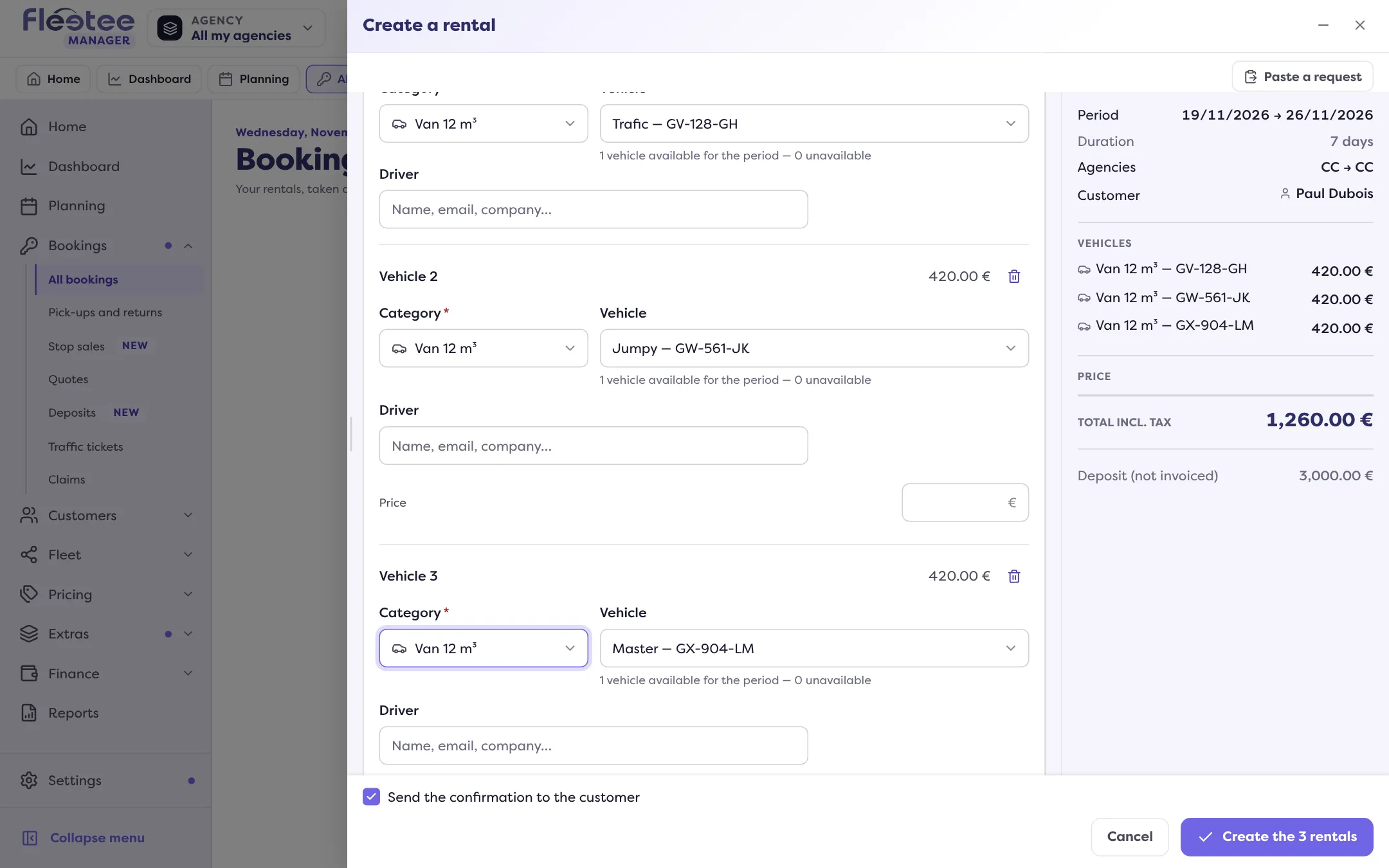
A second card appears, then a third… From two cards, each one is numbered (“Vehicle 1”, “Vehicle 2”…). Choose each card’s category and vehicle. A vehicle chosen in one card is not offered in another.
Complete each card
Each card shows its price and says whether its vehicle is still free; it can have its own driver (a customer of your company, with their licence). A price typed by hand is possible if your rights allow it. “Remove vehicle …” removes a card.
Check the summary
The total of all the bookings appears, with the deposit. If a card is refused (for example “This vehicle is no longer free on these dates.”), the message is on the card.
Click “Create the 3 rentals”
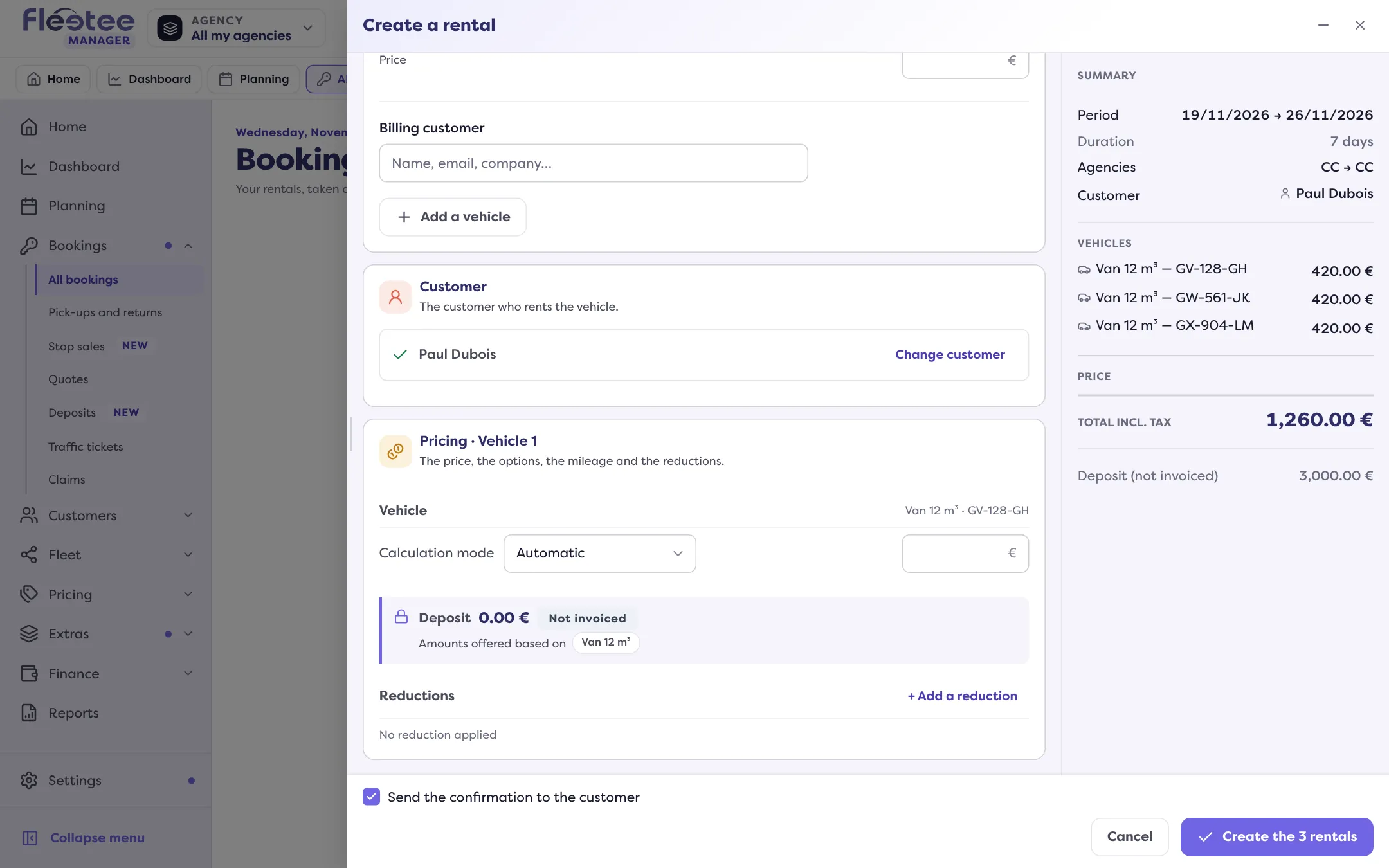
The button announces the number of bookings. Fleetee announces “Group … created · 3 rentals”.
All or nothing
The bookings are created together: if even one cannot be, none is created. Fix the flagged card, then try again.
One confirmation
The “Send the confirmation to the customer” box sends a single e-mail for the whole group. If the customer has no e-mail address, Fleetee says “Confirmation not sent: the customer has no e-mail address.”
The billing customer
In the creation, “Billing customer” (optional) designates who pays for the group. You can change it afterwards: see How do I change who pays for the group?.
Limits
- 30 vehicles at most per creation (“30 vehicles at most.”).
- A vehicle cannot be chosen twice (“This vehicle is already chosen.”).
- A driver must have a licence on file (“This driver has no licence on file.”).
- If overbooking is forbidden for your company, the creation is refused as soon as a vehicle is missing: see Why does Fleetee warn me about an overbooking?.
To follow the group afterwards, see What does a booking group file show?.
Where to find it: “Create a rental” › “Add a vehicle”
Where to find it: “Create a rental” › “Add a vehicle”
Go further
Updated on 18 November 2026 with version 3.0