

How do I generate the contract and get it signed?
- Manager v3
- Administrator
- Agency manager
- Rental agent
In short. Rental page › Docs › “View the contract”: check the preview, then “Validate the contract” (sign online or validate without a signature) or “Send for signature” by e-mail. The contract is also generated at departure.
The rental contract is prepared from the rental page. As long as it is not validated, you see a preview; once validated, it gets its final number and no longer changes.
You do not have to do anything: the contract is generated and validated automatically when the rental starts, or when the customer signs it.
Open the contract
On the rental page, open the Docs panel, Rental contract card, then “View the contract”. You can also use “More” › View › “View the contract”. The “Contract — LOC-…” window opens, with the Contract and Amendment tabs.
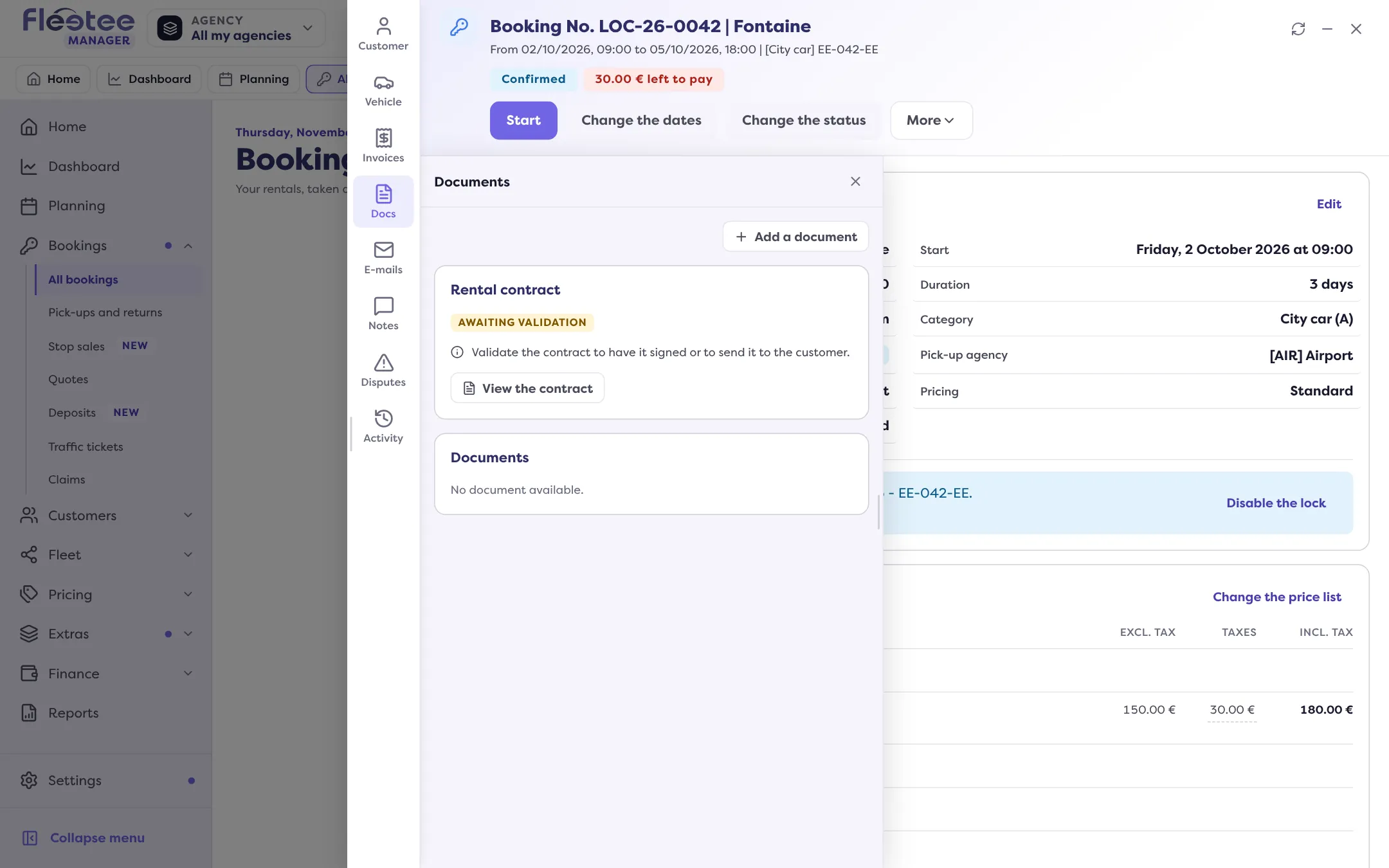
Check the preview and the template
The preview is titled “Preview of the rental contract awaiting validation”. The line “Template applied by your rules: …” tells you what will be signed. To pick another one, open “Template used”: “According to your rules” (default), a specific template or “Default document”. If the customer has already opened the signing page, changing the template asks for a confirmation.
Choose how to get it signed
- “Validate the contract”: the window offers “Sign online” (the signing page opens in a new tab: the customer signs on this device or on their own) or “Validate without signature”.
- “Send for signature”: the customer receives an e-mail with the link to the signing page.
- “Sign on site”: offered first when you open the contract right after creating the rental (“Prepare the contract right after” box).
Wait for the signature
While waiting, the window says “Waiting for the customer’s signature” and offers “Reopen the signing page”, “Copy the link”, a QR code to scan with the customer’s tablet or phone, “Check now” and “Stop waiting”. As soon as the customer has signed, the contract is validated and the window closes.
Send or print the validated contract
Once validated, the window offers “Send to the customer” (with the choice of Pages to include: All pages, Contract, Amendment, Inspection, Terms and conditions) and “Download or print”.
“Validate without signature” is final: the contract gets its number, it is digitally signed by Fleetee and dated now. Any later change to the rental will go through an amendment.
What the customer sees
They open the signing page from the e-mail, the link or the QR code, read the contract, click “Sign the document”, sign in the box, then confirm. The page shows “Document signed” and offers to download the signed document. They receive the signed contract by e-mail.
Changing the rental after validation: the amendment
Once the contract is validated, your changes are not added to it. A banner says so: “Some changes are not included in the rental contract yet.” Click “Review”: the Amendment tab lists the changes and shows the amendment preview. Then:
- “Validate the changes and generate the amendment” (sign online or validate without a signature);
- “Send the amendment for signature”.
The amendment can only be validated with a validated main contract. You do not choose its template: it reproduces the contract’s, and changing or deleting a template later does not alter a contract or an amendment already issued. The amendment carries the contract’s reference followed by a number.
An old contract
A contract generated with an older version of Fleetee stays viewable. The “Update the contract” button generates a new one, with a new number and today’s date; the original stays in the rental’s documents.
Where to find it: Rental page › Docs panel › Contract card › “View the contract” › “Validate the contract” or “Send for signature”
Where to find it: Rental page › Docs panel › Contract card › “View the contract” › “Validate the contract” or “Send for signature”
Go further
Updated on 18 November 2026 with version 3.0