

How do I set up my prices in five steps?
- Manager v3
- Administrator
- Agency manager
In short. In Pricing › Prices, click “Set up my prices” (or “Redo my prices”). The “Your prices” assistant asks for the price of a day, then durations and seasons, and shows you everything before saving.
The “Your prices” assistant asks a few simple questions and builds your prices for you. Nothing is saved before the last step, and you see every change before confirming.
Open the assistant
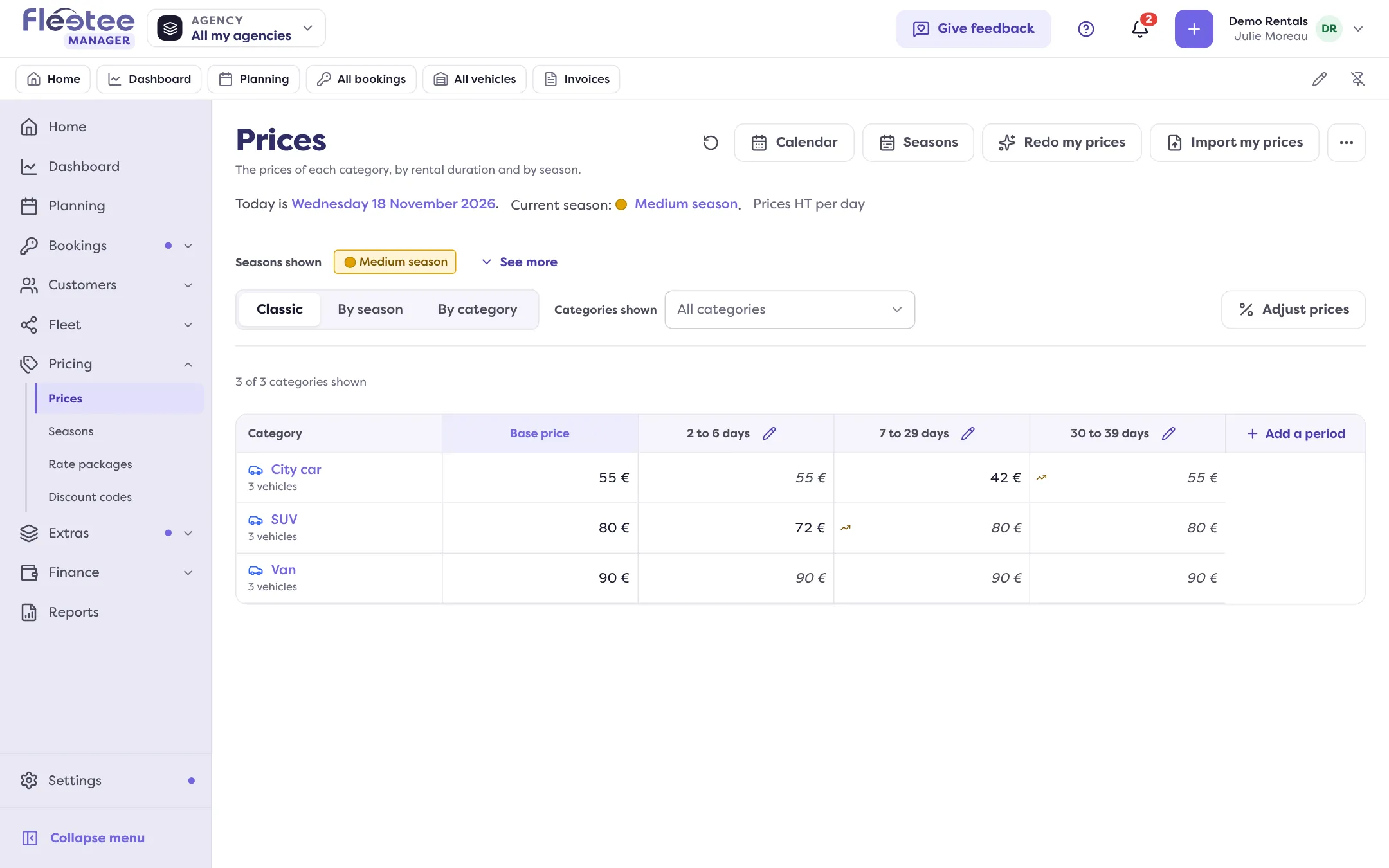
In Pricing › Prices, click “Set up my prices”. If prices already exist, the button reads “Redo my prices”: the assistant then starts from your current prices. You can also start it from the “Set your prices” step on Home.
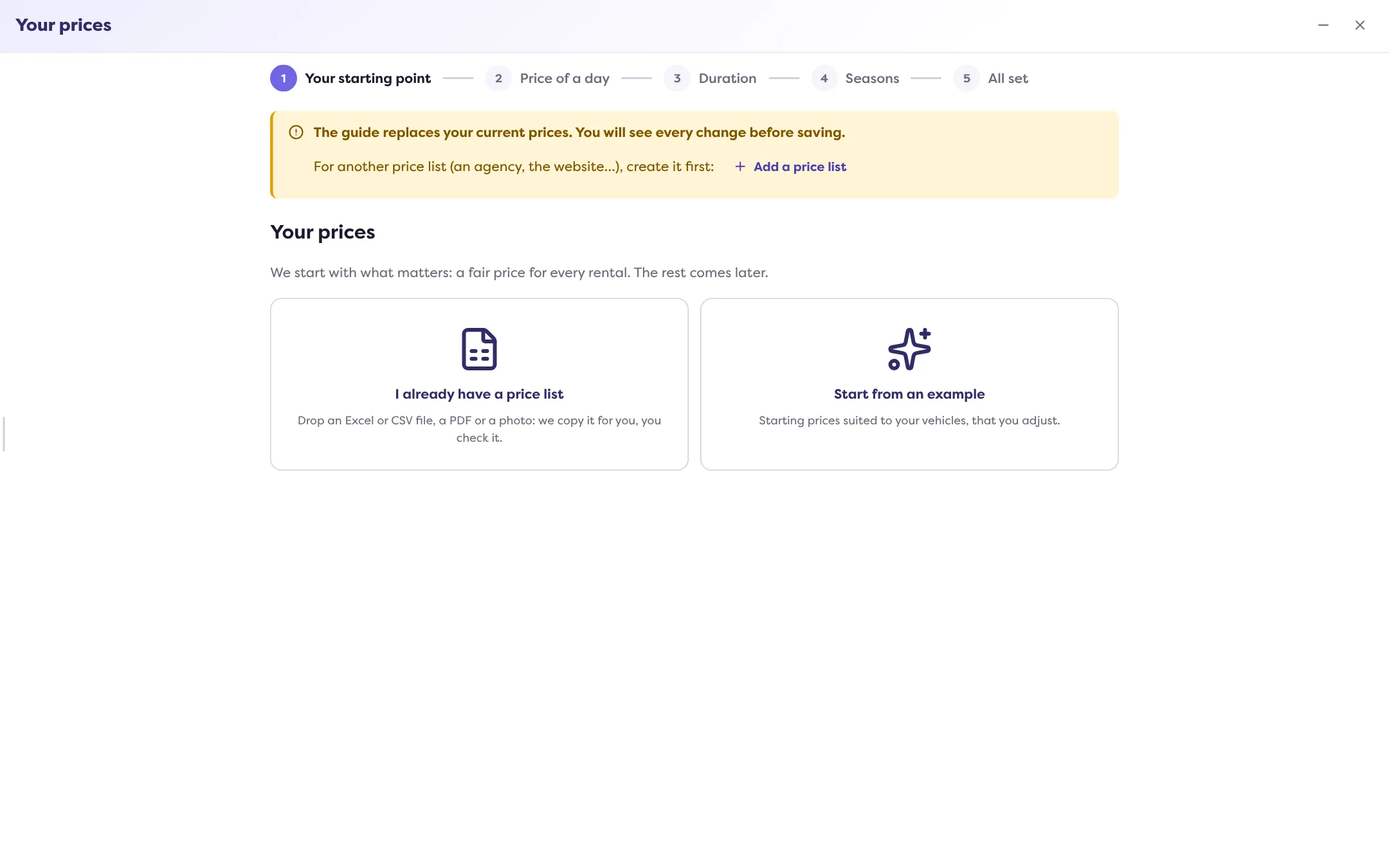
Step 1: choose your starting point
“Start from an example” creates your categories with starting prices suited to your vehicles, which you adjust. “I already have a price list” lets you drop your own list (see below).
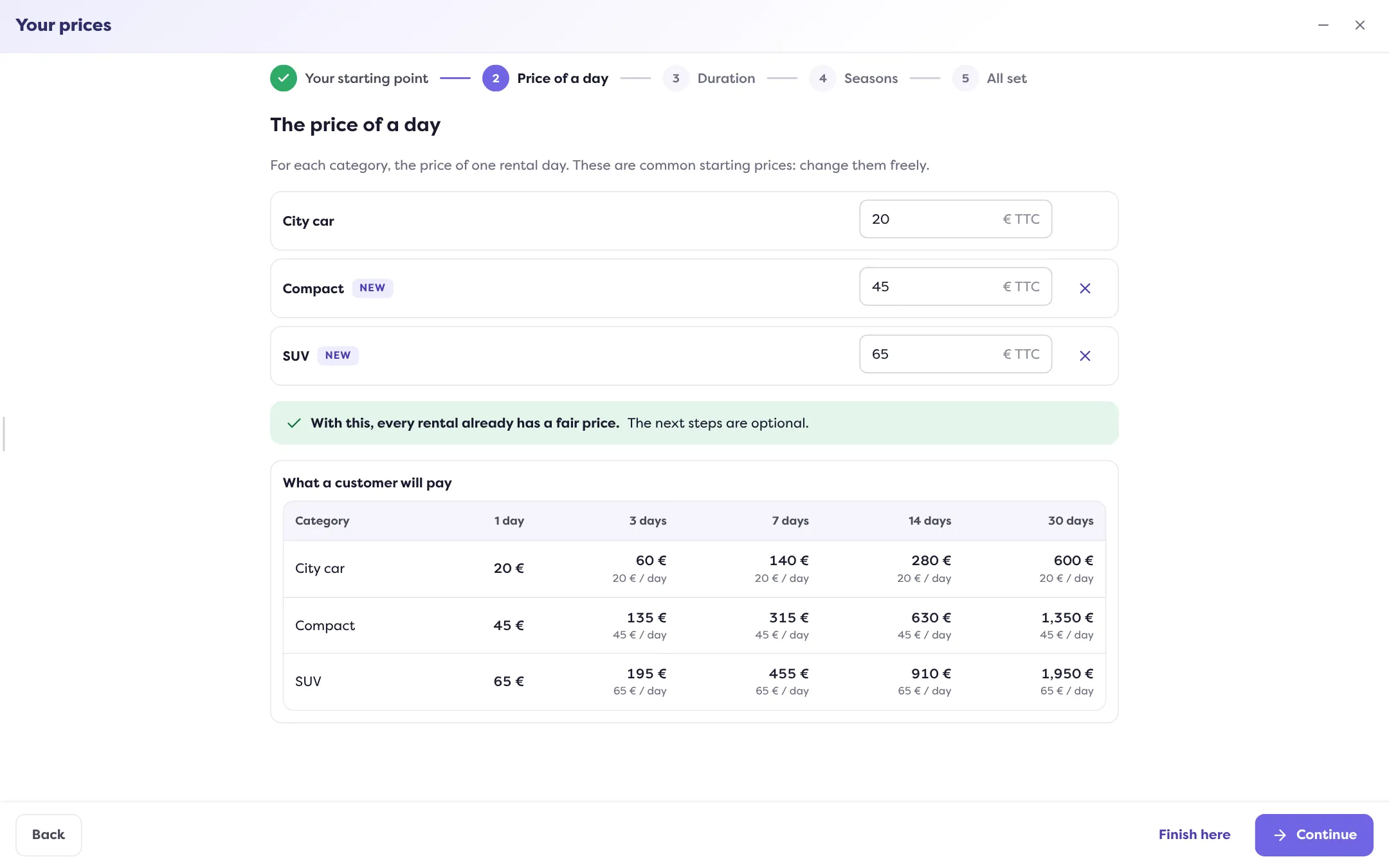
Step 2: enter the price of a day
For each category, type the price of one rental day. These are common starting prices: change them freely. A category you do not have is removed with “I have no…”, and “Put back…” brings it back. Keep at least one category.
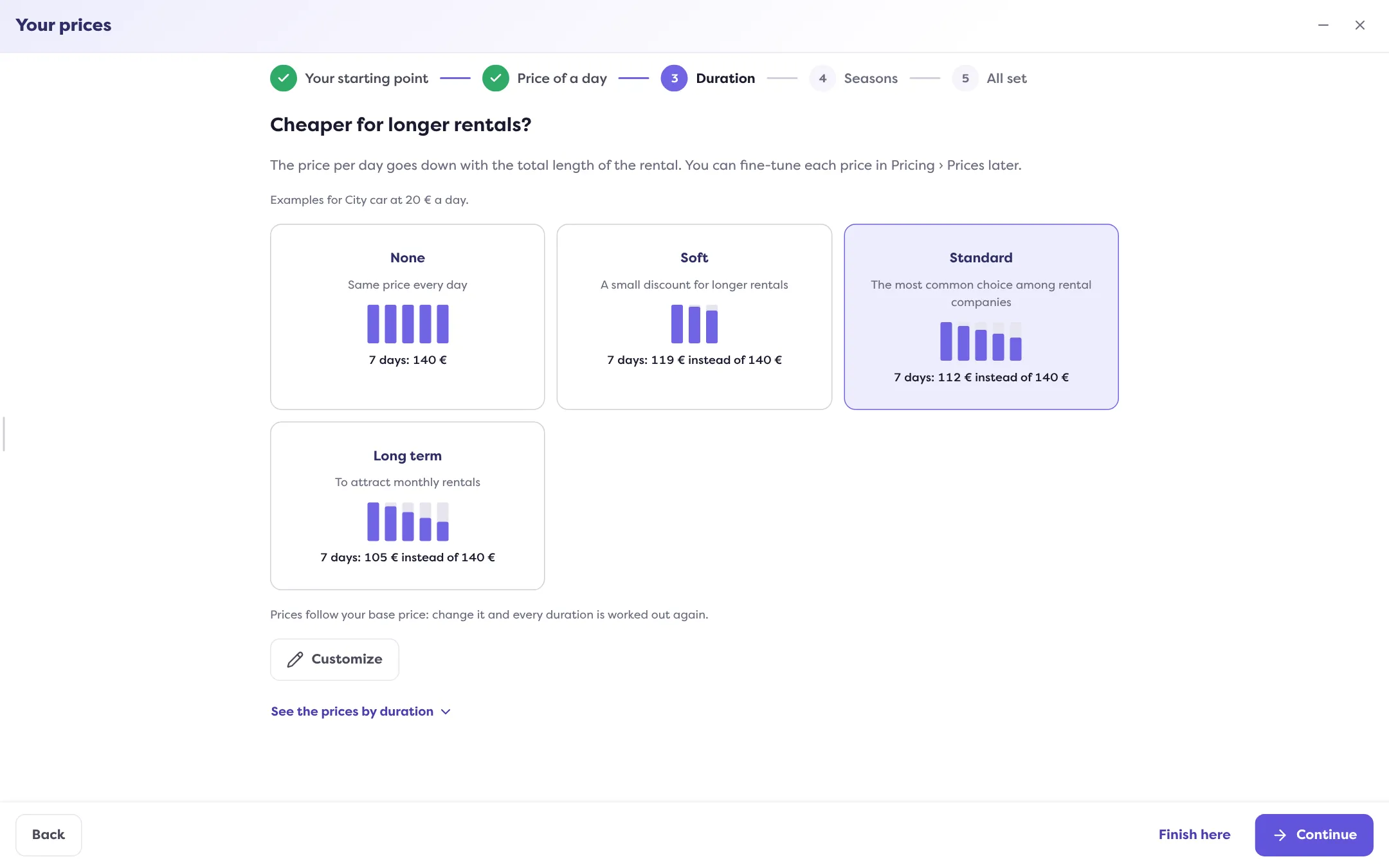
Step 3: choose the duration
“Cheaper for longer rentals?” Pick a scale: the same price every day, a small discount for longer rentals, “The most common choice among rental companies”, or a scale to attract monthly rentals. “Customize” sets your own durations and reductions. This step only appears when several scales are offered.
Step 4: answer for the seasons, then save
“Do your prices change with the time of year?” Answer “No, the same price all year” or “Yes, higher in high season”. Fleetee suggests the seasons of your territory, which you can adjust afterwards in Pricing › Seasons. On this last question, the button becomes “Save my prices”: Fleetee shows you what changes before writing anything.
Step 5: “All set”
Fleetee shows “Your prices are in place”. You can change each price in Pricing › Prices.
Good to know
- The number of steps varies. The “Duration” step only appears when several scales are offered, and “Seasons” is not shown for a monthly price list. For an hourly or monthly list, the second step is called “Price of an hour” or “Price of a month”.
- Finish earlier. “Finish here” saves the choices made up to the step shown. “Back” returns to the previous step.
- Several price lists. The assistant writes into one price list and says which at the top (“Price list: …”). For another price list (an agency, the website…), create it first from the assistant with “Add a price list”.
I already have a price list
Choose “I already have a price list” on the first step, then drop your list as it is: an Excel or CSV file, a PDF or a photo (20 MB at most). If reading a PDF or a photo is not available, Fleetee says so: an Excel or CSV file works. Fleetee copies your categories and prices, then the “Check” step shows what was read, what will change and the lines not taken. Correct what needs to be, then save.
For the reading to work, your table needs a header row with the durations (1 day, 2-3 days, 7 days…) and a column with your categories. Fleetee does not convert currencies: the list must be in your company’s currency.
What next?
Once your prices are in place, the assistant suggests going further: options, mileage, excess and deposits, packages, promo codes, price lists and seasons.
Where to find it: Pricing › Prices › “Set up my prices” (or “Redo my prices” when prices already exist)
Go further
- Which steps should I follow to get started with Fleetee?
- How do I add a vehicle from its number plate?
- How do I import my vehicles, customers and bookings in one go?
- How do I enter my category prices per hour, day or month?
- How do I create extras (child seat, additional driver…)?
- Academy lesson · Chapter 2
Updated on 18 November 2026 with version 3.0