

How do I enter my category prices per hour, day or month?
- Manager v3
- Administrator
- Agency manager
In short. The unit (hour, day, month) is the one of the price list. In Pricing › Prices, enter each category’s base price, then prices per duration and per season if needed, and click “Save”: a summary shows every change.
The prices of each category are set by rental duration and by season. The unit of the prices (per hour, per day or per month) is not set on the Prices page: it is the pricing frequency of the price list you are looking at.
Choose the unit: the price list
A price list gathers your prices, packages, options, deductibles and mileage stages. To price per hour, day or month, create a price list with the frequency you want:
Open Pricing › Prices
The page’s “…” menu (“More actions”) offers “Add a price list”. With several price lists, it also offers “Manage price lists”.
Fill in the price list
Name, public name, description, “Pricing frequency” (per hour, per day or per month) and “Pricing” (excl. tax or incl. tax).
Save
The price list appears in the Price list selector at the top of the Prices page.
Changing the frequency of a price list already filled in changes the unit of its prices, packages, mileage stages and return fees, without converting them. Check them afterwards. The same goes for excl. tax and incl. tax.
Enter the prices
Open Pricing › Prices and choose the price list
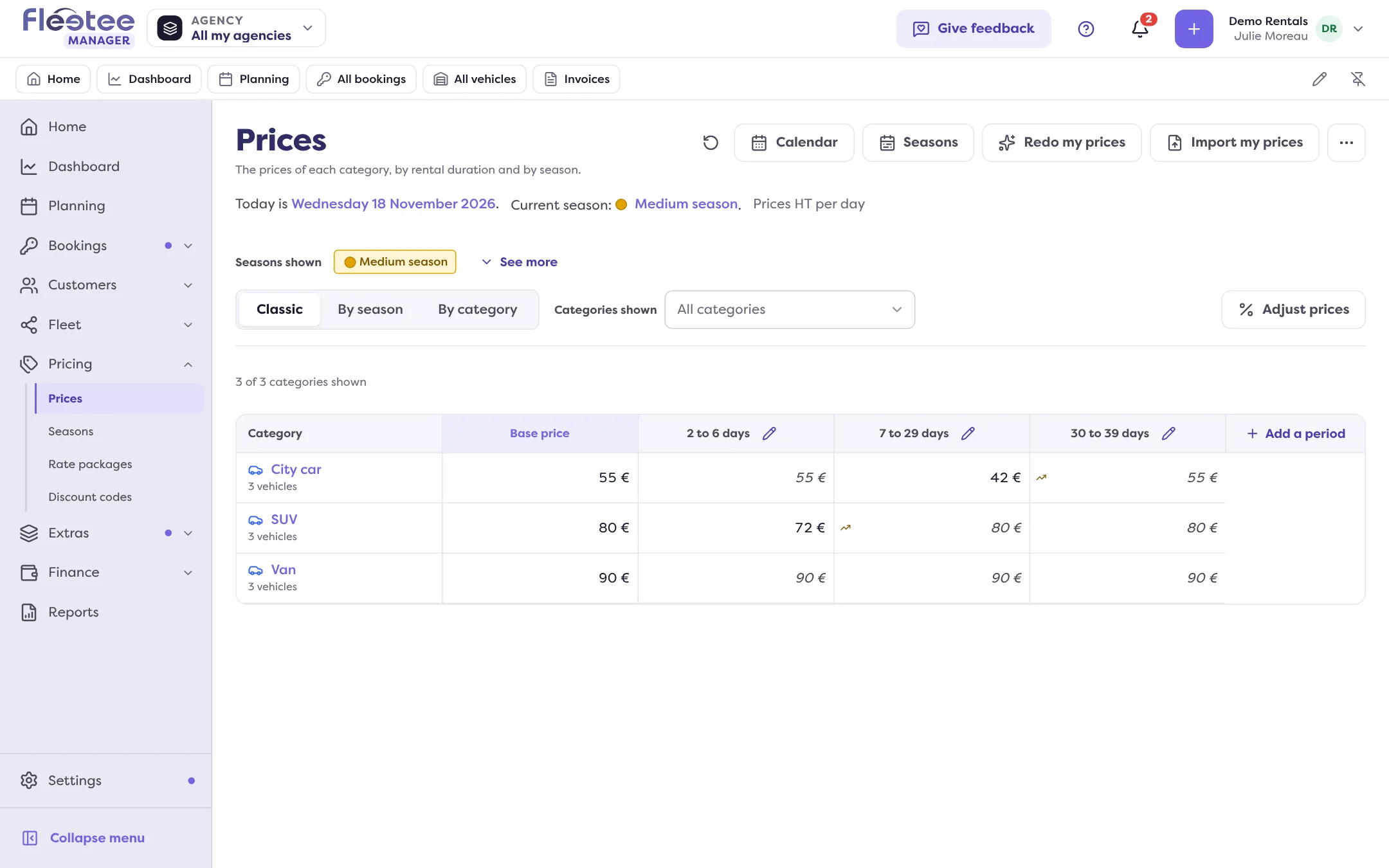
The page states the unit: “Prices per day”, “Prices per hour” or “Prices per month”, and the current season. If you have no prices yet, “Set up my prices” guides you, and “Import my prices” takes a file.
Enter the base price
The “Base price” column gives each category’s price. Click a cell, type the amount. An empty cell is “to set”: as long as it is, the vehicle’s minimum price applies.
Add prices per duration
“Add a period” creates a column: minimum and maximum rental duration (or “No maximum duration”), for example “3 to 6 days”. Two periods cannot overlap. A period cell left empty takes the base price: it is greyed, “inherited”.
Add prices per season
The columns split by Low season, Medium season and High season. Choose the seasons shown; “Calendar” and “Seasons” set the dates. With monthly pricing, there are no seasons: only the low season is priced.
Check, then click “Save”
A bar at the bottom counts the changes (“4 changes”). “Save” opens a summary, price by price, “becomes …”. Confirm: “4 prices saved”. “Discard all” cancels everything. A negative or too high price is refused: fix it first.
The three views
The mode selector offers Classic (the full table), By season (one season at a time) and By category (one card per category, the only view on a phone). A “Hide categories without …” button hides the categories that have no vehicle.
Go faster
- “Adjust prices” changes several prices at once: Increase or decrease (by a percentage or an amount, with a rounding), Set a price, or Copy from a category or a season. A preview shows the effect before applying; nothing is saved before “Save”.
- On a period’s column, “Reduction of the base price” calculates the prices left empty: a reduction of 0 to 90% on the base price, with a rounding. These prices are marked “calculated” and follow the base price. Choose “Manual prices” to enter them one by one.
- “Undo the last change” and “Redo the undone change” undo and redo your entries.
Where to find it: Pricing › Prices
Where to find it: Pricing › Prices
Go further
Updated on 18 November 2026 with version 3.0