

How do I create my seasons and their prices?
- Manager v3
- Administrator
- Agency manager
In short. In Pricing › Seasons, click the start then the end of a period on the calendar and choose a season (low, medium, high or custom). “Manage seasons” creates your custom seasons, whose prices are entered in Pricing › Prices.
A season makes your prices vary with the period: low, medium and high seasons exist from the start, and you can create your own (holidays, an event…). A rental’s price depends on the season applied to its dates.
Open Pricing › Seasons and choose the price list
The Price list selector sets the price list whose calendar you edit. Seasons do not exist for a price list priced per month: the page says “Unavailable for monthly pricing”.
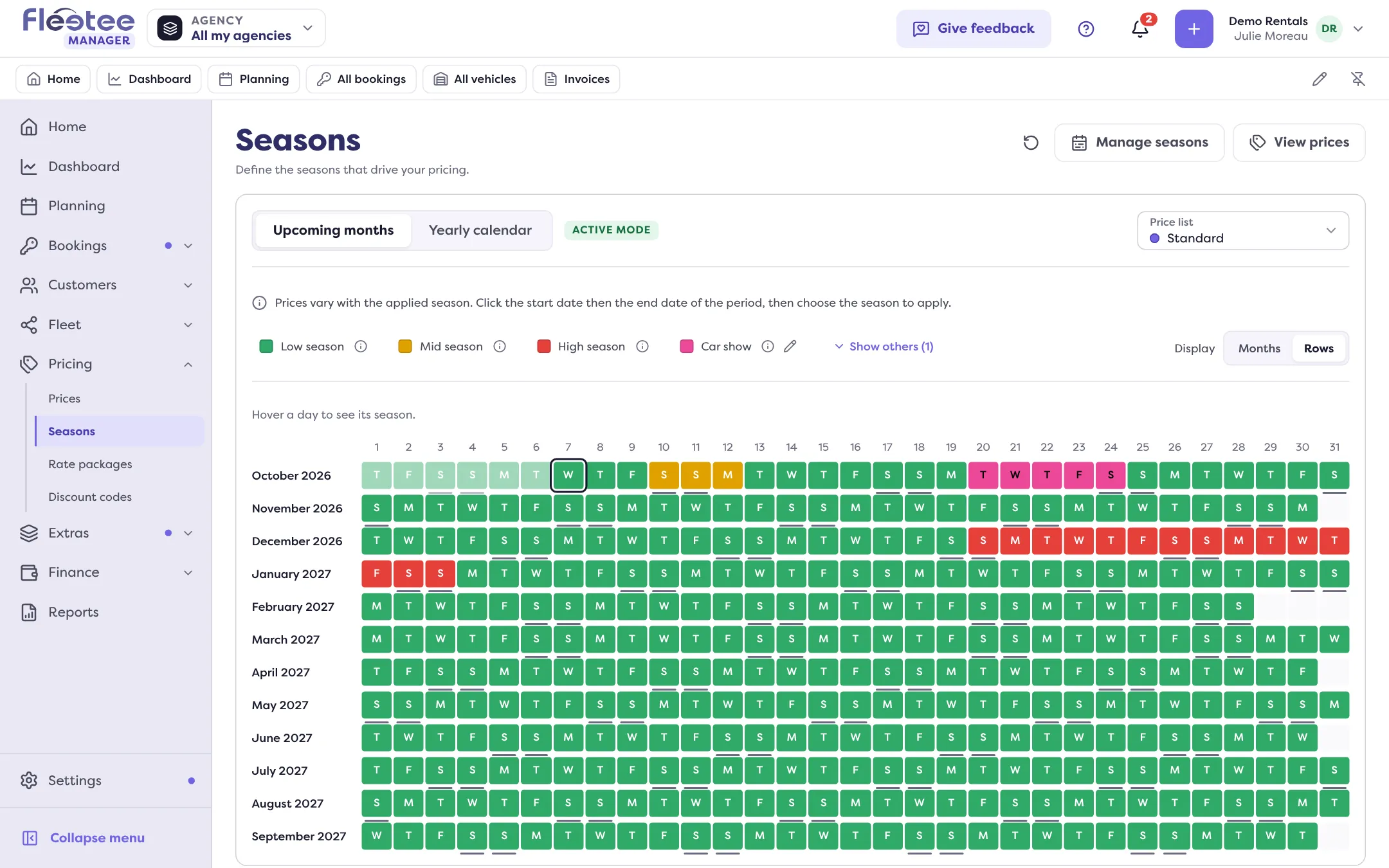
Choose the calendar
“Upcoming months” is a dated calendar (periods with real dates). “Yearly calendar” is a typical year, renewed every year (periods by day and month). Only one is active (“Active mode” badge): it is the one used to calculate prices. To change, click “Set as active” and confirm: new bookings will follow this calendar.
Mark a period
Click the start date, then the end date (Esc cancels). The “Season management” panel opens.
Choose the season and save
In “Choose a season”, pick a standard season or one of your Custom seasons, then “Save”: “Season applied.” The legend recalls the colours.
The Months display lets you change periods; the Lines display (one month per line) is for reading the calendar.
Create a custom season
Click “Manage seasons”
The “Seasons of the price list …” panel lists the Standard seasons and your Custom seasons. You can also click “Add a custom season” while marking a period.
Click “Add a season”
Give a Name, a Description and a Color that marks the season in the prices, the calendar and the discount codes. Custom seasons have their own prices, in addition to the standard seasons.
Click “Add the season”
Message: “You can now set the prices.”
Enter its prices
In Pricing › Prices, show the season (“Seasons shown”) and fill in the cells: read Enter my prices. “View prices” on the calendar leads there too.
Delete a season
In a season’s panel, “Delete season”. Fleetee checks where it is used. If it is (calendar periods, renewed seasons, discount codes, packages), it details what changes: the periods move to the replacement season (low season by default), discount codes are detached from the season, the season’s prices are deleted, and this season’s prices are lost for the packages.
Where to find it: Pricing › Seasons
Where to find it: Pricing › Seasons