

How do I approve or reject a document sent by the customer?
- Manager v3
- Administrator
- Agency manager
- Rental agent
In short. On the rental page, Customer panel, “Online check-in” card: “Check the licence” or “Check” a document, then “Accept” or “Refuse”. A refusal sends the customer an e-mail, and they must send the paper again.
When your “Document check” setting is on Manual, each paper the customer sends waits for your approval. On Automatic, papers are validated without you: this guide is about manual mode (see How do I set up online check-in for my customers?).
Spot what is waiting
In the Customer panel of the booking, the “Online check-in” card turns to For you to check. In the table, the licence or document shows “Received, to check”. A dot on the panel stays lit while an action is waiting for you. The “Documents to request” summary, under the card, lists what is still missing for the booking (Missing or Incomplete).
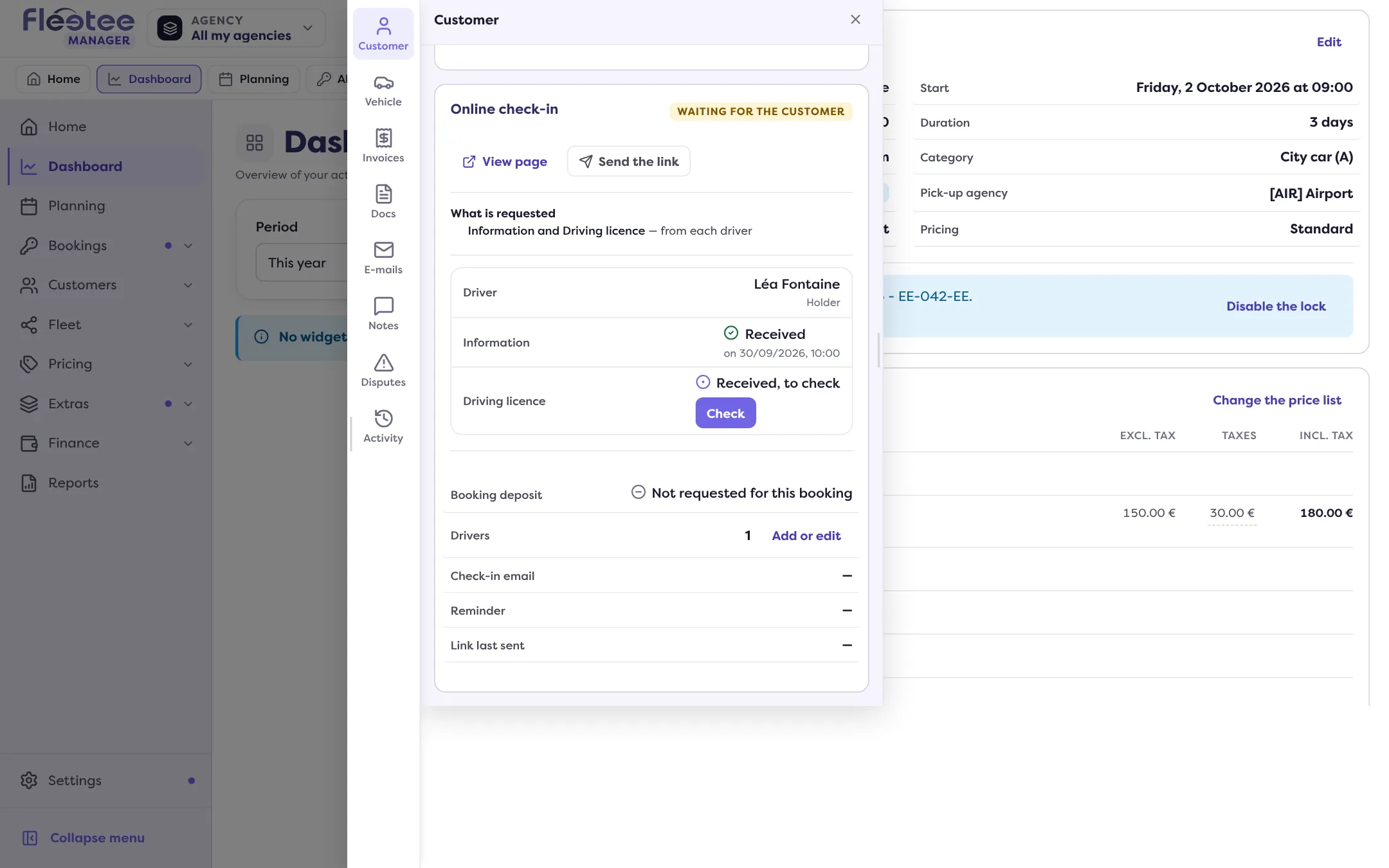
Check a licence
Click “Check the licence”
A “Licence of …” window shows the number, the date, the country and the front and back photos.
Compare with the customer
If the customer already has a checked licence on their file, Fleetee says so: “Same files as the ones sent, already verified on the customer’s file”, or shows the other licence on file.
Click “Accept” or “Refuse”
Accept: “Driving licence accepted. A confirmation e-mail has been sent to the customer.” Refuse: Fleetee warns that an e-mail will be sent and that the customer will have to upload a new licence; confirm.
Check another document
Click “Check” (or “View” if already handled)
The document opens with its status (Pending, Accepted, Refused), the information the customer entered and its files. For a driver, the title carries their name.
Click “Accept” or “Refuse”
“Document accepted.” confirms the acceptance. “Refuse” asks for confirmation: “The customer will receive an e-mail with the online check-in link and will have to upload this document again. The current document stays on the customer’s file, marked as refused.”
What happens next
- After a refusal, the booking’s status goes back to Waiting for the customer. The customer sends the paper again; the “Verified on …” mention of the old paper disappears, and the new one goes back to “Received, to check”.
- When all the papers are accepted, and the other steps are done, the status becomes Ready. While a paper waits, it stays For you to check.
- A paper already checked on a previous booking is not asked for again; it shows “On file, checked on …”.
- Each acceptance or refusal is recorded in the customer’s Activity (“Document accepted”, “Document refused”, “Driving licence accepted / refused”).
You can also “Validate manually” a whole step (information, licence, documents, deposit) when you checked it yourself, for example at the agency. Fleetee asks for confirmation and notes “validated manually”.
Where to find it: Rental page › Customer panel › “Online check-in” card
Where to find it: Rental page › Customer panel › “Online check-in” card
Go further
Updated on 18 November 2026 with version 3.0