

What is an issue report and how do I handle it?
- Manager v3
- Administrator
- Agency manager
- Rental agent
In short. An issue report is a problem raised on a vehicle. In Fleet › Maintenance › Issue reports, add it, then create the work order that fixes it (it closes the report) or close it. Statuses: Active, Waiting for a work order, Completed.
An issue report is a problem found on a vehicle (a warning light, a knock, a tyre): it keeps a trace of what was seen, with a photo, until somebody deals with it. It can ask for a work order, that is, work to plan.
The statuses
- Active: the report is open.
- Waiting for a work order: it asks for a work order that does not exist yet.
- Completed: it is closed.
Add an issue report
Click “Add an issue”
In Fleet › Maintenance › Issue reports, or from the action bar of the vehicle’s file.
Choose the vehicle
Search by registration or name (2 characters at least). A report’s vehicle cannot be changed afterwards.
Describe the problem
“Comment”. It is required if no work order is requested, optional otherwise.
Say whether a work order is needed
Tick “Needs a work order” and choose the work order type: the report then waits for that work order.
Add a photo (optional)
One photo only. Remove the current one to pick another.
Click “Create the issue”
The message gives its reference: “Issue … created”.
Handle a report
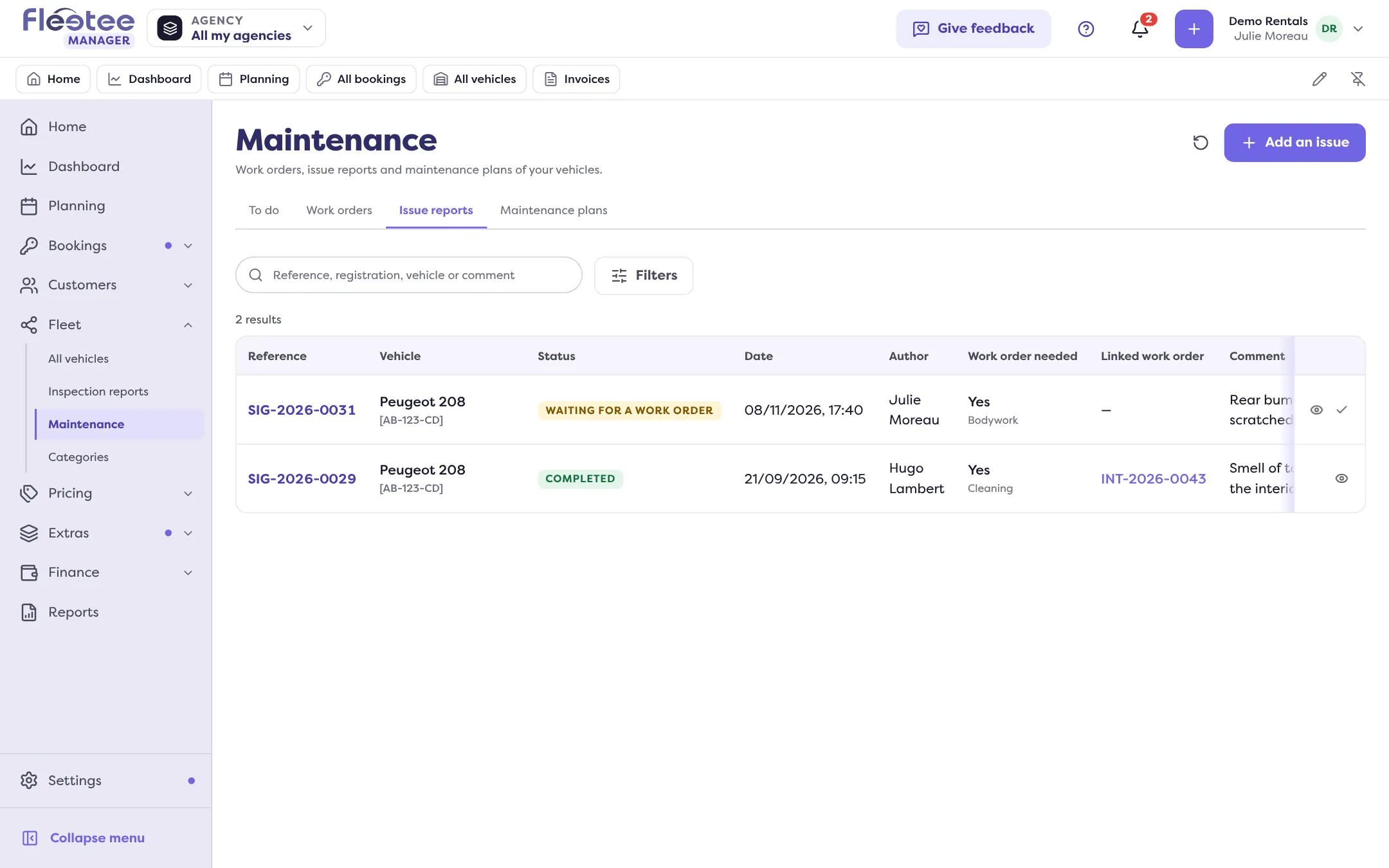
Open it from the list. The Issue reports page gives two figures (Active issues and Waiting for a work order), can be searched by reference, registration, vehicle or comment, and filtered by status, registration, date, work order needed, vehicle type and agency. Each line shows the reference, vehicle, status, date, author, comment and linked work order.
- “Create the work order”: prepares a work order linked to the report. Once created, it closes the report. See Log a repair or service on a vehicle.
- “View the work order” opens the work order already linked.
- “Close” sets the report to Completed: it no longer counts among the active issues, and you can reopen it.
- “Reopen” makes it active again; if it asks for a work order that does not exist, it goes back to Waiting for a work order. If it was closed by its work order, delete the work order first to reopen it.
- “Edit” changes the comment, the work order need or the photo.
- “Delete” removes it from the list, for good; the linked work order is not deleted.
The Servicing panel of the vehicle’s file shows its reports; see Follow all my fleet’s maintenance in one place.
Where to find it: Fleet › Maintenance › Issue reports
Where to find it: Fleet › Maintenance › Issue reports
Go further
Updated on 18 November 2026 with version 3.0