

How do I add my own fields to vehicles, bookings and customers?
- Manager v3
- Administrator
In short. Settings › Properties: add a field (text, number, list, date, photos…) on vehicles, inspections, bookings, quotes, interventions or customers. An administrator creates them; they show on files, as columns and as filters.
Your business has its own information: number of beds, frame size, badge number, equipment… A custom property is a field you add, shown and filled in on the relevant file.
Only the company administrator manages properties.
Open Settings › Properties
The page is called “Property management”. The “By location” menu sorts them: Vehicles, Inspections, Rentals, Quotes, Repairs, Customers. Each property belongs to one location. Fleetee’s default properties (Default badge) already exist for each vehicle type; filter by Origin (Custom, Default) or Hidden.
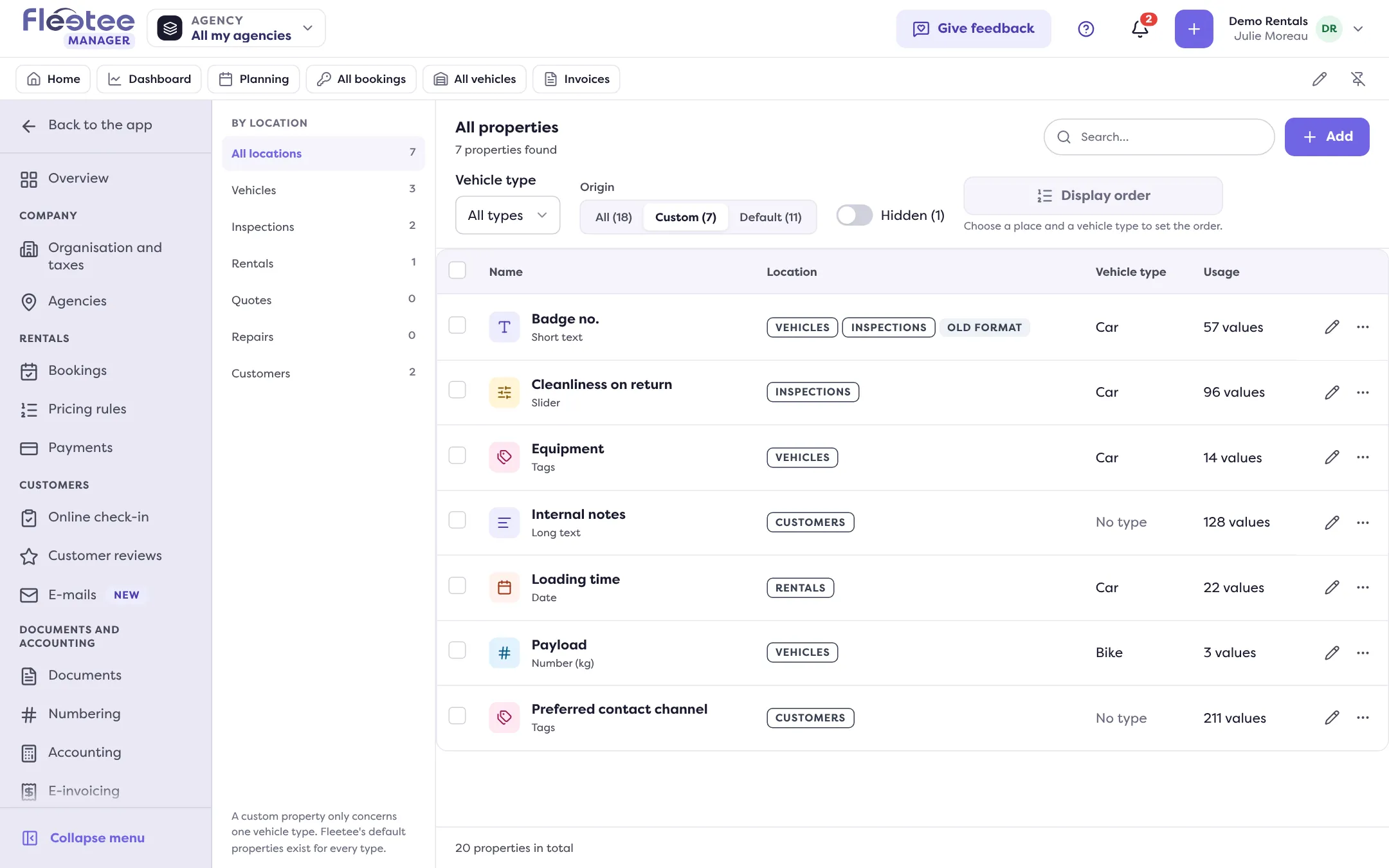
Click “Add”
The “New property” panel opens.
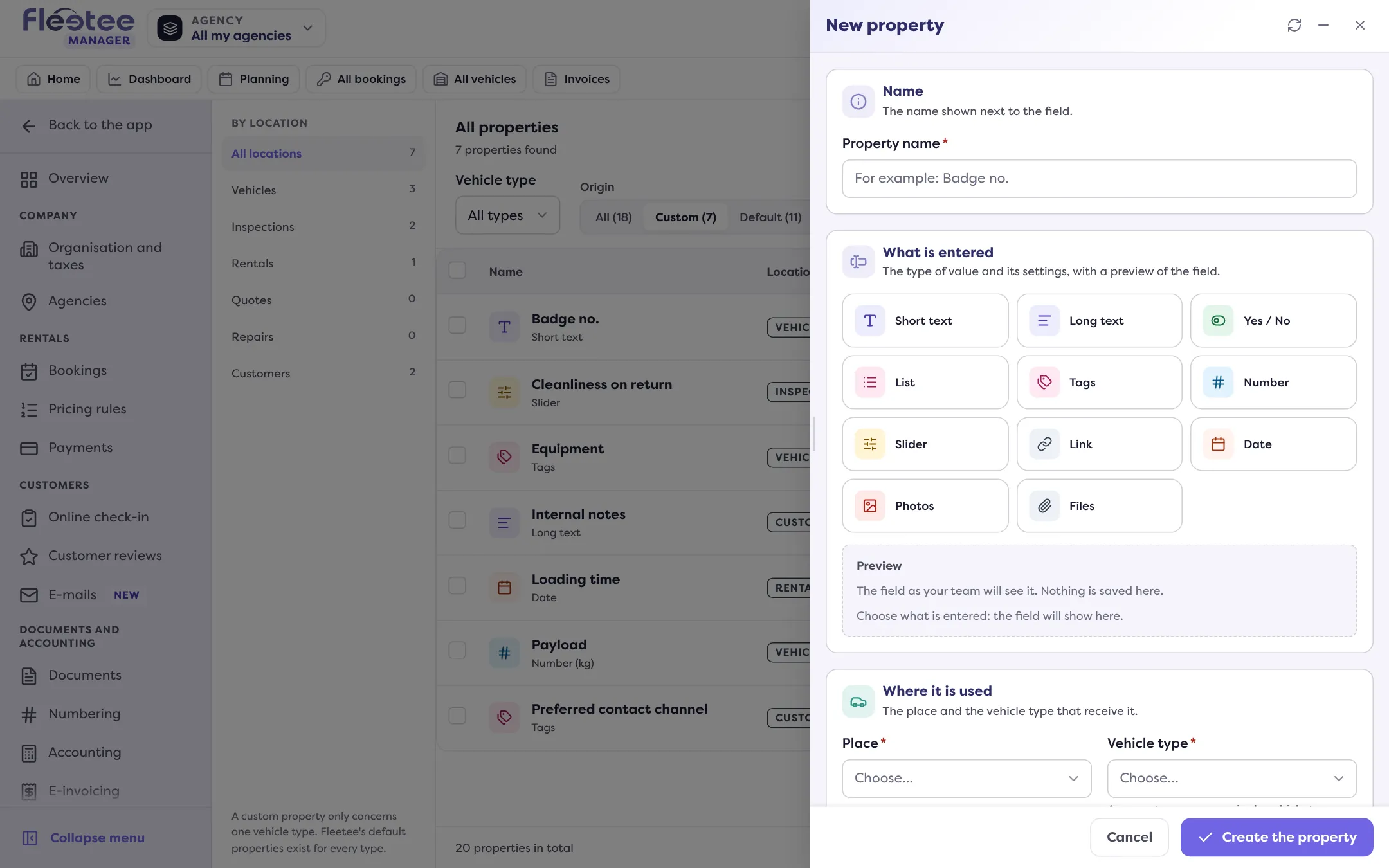
Name the property
For example “Badge no.”. The name shows next to the field.
Choose what is entered
The type of value: Short text, Long text, Yes / No, List (one choice among your options), Tags (several choices), Number (with a unit if you wish), Slider (between a minimum and a maximum), Link, Date (with the time if you wish), Photos or Files (5 MB at most each). Inspections accept neither links nor files.
Choose where to use it
The place, then, outside customers, the vehicle type: a property concerns a single type. To offer it to other types, use “Duplicate to other types…” (an independent copy per type, without the values).
Add options (optional)
“Description (optional)” (a sentence to help the entry) and “Column in the lists”: the name becomes the header of a column in the lists concerned (you can remove it later).
Click “Create the property”
It is created and offered on the files of that place.
Good to know
- A property already filled in can no longer change place, vehicle type or type of value. For another use, create a new one.
- Hiding a property removes it from input without erasing its values (it stays offered where a value exists); “Show” puts it back. “Delete…” is final: the values entered are erased, document templates that quote it show an empty field, and its key disappears from the public API. Fleetee asks you to type its name to confirm and offers “Hide instead”.
- The display order of a place’s properties is set from the page.
- Customers have their properties, filled in on their file (see What is in a customer file?) and at online check-in.
- Importing vehicles can create a property for a column that has none (see How do I import my vehicles from a file?).
- Inspection properties are recorded at each inspection (see How do I set up Fleetee Check from Manager?).
Where to find it: Settings › Properties
Where to find it: Settings › Properties
Go further
Updated on 18 November 2026 with version 3.0