

How do I follow all my fleet’s maintenance in one place?
- Manager v3
- Administrator
- Agency manager
- Rental agent
In short. Fleet › Maintenance brings together four tabs: To do (maintenance due dates), Work orders, Issue reports and Maintenance plans. “Schedule” creates a due date’s work order, “Mark as done” records the last visit.
The Maintenance page gathers the work orders, issue reports and maintenance plans of all your vehicles. It replaces the former “Interventions” and “Reports” screens.
The four tabs
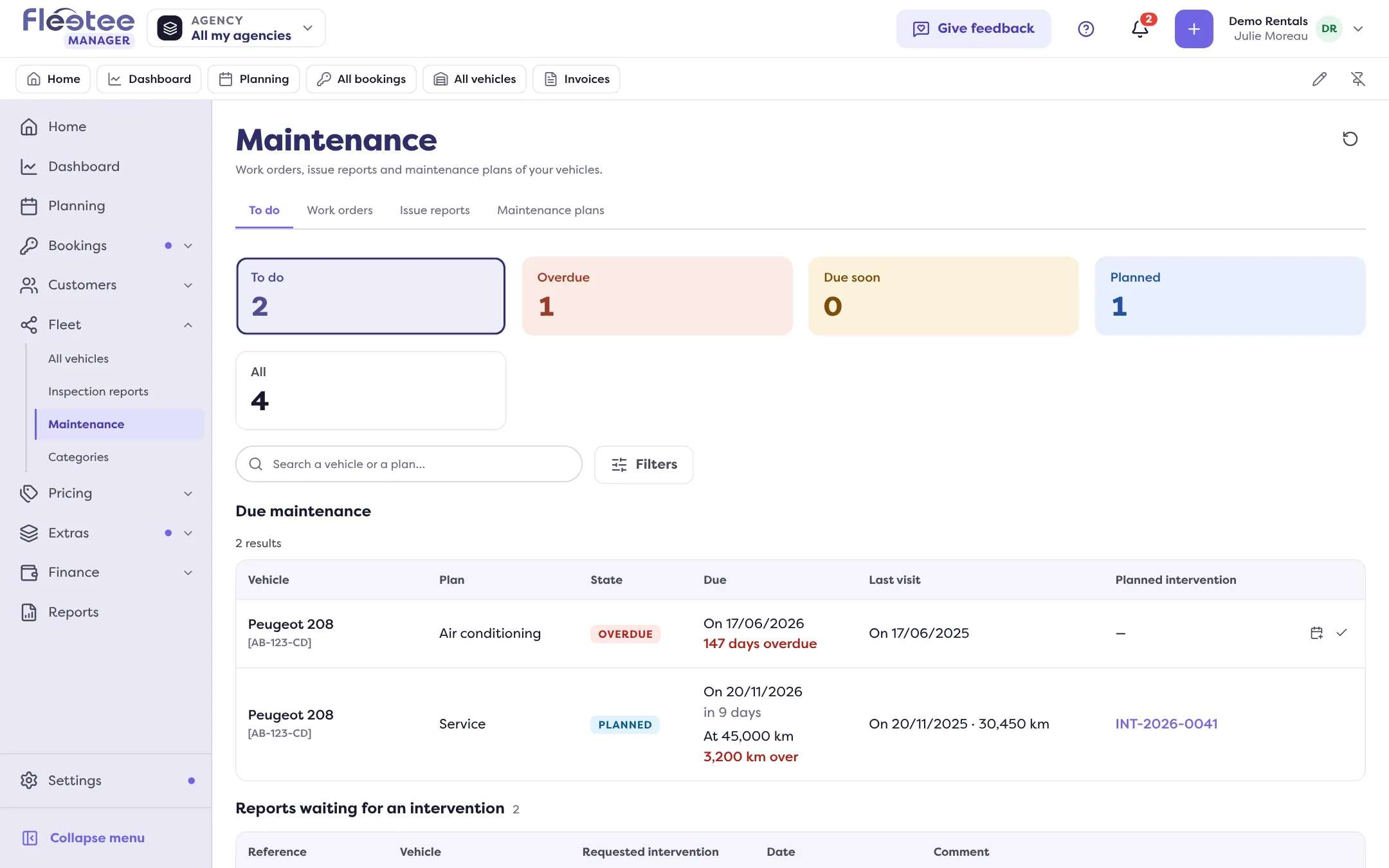
- To do: what needs planning today. The due dates of your maintenance plans appear there with the vehicle, the plan, the state, the due date (a date or a mileage, with the delay or the time left), the last visit and the planned intervention if there is one. The chips To do, Overdue, Due soon, Planned and All filter by state. Below, the reports waiting for an intervention.
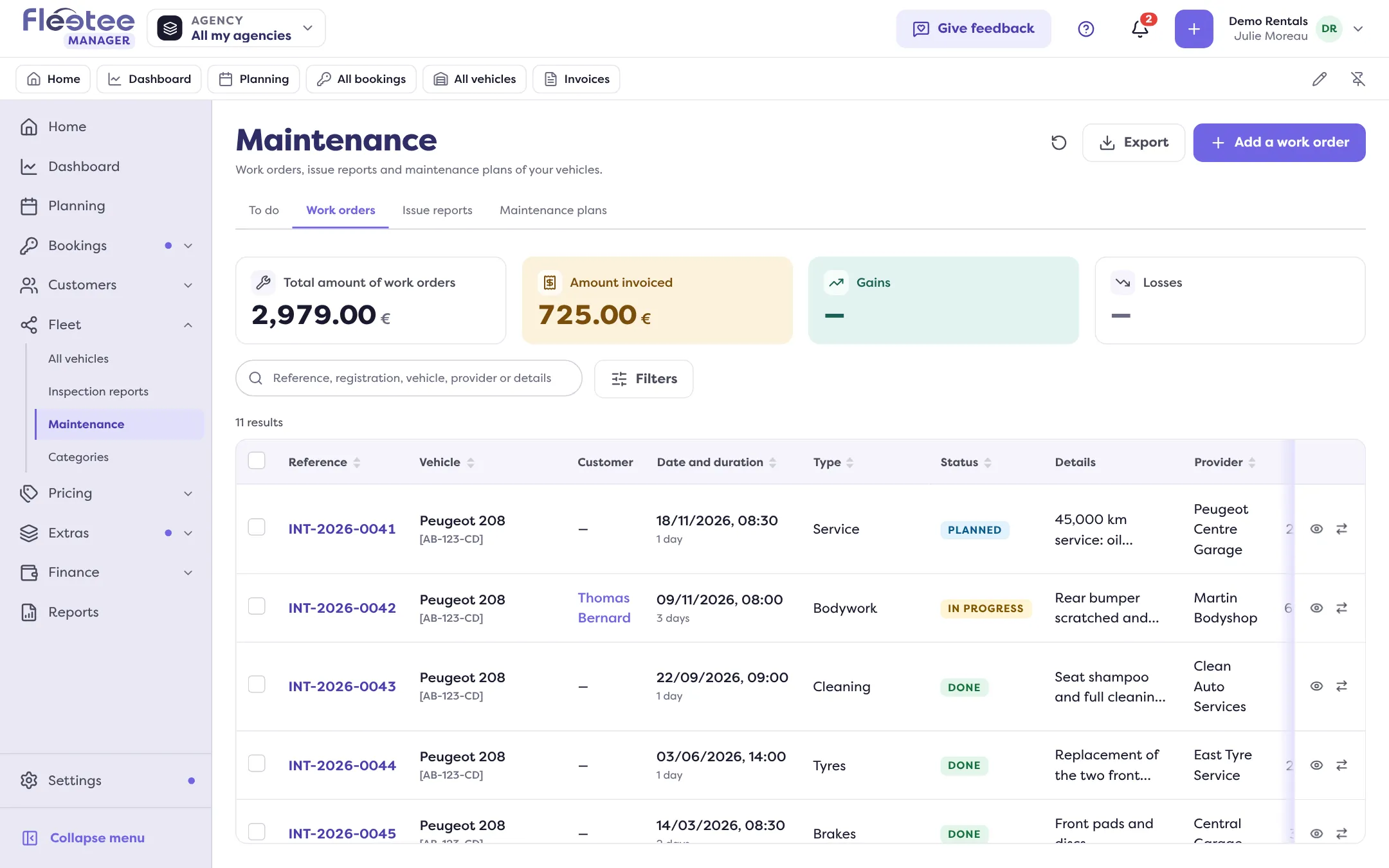
- Work orders: all the jobs, with their reference, vehicle, date and duration, type, status, provider, cost and invoiced price. Statuses: To plan, Planned, In progress, Done, Cancelled. Totals sum up the amount of work orders, what is invoiced again, gains and losses.
- Issue reports: problems reported on a vehicle. Statuses: Active, Waiting for a work order, Completed. A report that needs an intervention can create one (“Create the work order”); the work order closes it once created.
- Maintenance plans: the rules that produce the due dates. See How do I schedule my vehicles’ maintenance?.
Schedule or mark a due date as done
In the To do tab, each due date has two actions:
- “Schedule” opens a prefilled work order for that vehicle and that plan (see How do I log a repair or service on a vehicle?).
- “Mark as done” has you enter the last visit: the next due date is recalculated from that visit, and the item leaves the list as soon as it is no longer due.
Each row can be filtered by agency, category or plan, and found by searching for a vehicle or a plan. You can save your filters as views (for example “Overdue oil changes”).
See one vehicle’s maintenance
The Servicing panel of a vehicle’s file shows the same for that vehicle alone: its due dates, work orders and issue reports (see What is in a vehicle file?). The file’s header also flags “servicings overdue”.
What if nothing shows up?
Without a maintenance plan, the To do page says “You have no maintenance plan yet” and offers “Create the first plan”: a plan says how often a vehicle must go to the workshop, and Fleetee then flags the due dates.
Where to find it: Fleet › Maintenance
Where to find it: Fleet › Maintenance
Go further
Updated on 18 November 2026 with version 3.0