

How do I log a repair or service on a vehicle?
- Manager v3
- Administrator
- Agency manager
- Rental agent
In short. In the vehicle’s file, Servicing panel, “Add an intervention”: choose the type, the date and downtime, the status, the provider and the cost, and say whether the work order blocks the vehicle’s calendar.
An intervention (called a work order on the Maintenance page) keeps a record of a job on a vehicle: servicing, repair, tyres… It can also block the vehicle while the work is done.
Open the form
Three paths: the Servicing panel of the vehicle’s file (“Add an intervention”), the Fleet › Maintenance page (Work orders tab, “Add a work order”), or “Schedule” on a due date in the To do tab: the vehicle and the plan are then prefilled. From an issue report, “Create the work order” links it to the report, which it closes once created. In the planning, “Create an intervention” starts from a date range.
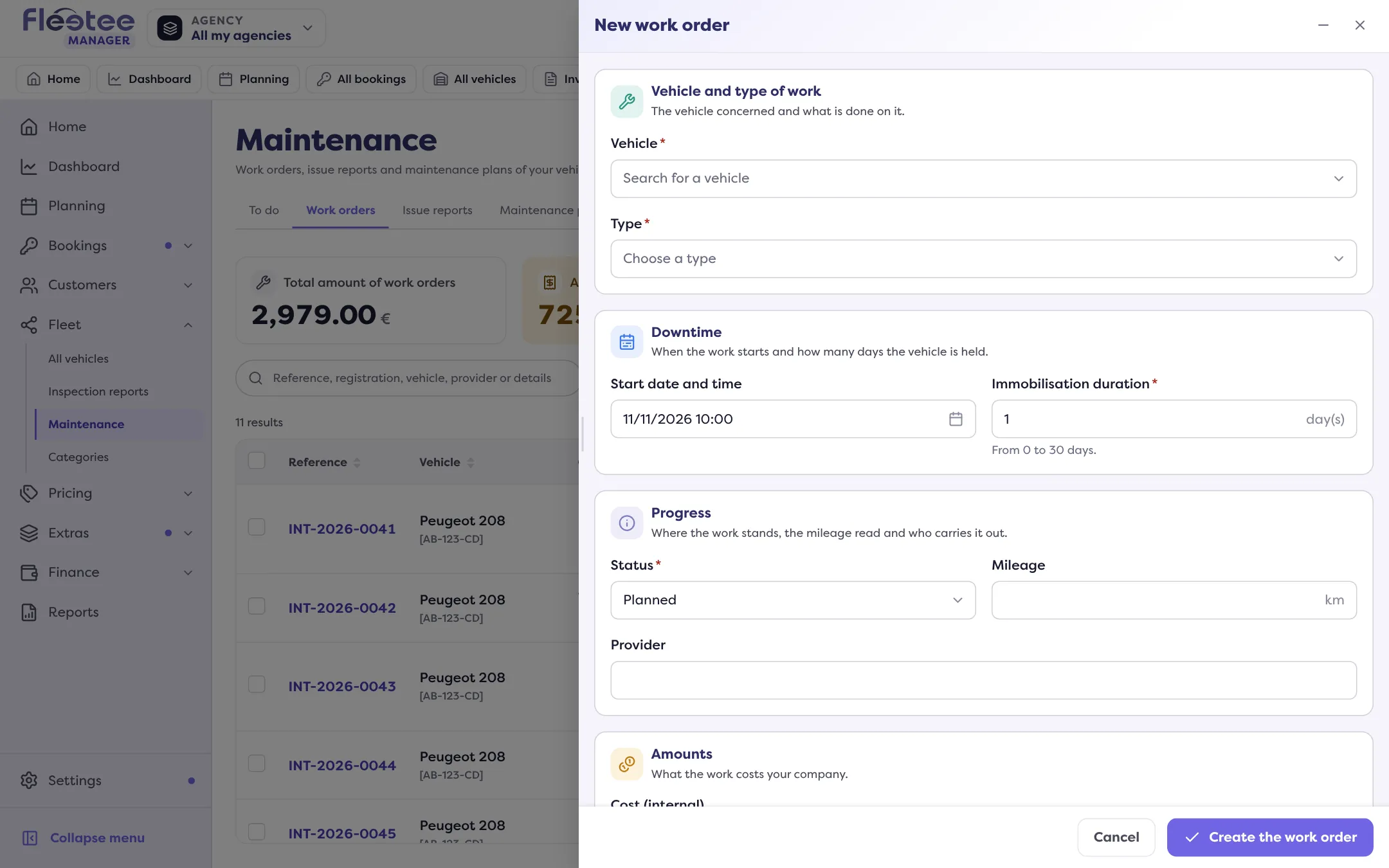
Choose the vehicle and the type
Type at least 2 characters of the registration or the name. The type offers your maintenance plans and the usual types; “Specify the type” shows for “Other”. A work order’s vehicle cannot be changed after creation.
Set the downtime
The start date and time, and the downtime duration in days.
Fill in the follow-up
The status (To plan, Planned, In progress, Done, Cancelled), the mileage read, the provider, the cost (internal) and some details.
Say whether the calendar is blocked
The “Block the vehicle’s calendar” switch: on, the vehicle cannot be rented during the work order; off, it stays rentable. If rentals overlap the period, Fleetee lists them (“The vehicle is rented during the downtime”).
Click “Create the work order”
“Work order … created.” The customer and the invoiced price cannot be changed in this form.
Move the work order forward
“Change status” moves the work order on or closes it, and Fleetee announces the effect before you confirm:
- Planned: the due date of the maintenance plan followed is marked as planned.
- Done: the vehicle’s mileage is raised to the closing mileage if it is higher (the “Vehicle mileage at closing” field is optional), and the maintenance plan restarts from that visit. A completed work order keeps blocking the calendar over its period, unless you turned the block off.
- Cancelled: it no longer blocks the calendar. If it had planned a due date, that date is recalculated.
- Reopen: it becomes active again and blocks the calendar again.
The block is turned off or on from the work order’s page (“Turn the block off” / “Turn the block on”).
Where to find it: Vehicle file › Servicing › “Add an intervention”
Where to find it: Vehicle file › Servicing › “Add an intervention”
Go further
Updated on 18 November 2026 with version 3.0