

How do I sell a vehicle and take it out of the fleet?
- Manager v3
- Administrator
- Agency manager
In short. Vehicle file › Profitability › “Sell the vehicle”: choose the buyer, the price and the date, check the preview, then “Issue the invoice”. The sale invoice, the disposal and the exit from the fleet are done at once.
When you sell a vehicle, a single action does three things: it issues the sale invoice, it records the disposal (date and price, for profitability) and it takes the vehicle out of the fleet. If something fails, nothing is written and no invoice number is used up.
You need the rights to create an invoice, delete a vehicle and see profitability (by default: the administrator and the agency manager). The action is not offered for a vehicle that has already left the fleet, nor for one on a finance lease, LOA, LLD or leasing (“it cannot be sold here”: a vehicle bought on credit can be sold). Nor is it offered during a rental in progress.
Click “Sell the vehicle”
In the vehicle’s file, Profitability panel: “Selling this vehicle? The invoice, the disposal and the exit from the fleet are done at once.” You can also “Delete” the vehicle with the reason Sale: the file then offers the same disposal.
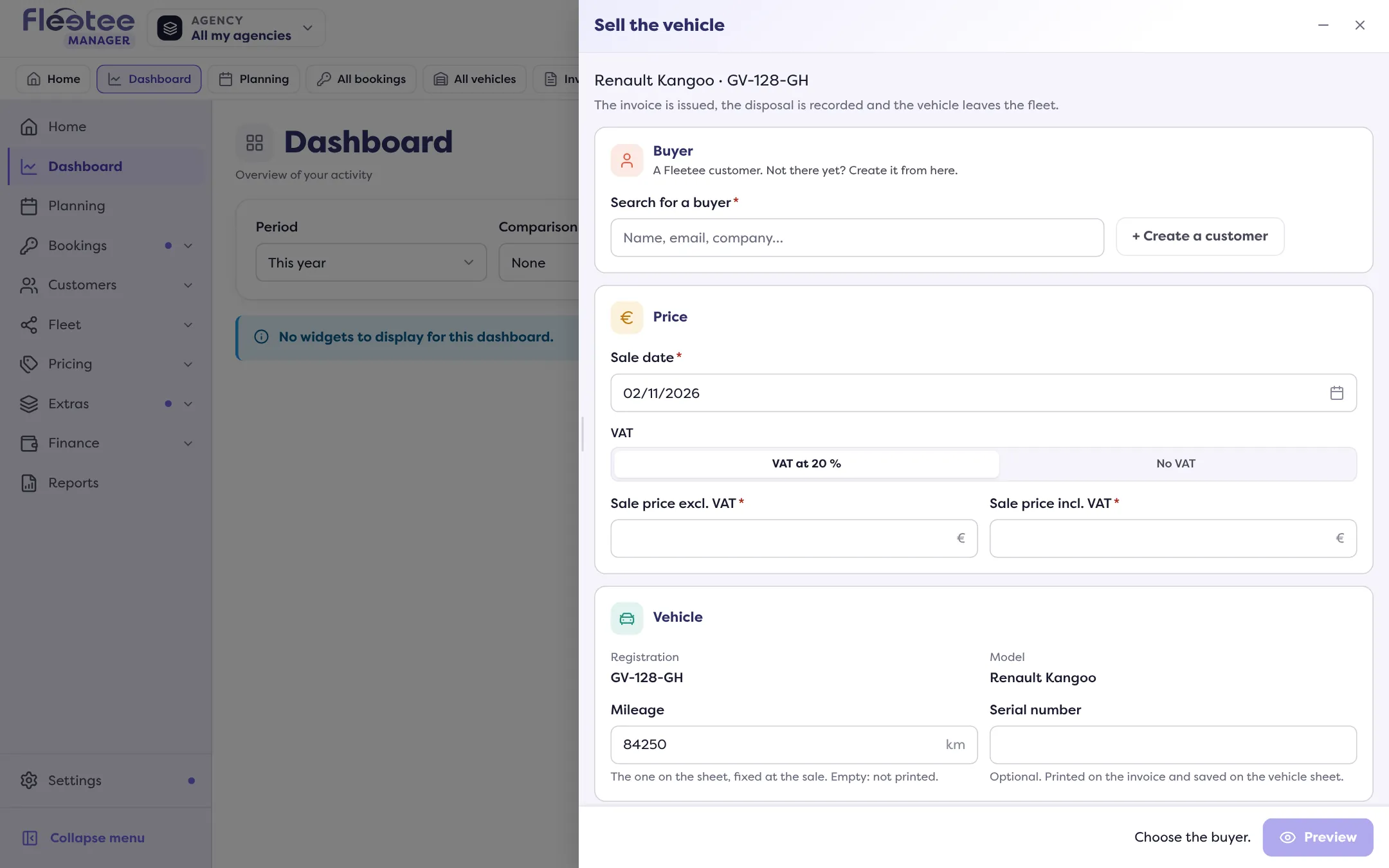
Choose the buyer
“Buyer”: search for a Fleetee customer, or “Create the customer” from the drawer (name, address, e-mail, phone: what the invoice prints). “Full form” opens the complete customer form.
Enter the date and the price
“Sale date” (today at the latest). Choose “VAT at … %” or “No VAT”, then the sale price excl. VAT and incl. VAT, linked to each other. With no VAT, a single price, and the reason for no VAT is pre-filled (empty, Fleetee writes its own; have your accountant read it). Fleetee shows the expected gain or loss: price excl. VAT less the net book value.
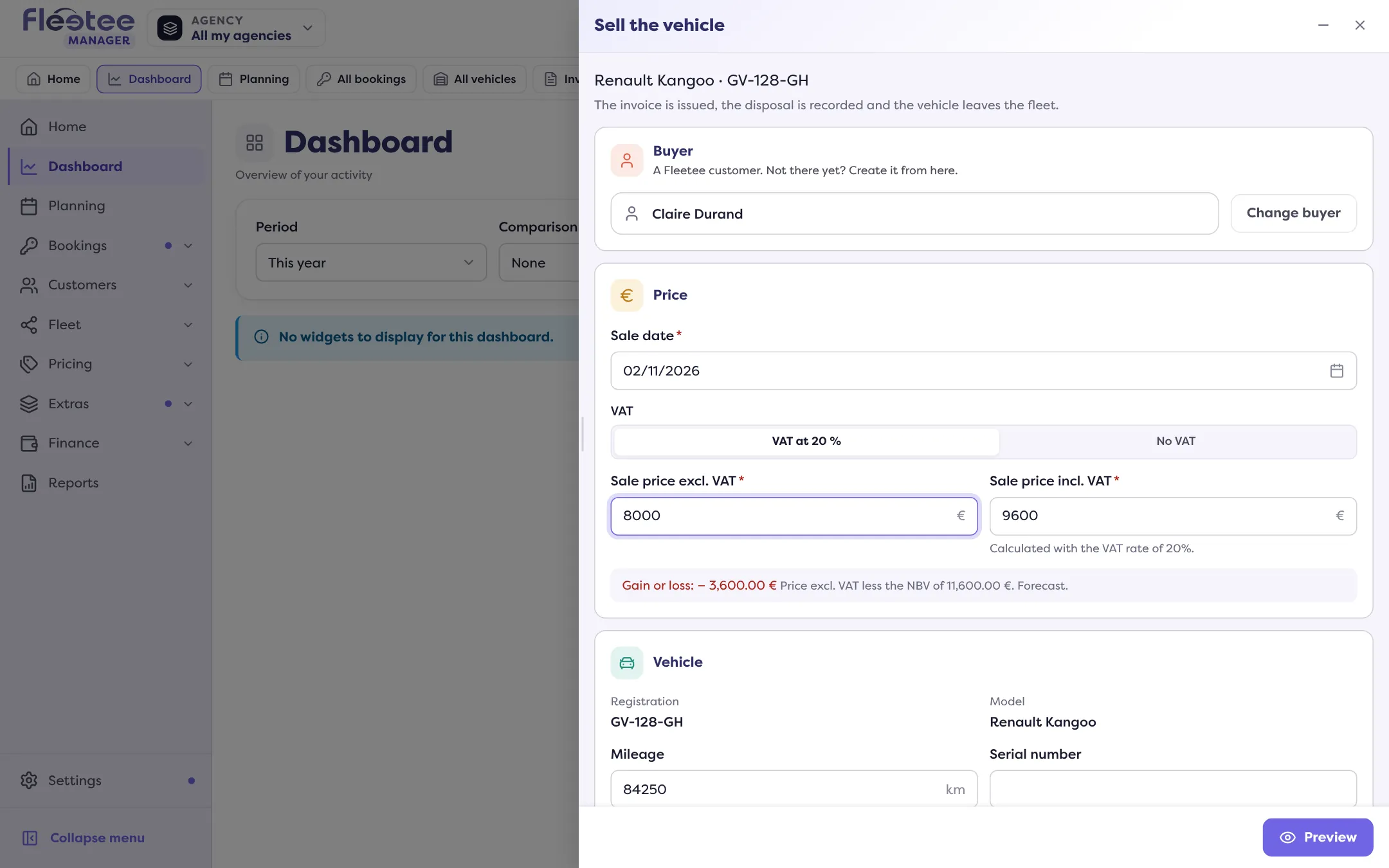
Check the vehicle
Registration and model are read only; mileage and serial number are pre-filled and editable (emptied, they are not printed). Under “More options”: delivery deadline, payment method (bank transfer, cheque, cash, card), due date and the invoice’s mentions.
Click “Preview”
Fleetee shows the document, the next number and the figures it retains (the invoice is calculated from the price excl. VAT; a difference from what you entered is flagged). Nothing is issued yet. Three reminders: the number is final, the invoice can only be corrected by a credit note, the vehicle leaves the fleet.
Click “Issue the invoice”
The message “Invoice issued” says the vehicle has left the fleet and the disposal is recorded. “Open the invoice” shows it.
If the preview blocks
- Rentals or interventions are planned: Fleetee names them and asks you to confirm you have seen them before going on. They are not cancelled for you (see also Remove a vehicle from my fleet).
- Your company’s legal information is incomplete: Fleetee lists what is missing and points to the company settings (an administrator can complete them).
- “The electronic invoice would be refused”: the points to fix are listed; where the option exists, “Issue despite these points”.
- The “Cession de véhicule” product has no accounting code: the entry will go to the rental account. “Set the code in Products” takes you there.
- “A rental is in progress”: the vehicle cannot be sold while it lasts.
- “The server was busy. Nothing was issued”: try again, the same sale never makes two invoices. If the vehicle was already sold, Fleetee shows the invoice that exists.
After a mistake in the sale
An issued invoice cannot be edited: you cancel it with a credit note (see Cancel an invoice with a credit note). If the credit note cancels the whole sale, the vehicle’s file offers “Put the vehicle back in the fleet”: the vehicle returns to the fleet and the disposal is erased, but the invoice and its credit note stay in the Invoices list.
Where to find it: Vehicle file › Profitability › “Sell the vehicle”
Where to find it: Vehicle file › Profitability › “Sell the vehicle”
Go further
Updated on 18 November 2026 with version 3.0