

How do I print the maintenance logbook for a buyer?
- Manager v3
- Administrator
- Agency manager
- Rental agent
In short. Vehicle file › Servicing › “Print the log”: a clean sheet with the vehicle, its mileage and each intervention, with no amount at all, that your browser prints or saves as a PDF. Cancelled interventions are left out.
A buyer wants to see the service history, not what each repair cost you. The printed log is made for them: no amounts.
Open the log
In the vehicle’s file, Servicing panel, Service log section.
Click “Print the log”
Fleetee first reads all the pages of the log not yet loaded, then opens your browser’s print window. Nothing else on the screen is printed.
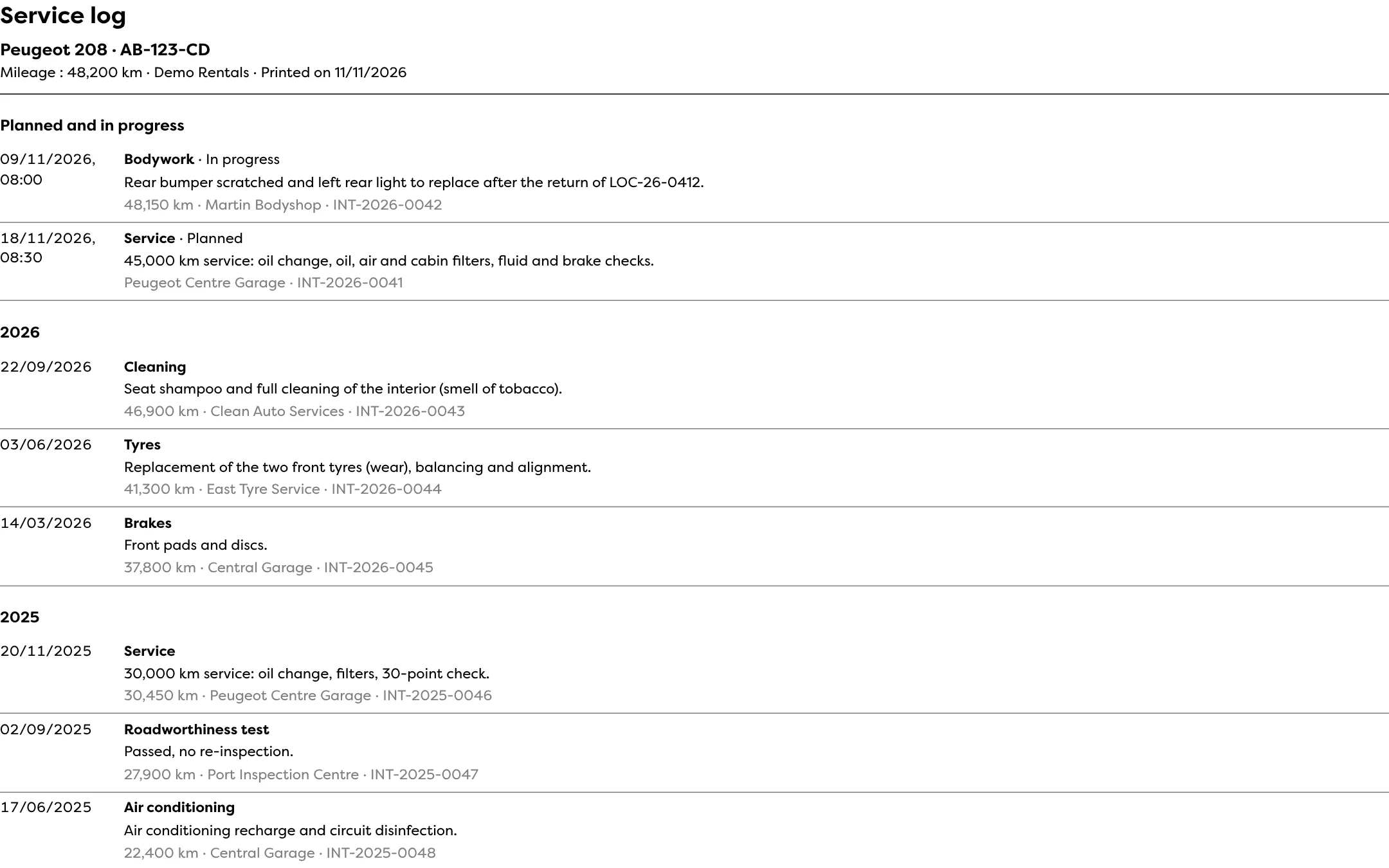
Print or save as PDF
Choose your printer, or “Save as PDF” to send the file to the buyer.
What the sheet holds
- At the top: Service log, the vehicle (name and registration), its mileage, your company’s name and “Printed on …”.
- “Planned and in progress”, then one section per year (and “No date”), as on screen.
- For each intervention: the date, the type, the status if it is not “Done”, the detail, the mileage, the garage and the reference.
- Not included: amounts, documents and photos, and cancelled interventions.
If reading the log fails, an error message shows and nothing is printed: try again. To understand what you are handing over, see read the maintenance logbook. For the sale itself, see Sell a vehicle.
Where to find it: Vehicle file › Servicing › “Print the log”
Where to find it: Vehicle file › Servicing › “Print the log”
Go further
Updated on 18 November 2026 with version 3.0