

What is in a vehicle file?
- Manager v3
- Administrator
- Agency manager
- Rental agent
In short. A vehicle’s file gathers its photos and details, and six panels: Servicing, Calendar, Digital key, Profitability, Activity and Reviews. Its action bar creates a booking or an intervention, and “More actions” disables or deletes.
A vehicle’s file opens in a panel, from Fleet › All vehicles, from a booking or from a search. In the middle, its information; on the side, a rail of panels.
The header
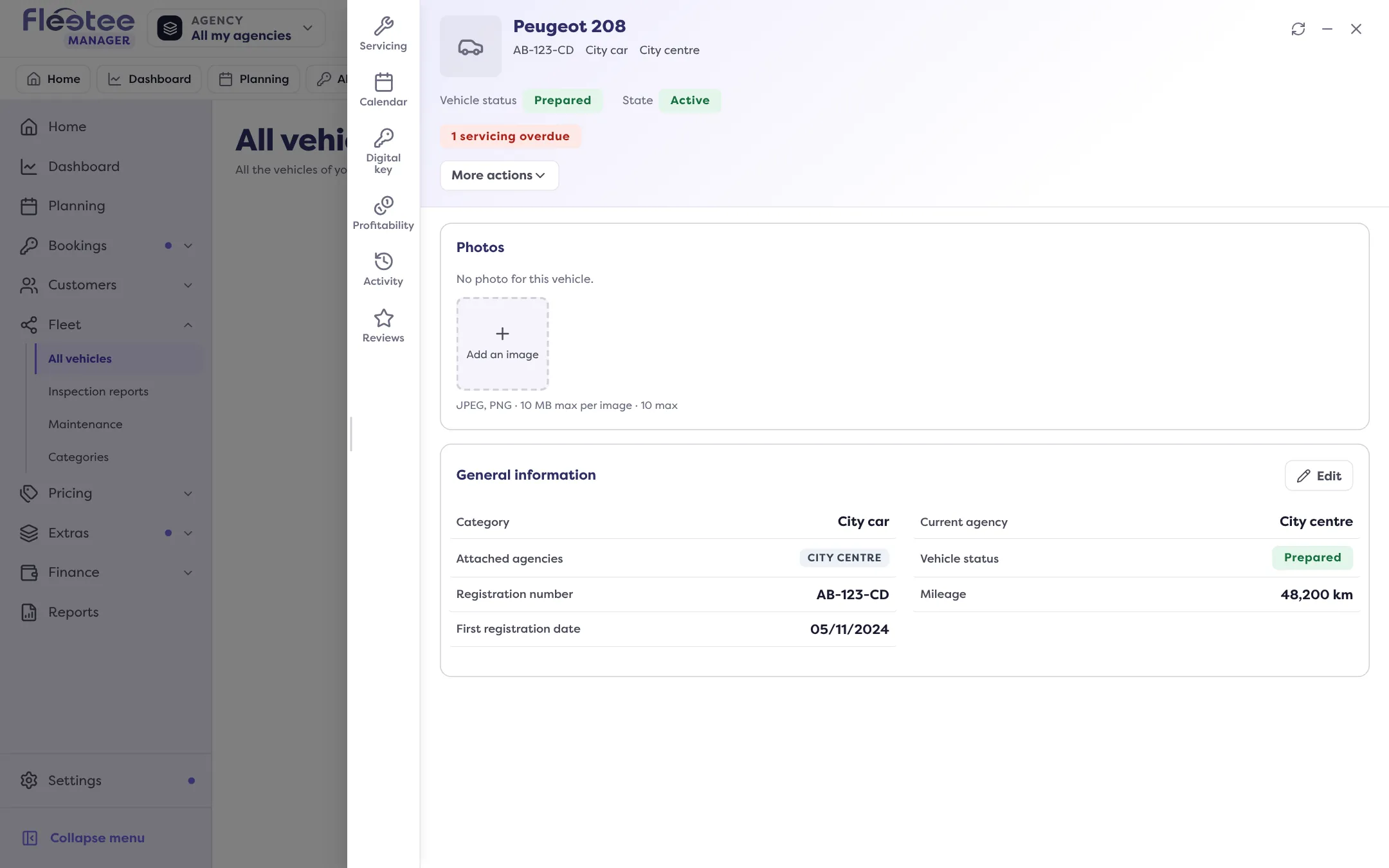
The vehicle’s name (or registration), and badges that say at a glance: its state (Active, Disabled or Deleted, with the date and reason of a deletion), its status (waiting for preparation, prepared, rented, in intervention…), “Rented · see the rental” when it is out, the number of servicings overdue or due, the state of its digital key and, for the companies concerned, its Zotcar state (Published or Not published).
The information
- Photos: add, rotate, delete and reorder photos (PNG or JPEG, 10 photos at most).
- General information: Category, Current agency, Attached agencies, Owner agency, Vehicle status, then Fleetee’s properties and yours (see How do I add my own fields to vehicles, bookings and customers?). “Edit” changes them.
The action bar
“View rentals”, “Create a rental”, “Add an intervention”, “Add a report”, “View invoices”, “View quotes”, “View purchases”, “View purchase orders” and “Duplicate”. The “More actions” menu disables, re-enables, deletes or restores the vehicle (see How do I remove a vehicle from my fleet?).
The six panels
- Servicing: the registration date and mileage, the maintenance due dates (with “Edit the last visit” and “View the intervention”), the vehicle’s interventions and reports. See How do I follow all my fleet’s maintenance in one place?.
- Calendar: a monthly calendar of rentals, quotes, interventions and blocks, and the “Upcoming” list (pickups, returns, interventions). A block shows there as read only; to create one, see How do I make a vehicle unavailable for a few days?.
- Digital key: for a motorized vehicle, “Link the tracker”, the key’s state, self-service, the position and the mileage and fuel read by the tracker, and the last synchronisation. If the module is not enabled for your company, the panel says so.
- Profitability: what the vehicle earns and costs, over the period you choose, with its purchase price or rents and, on a sale, the disposal. See How much does each of my vehicles earn and cost?.
- Activity: the vehicle’s changes, state changes and interventions, newest first.
- Reviews: the average rating and the customers’ reviews of this vehicle.
Where to find it: Fleet › All vehicles › click a vehicle
Where to find it: Fleet › All vehicles › click a vehicle