

How do I see a vehicle’s bookings and unavailability?
- Manager v3
- Administrator
- Agency manager
- Rental agent
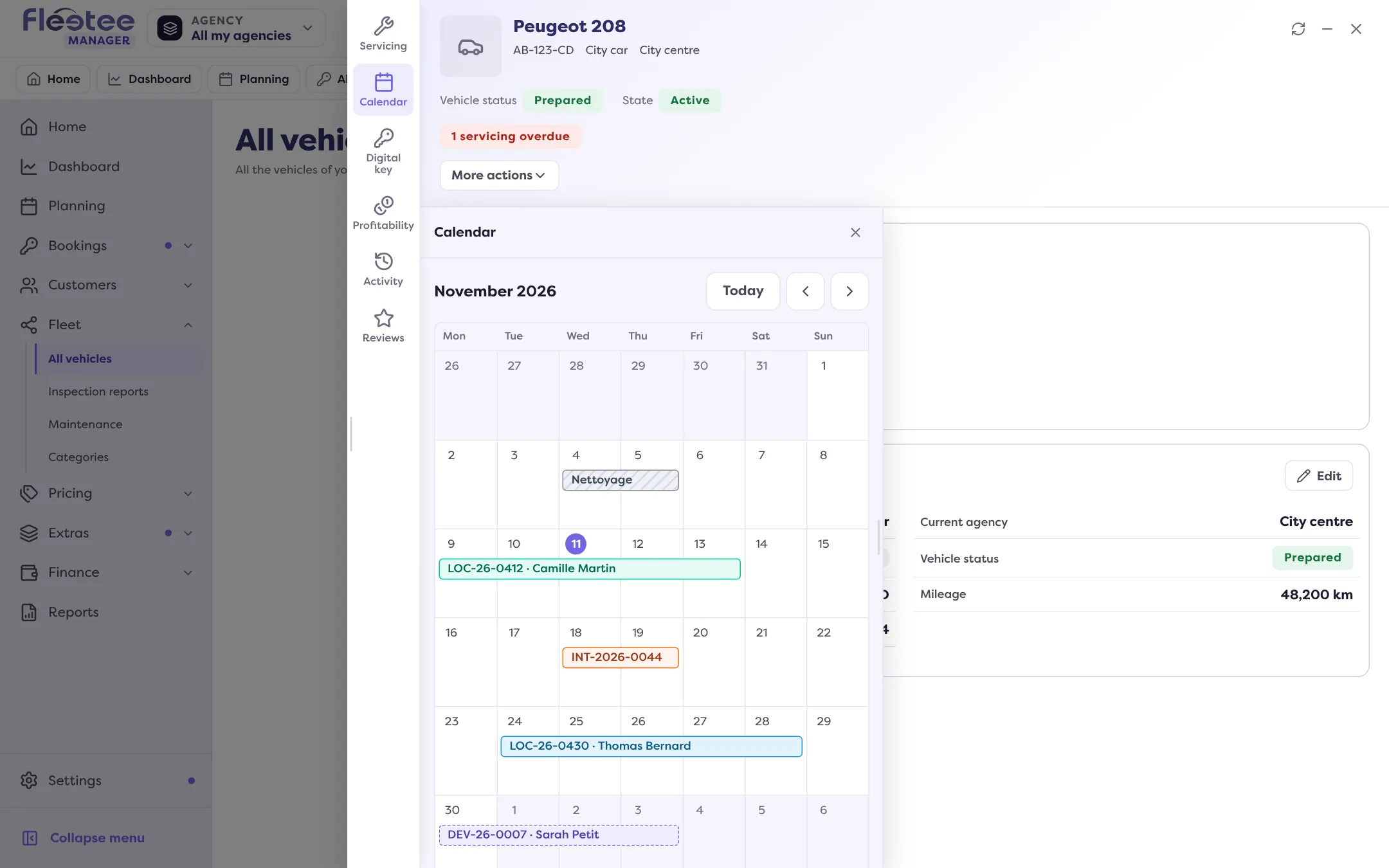
In short. Vehicle file › Calendar: a monthly calendar with its rentals, quotes, interventions and blocks, a colour legend and an “Upcoming” list of the next pickups, returns and interventions. A click opens the rental, quote or intervention.
Before promising a vehicle to a customer, look at what it already has planned. The Calendar panel of its file shows, month by month, everything that occupies it.
Open the vehicle’s file
In Fleet › All vehicles, click the vehicle.
Open the “Calendar” panel
The current month shows. Change month with the arrows; “Today” brings you back to the current month. Only the month shown is read.
Read the bars
Each event is a bar over its days, with its reference and the customer or the reason. There are four kinds: Rental (the colour follows its status), Quote (dashed bar), Intervention and Block (hatched bar). The legend names the colours present in the month. “No events on this vehicle this month” says nothing is planned.
Open the details
Click a rental, a quote or an intervention: its drawer opens over the vehicle’s file. If your role does not give access to that screen, the event shows with no link.
The “Upcoming” list
Under the calendar, “Upcoming” gives the vehicle’s next pickups, returns and interventions, whatever month is shown. It leaves out cancelled rentals. With nothing planned: “No upcoming pickup, return or intervention for this vehicle”.
Special cases
- A block is read only: “A block is shown here as read only: editing it is not available yet.” To create one, see Make a vehicle unavailable for a few days.
- “Vehicle replaced since” marks a rental where this vehicle was replaced by another one.
- Dates are the company’s clock, as written on the rental.
- If the month cannot be refreshed, Fleetee says so: “the events shown may be out of date”. “Try again” reads the month again.
For a view of the whole fleet at once, use the planning.
Where to find it: Vehicle file › Calendar
Where to find it: Vehicle file › Calendar
Go further
Updated on 18 November 2026 with version 3.0