

How do I set up the planning display?
- Manager v3
- Administrator
- Agency manager
- Rental agent
In short. In the Planning, “Customise the display” sets your bars (colour, outline, badges), their titles, status colours and preferences (opening view, vehicle order, hidden categories). You set your own display or the whole company’s.
The planning adapts to the way you work: what colours a bar, what is written on it, the order of the rows. A live preview shows the result on the planning before you save.
Click “Customise the display”
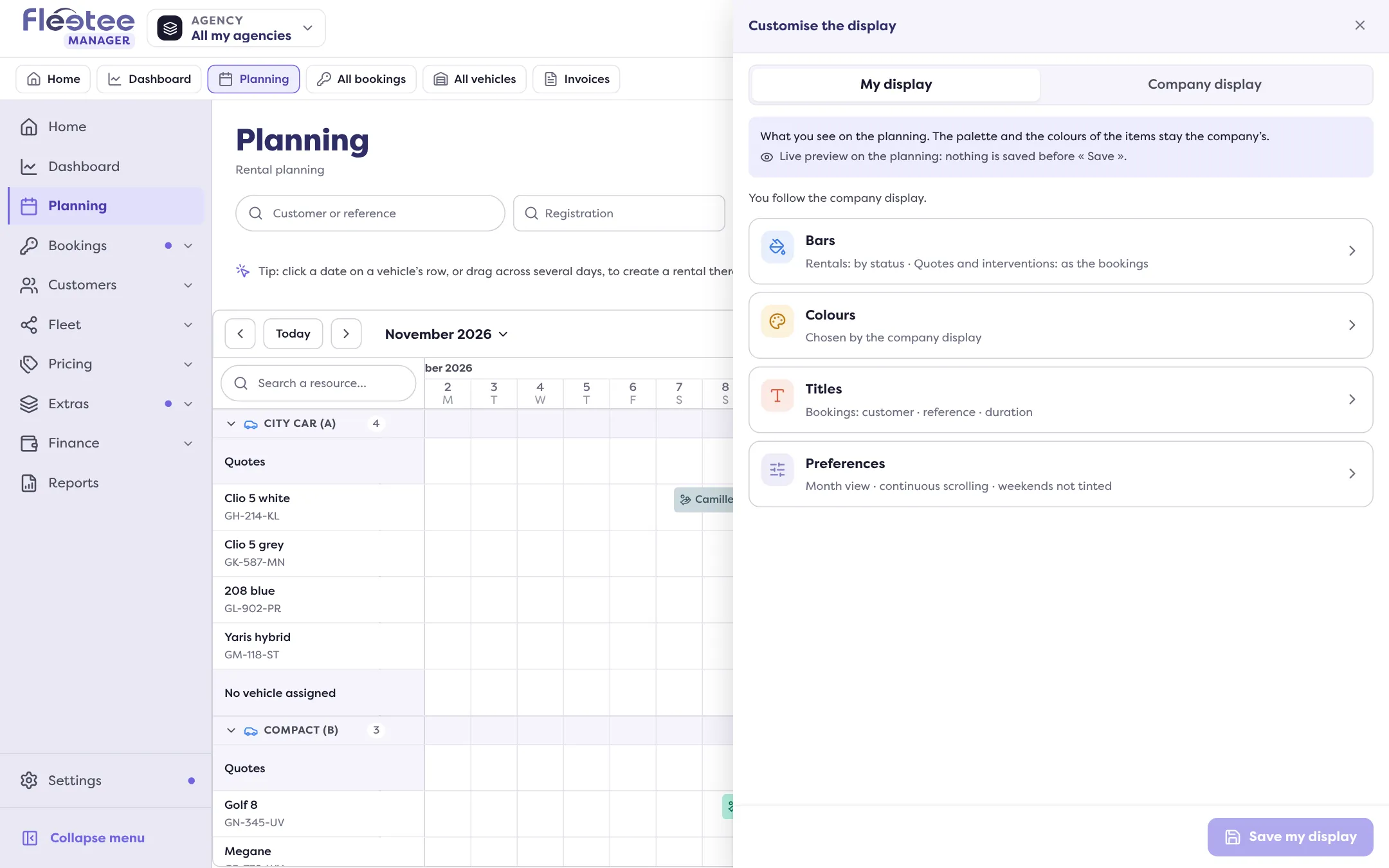
The button is above the planning. A window opens with two tabs: “My display” (what you see, you alone) and “Company display” (every user’s, as long as they do not replace it with their own). The second is reserved for those who can change the company display.
Choose the page to set
Four pages: Bars, Colours, Titles and Preferences.
Adjust, watch the preview
“Live preview on the planning: nothing is saved before « Save ».”
Save
“Save my display” or “Save for the company”. If you leave with changes, Fleetee asks you to confirm: “The preview will be removed from the planning and nothing will be saved.”
Bars
First choose what the settings apply to: bookings, quotes or interventions. Then:
- “Bar colour”: the criterion that colours each bar: Status, Departure agency, Return agency, Source, Category, Vehicle type, Property… or None.
- “Outline”: a second criterion, drawn as a ring around the bars.
- “Badges”: up to three marks at the end of each bar (initials, icon or dot). “Add a badge”; “Three badges at most.”
Colours
The palette by value gives a colour to each agency, source, category… A value without a chosen colour gets an automatic one. The item colours set the booking statuses, quotes and interventions, and blocks. These colours are the company’s: they are chosen in “Company display” and apply to everyone.
Titles
The text written on each bar, for bookings, quotes and interventions. Click a variable to add it: Reference, Vehicle, Registration, Category, Customer, Departure agency, Return agency, Number of days, Duration, Status… “Default title” restores the original title.
Preferences
- Opening view: Month, Week or Day.
- Order of the vehicles: Usual order, Name, or Registration (A to Z or Z to A).
- Hidden categories: the categories the planning does not show.
- Rows: show or hide the “Quotes” and “No vehicle assigned” rows.
- Marks: tint the weekends, the guide that follows the cursor, flag the overlaps, highlight late returns and late departures.
- Bookings in the week view: “Full bars”, or only “Departures and returns”.
- Planning scrolling: “Continuous”, or “Period by period”.
- Drag step: Automatic, 15 min, 30 min, 1 hour or 1 day, depending on the view.
In what order are the categories sorted?
The planning sorts categories in the order you give them in Fleet › Categories: move a category in the list to change its place. Categories with no place set come last. This order is not set in the planning display: only the order of the vehicles within a category is set there.
Going back to the company display
In “My display”, “Back to the company display” removes your personal settings on saving: you follow the company’s again.
Where to find it: Planning › “Customise the display”
Where to find it: Planning › “Customise the display”
Go further
Updated on 18 November 2026 with version 3.0