

How do I use a different document template per agency or case?
- Manager v3
- Administrator
- Agency manager
In short. Create one template per case, then an assignment rule in Settings › Documents › the type › “Template choice”: “If … then apply the template …”. The simulator checks which template would be picked.
You can have several templates for the same document: a contract for professionals, another for one agency, another in English. A rule (also called an automation) picks the right template for each booking. You can also pick by hand before validating a document.
Prepare the templates
Create one template per case first (see How do I brand my contracts, invoices and inspection reports?). A template has its vehicle type, its agencies (empty: all) and its language: they act as a first filter.
Create a rule
Open the document type
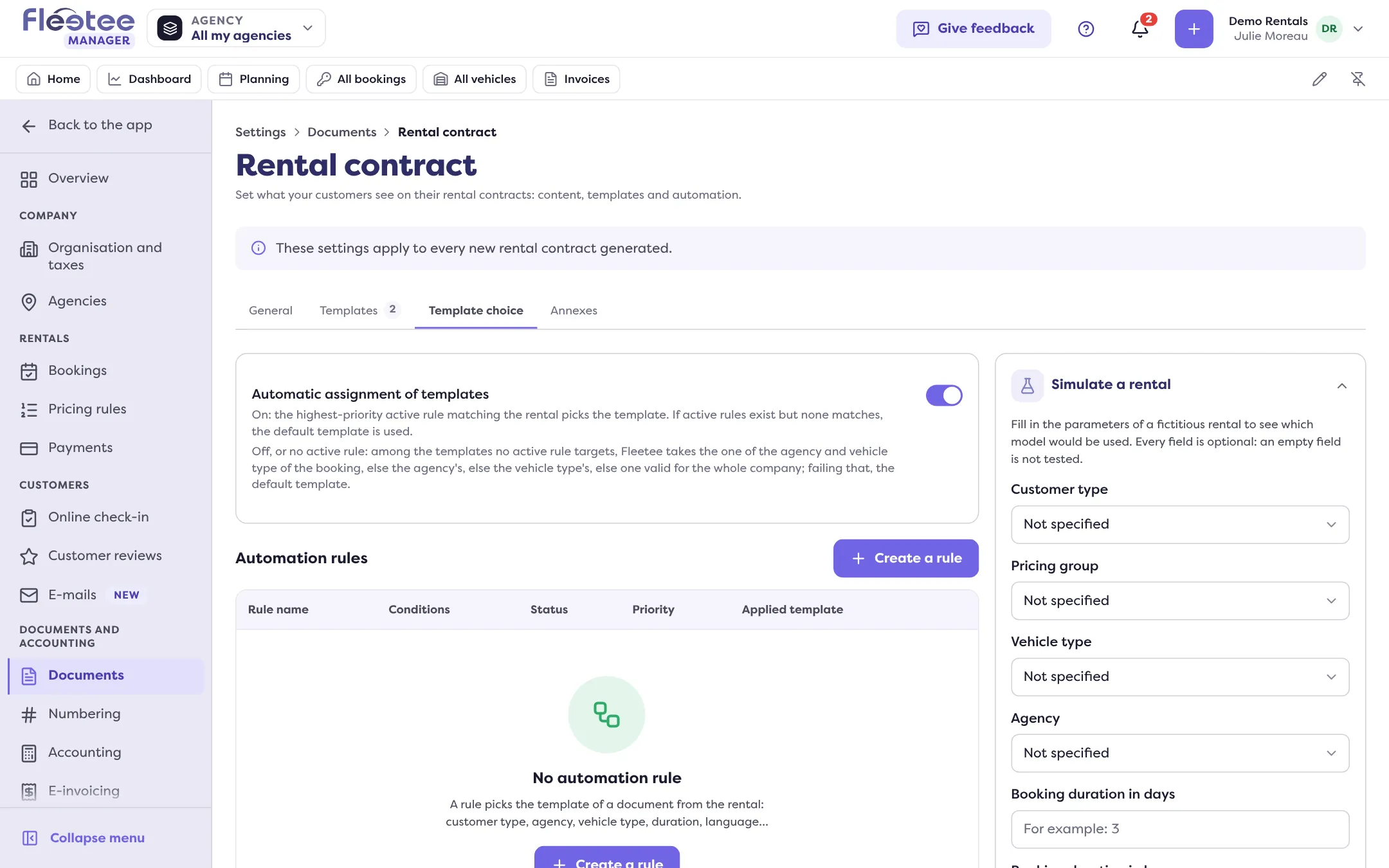
Settings › Documents, “Document types” tab, then the card of the type (for example “Rental contract”). Open the “Template choice” tab.
Check automatic assignment
The “Automatic assignment of templates” block must be on: “the highest-priority active rule matching the rental picks the template”.
Click “Create a rule”
The “New automation rule” panel opens: Identification, Conditions, Action, Priority.
Name it and set the conditions
The name is suggested from the first condition and the template. Add conditions with “Add a condition”: Pricing group, Customer type, vehicle type, Booking duration (in days, hours or months), Agency, Customer language. Link them with “All (AND)” or “At least one (OR)”.
Choose the template
Under “Then apply the template”, choose the template. Templates that do not fit your conditions are listed under “Not compatible with your conditions”.
Set the priority and save
The “Priority score” (0 to 100) is advanced: higher scores are evaluated first, and on a tie the oldest rule wins. Click “Create the rule”.
An agency manager must add the condition “Agency is …” on one of their agencies: a rule without an agency applies to the whole company. A rule with no condition never applies, and a rule whose conditions contradict the template is refused: “This rule could never apply.” A rule can be “Active” or “Inactive”.
What happens when nothing matches
- Active rules exist but none matches: Fleetee uses its default template.
- No active rule, or assignment off: among the templates no active rule targets, Fleetee takes the one for the agency and vehicle type, else the agency’s, else the vehicle type’s, else a company-wide template.
Check with the simulator
Click “Simulate a rental”, fill in a fictitious rental (every field is optional), then “Run the simulation”. The result gives the template used, the reason and the evaluation of each rule by priority. If the result surprises you, read Why isn’t my document template applied?.
A credit note and an amendment have no rule: they reuse the rendering of the original invoice or contract.
Where to find it: Settings › Documents › the document type › “Template choice” tab
Where to find it: Settings › Documents › the document type › “Template choice” tab
Go further
Updated on 18 November 2026 with version 3.0