

How do I make a quote for a customer?
- Manager v3
- Administrator
- Agency manager
- Rental agent
In short. Bookings › Quotes › “Add a quote”: dates, category, customer and pricing, with no reference and no payment. “Create the quote” opens its page and generates the PDF; all that is left is to send it to the customer.
A quote is a rental proposal: the same information as a rental, but with no payment. The customer reads it, then accepts or signs it; you then convert it into a rental.
Open Bookings › Quotes
The page lists your quotes, current and archived, with the figures Total number of quotes generated, Confirmed quotes, Pending quotes and Cancelled quotes.
Click “Add a quote”
The “Create a quote” window opens. You can also create a quote from the Planning (select a range, then “Create a quote”) or from a customer’s page.
Fill in the dates and agencies
Start, End, Departure agency, Return agency. There is no reference or status to enter: Fleetee numbers the quote.
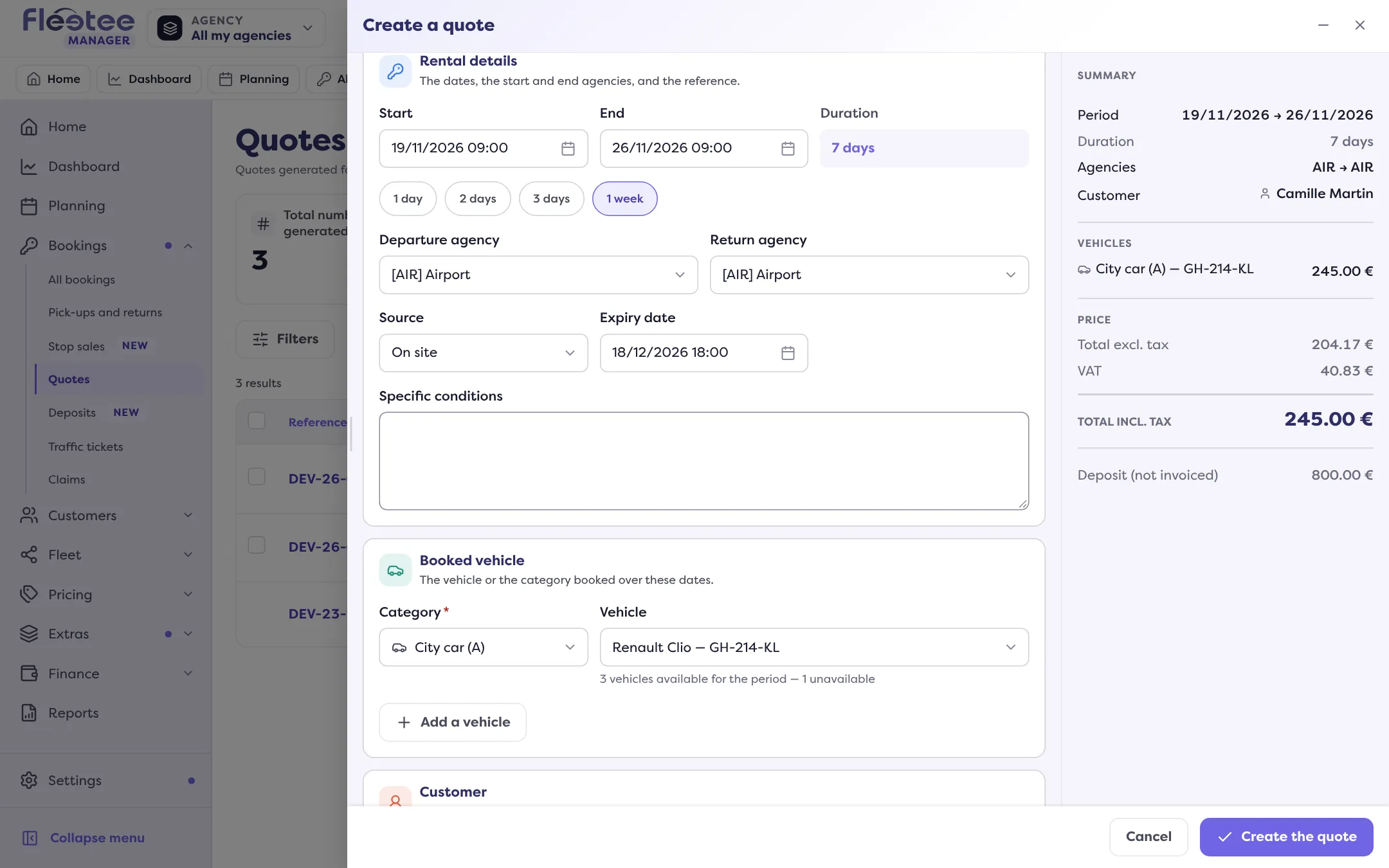
Choose the category, and the vehicle if the calendar is blocked
The choice of a vehicle only appears if sending a quote blocks the calendar (the “Calendar lock” setting). Otherwise, the quote is created without a specific vehicle.
Choose the customer
Search for them, or create them with “+ Create a customer”.
Check the pricing
Price list, price, options, reductions, deposit: as for a rental. The amounts excl. tax, VAT and incl. tax stay visible at the top. There is no Payment section.
Check the expiry date and the conditions
The Expiry date and the Specific conditions are prefilled from your quote settings.
Click “Create the quote”
The message “Quote created.” confirms it. The quote page opens, the quote shows in the list and its PDF is generated.
Know a price without creating a quote
In the Planning, select a range on a vehicle’s row: the card that opens shows the Estimated price, worked out for those dates. Nothing is created until you click an action.
After the creation
On a Pending quote, the page offers in particular:
- “Send to the customer”: the quote goes out by e-mail with its PDF. See Get a quote signed online;
- “Convert to a rental”: the quote becomes a rental (see Create a booking); the quote moves to Validated;
- “View the quote” and “Regenerate the PDF”;
- “Change the dates”, “Change the price list”, “Change the renter”, “Change the deposit”;
- “Cancel the quote” and “Delete the quote”.
An expired quote is reopened with “Extend the quote”.
The statuses of a quote
Pending (the customer has not answered yet), Validated (converted into a rental), Expired, Cancelled or Refused. The list can be customised: you can highlight the quotes that expire soon (7 days or less) or have not been sent yet.
Set the quote defaults
Settings › Documents and accounting › Documents › Quote gathers the Default validity (the quote then expires by itself), the Calendar lock, the Automatic down payment request, the attached General terms and online acceptance.
Where to find it: Bookings › Quotes › “Add a quote”
Where to find it: Bookings › Quotes › “Add a quote”
Go further
Updated on 18 November 2026 with version 3.0