

How do I get a quote signed online?
- Manager v3
- Administrator
- Agency manager
- Rental agent
In short. On a pending quote, “Send to the customer” sends the quote with a “View and sign the quote” button. At the desk, “Have it signed at the counter” gives the signature page and a QR code. Signing records the agreement without converting the quote.
The customer reads the quote on their phone, on a page in your colours, and signs it with their finger. You follow the signature in the quote. Two paths: send it by e-mail, or have it signed on the spot.
Send the quote for signature
Open the quote
In Bookings › Quotes, click the row of a Pending quote.
Click “Send to the customer”
The sending step opens, already filled in: Recipient (the customer’s e-mail), Message (“Quote no. …”), Attachment (“Quote (PDF)”), Online signature (“Requested”) and Payment (the down payment link if the setting is on, otherwise “No payment link”). The Sending options are folded; the “Ask for an online signature” switch is there.
Click “Send”
The message “Quote sent to …” confirms it. The customer’s e-mail ends with the “View and sign the quote” button, which opens the signature page.
The customer has no e-mail address? The sentence under “Send” says so: click “Add the customer’s e-mail”, type the address, then send.
Have the quote signed at the counter
Open the Quote panel
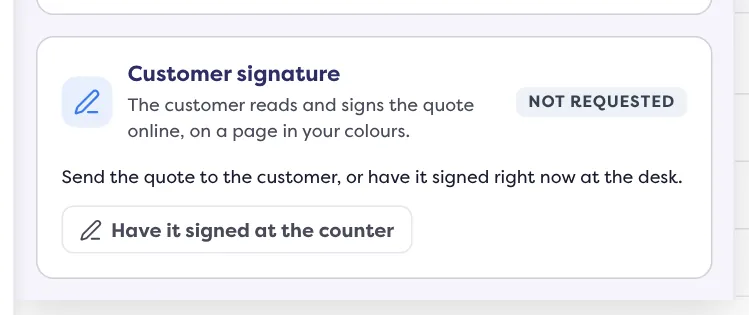
On the quote page, open the Quote panel of the rail. The “Customer signature” card gives the state of the signature.
Click “Have it signed at the counter”
The “Have the quote signed at the counter” window opens.
Choose where the customer signs
- “Open the signature page”: a new tab opens, hand the device to the customer.
- “Show the QR code and the link”: the customer scans the code with their phone, or you give them the link (“Copy the link”).
Wait for the signature
The window says “Waiting for the customer to sign” and updates as soon as they have signed (“The customer signed the quote”). If live tracking is cut, click “Check now”.
What the customer does
- They read the summary (“Quote no. …”, “Total”, “Valid until …”) and the PDF, and can open your terms and conditions. If the quote offers choices, they set their excess and options in “Your choices”: the quote updates.
- They click “Sign the quote”, type their first and last name, tick “Approved. I accept quote no. … and its terms.” and draw their signature in the box.
- They click “Confirm the signature”. The page says “Quote signed” and lets them download the signed document.
- If the quote has a down payment link, they can click “Pay the deposit” (the page’s word for the down payment). They also receive a “Quote signed” e-mail with the PDF.
The customer can also click “Refuse the quote” and give a reason (optional): the page answers “Quote refused” and says your company has been told of the refusal. They can sign until the quote expires.
After the signature
- The quote carries the “Signed” badge; the card says “Signed on … by …, “Approved”” and offers “View the signed quote”.
- The Docs panel adds the line “Signed quote”, the Activity “Quote signed by the customer”, and a “Quote signed” notification reaches the bell.
- The status of the quote does not change: it stays Pending, and the signature does not convert it. When you are ready, click “Convert to a rental”: Fleetee tells you whether the quote is signed, unsigned or has a void signature, and never blocks the conversion.
Change a signed quote
If you change a quote that is already signed (its dates, for example), its signature no longer applies to the changed version: the page warns you before saving, then the quote shows “Signature void”. The signed quote stays kept in the Activity. Click “Ask for a new signature” to send it again or have it signed on the spot.
When it cannot be signed
The “Customer signature” card says why: the quote has expired (extend it), it is already converted into a rental, cancelled, refused by the customer, or it is signed with its group (the signature is then asked on the main quote). A role that cannot edit the quote cannot have it signed.
Your company can choose that the customer accepts the quote with their name (“Click with the name”) instead of signing it. The path is the same: “Ask for online acceptance”, “Have it accepted at the counter”. This is set in Settings › Documents and accounting › Documents › Quote, “Acceptance” card.
Where to find it: Bookings › Quotes › a pending quote › “Send to the customer”, or Quote panel › “Customer signature” card › “Have it signed at the counter”
Where to find it: Bookings › Quotes › a pending quote › “Send to the customer”, or Quote panel › “Customer signature” card › “Have it signed at the counter”
Go further
Updated on 18 November 2026 with version 3.0