

Why isn’t my document template applied?
- Manager v3
- Administrator
In short. A template only applies to new documents picked by your rules. Common causes: automatic assignment off, no rule matches, document already issued, or a credit note or amendment, which always reuse the original invoice’s or contract’s rendering.
You created a template, but the generated document keeps the old look. Here are the causes, one by one. One tool helps you see which applies: the simulator.
Cause 1: automatic assignment is off
The type’s page shows “Automatic assignment is off: your rules do not apply.” Fleetee then picks a template by the booking’s agency and vehicle type, or failing that the default template.
What to do: in Settings › Documents › the type › “Template choice”, click “Turn automatic assignment back on”.
Cause 2: no rule matches the booking
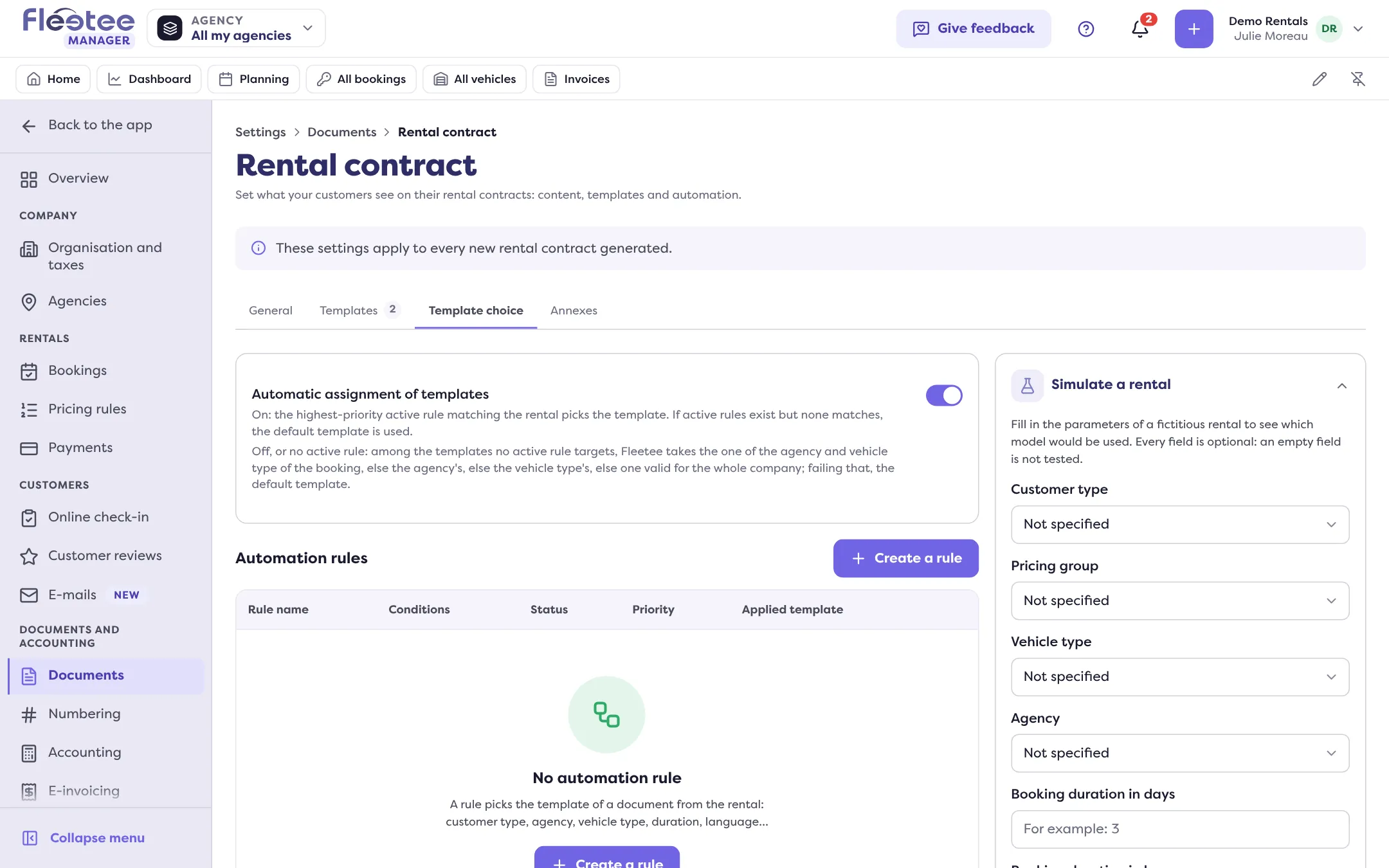
Automatic assignment picks “the highest-priority active rule that matches the booking”. If rules exist but none matches, the default template is used. A rule compares: price list, customer type (Individual or Professional), vehicle type, booking duration (per hour, day or month), agency, customer language. A rule with no condition never applies.
What to do: in the “Template choice” tab, click “Simulate a rental”: fill in a fictitious booking, then “Run the simulation”. The result says the template used and evaluates each rule by priority (“Conditions met” or “Conditions not met”, “Rule used”). Fix the conditions or the priority of the rule you want.
Cause 3: the template has no rule, or the rule is inactive
A banner says so: “You have templates for this document type but no automation rule.” Fleetee then picks among them by agency and vehicle type. Also check the rule’s status (“Active” or “Inactive”).
What to do: in “Template choice”, “Create a rule” for this template, or activate it.
Cause 4: the template does not cover this booking
A template has its vehicle type, its agencies and its language. A booking from another agency, of another vehicle type or in another language does not get it. What to do: open the template, “General” step, and check “Agencies” (empty: all), the type and the language.
Cause 5: the document is already issued
A template applies to new documents. A validated contract, an amendment, a validated invoice keep the rendering they were issued with, even if you edit, deactivate or delete the template afterwards: the document stays identical to the one the customer received. A draft document (contract preview, draft invoice) still follows your rules.
What to do: for a contract or invoice not yet validated, choose the template in the preview (“Template used”: “According to your rules”, a specific template or “Default document”). A document already issued is not redone with a new template; an invoice is corrected with a credit note then a new invoice (see How do I cancel an invoice with a credit note?).
Cause 6: it is a credit note or an amendment
The template is never a choice there, and no template is offered:
- a credit note reproduces the invoice it settles, even if that invoice was rendered with the default document;
- an amendment reproduces its main contract (see What is a contract amendment and when does Fleetee create one?).
So there is no point fixing the credit note’s or amendment’s template: change the original invoice’s or contract’s, for the next ones. Another point about credit notes: payment terms, late payment terms, invoice conditions and bank details are hidden on a credit note, whether the document goes through a template or the default document.
Cause 7: an invoice with no booking
An invoice not attached to a booking (claim, traffic ticket, sale of a vehicle) is always printed with the default document.
Cause 8: you chose another template by hand
An explicit choice (“Template used” in the contract or invoice preview, before validating) wins over the rules.
Where to find it: Settings › Documents › the type › “Template choice”
Go further
Updated on 18 November 2026 with version 3.0