

How do I give my e-mails my brand’s look?
- Manager v3
- Administrator
- Agency manager
In short. Settings › E-mails › Sender and appearance › Branding: choose a style (Modern, Classic, Letter), your logo, colours, signature and footer, with a live preview. Applies to the account or to one agency.
The branding is the frame of all your e-mails: logo, colours, signature, footer. It applies to every e-mail sent to your customers, including those whose text is set by Fleetee. The text itself is set in the templates.
Open Settings › E-mails › Sender and appearance › Branding
“Settings for” picks the level: The account, or an agency that has its own branding (“… (customised)”). An agency with no branding of its own follows the account; “Back to the account’s setting” cancels the difference. Only an administrator changes the account; an agency manager sets their agencies.
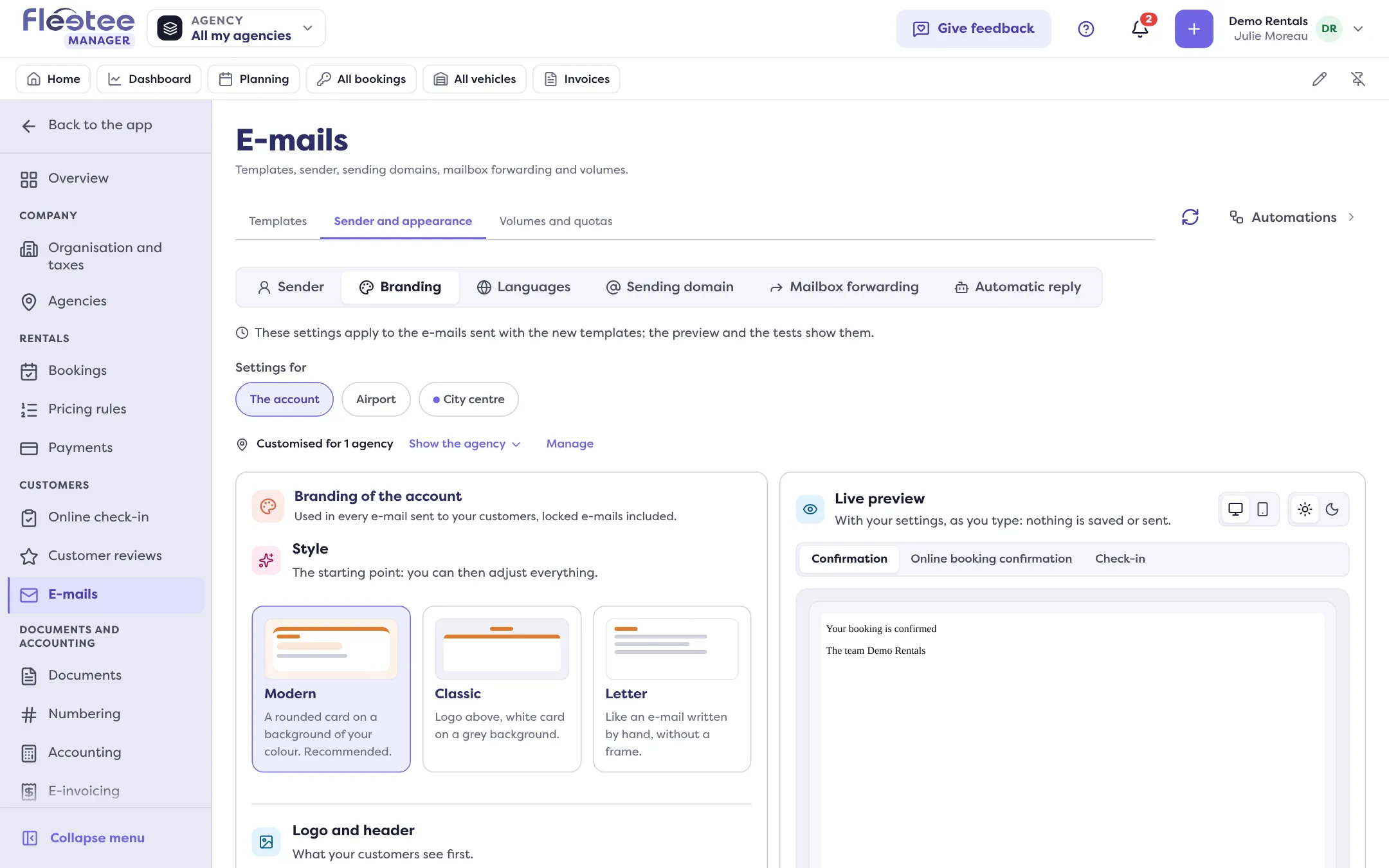
Choose a style
Modern (a rounded card on a background of your colour, recommended), Classic (logo above, white card on a grey background) or Letter (like an e-mail written by hand, without a frame). It is a starting point: you can adjust everything afterwards.
Add your logo and a header
Logo: PNG, JPG or GIF on a transparent background, 2 MB at most; set its size (Small, Medium, Large) and position (Left, Centred). With no logo, the company name shows. Header image (optional): a photo at the top of each e-mail, 1200 × 340 px advised, 5 MB at most. Header: Coloured band, Thin line or None.
Set the colours
The main colour colours the line, the label and the summary, and the buttons and links follow it unless you change them. You also choose the e-mail background (Tinted, Light grey, White), the colour and text of the buttons (Fleetee flags “hard to read” text and suggests a more contrasted one) and the link colour.
Set the text and the layout
The font and size of the text, then the layout: Width (Narrow 600 px, Comfortable 720 px recommended, Wide 840 px, on a computer; on a phone the e-mail takes the whole screen), the shape of corners and buttons, and the label (“Booking confirmed”, “Payment”…) above the text.
Write the signature and the footer
Signature: added at the end of each e-mail; “Add a value to the signature” inserts the company name, the agency name, its phone or its e-mail, filled with the booking’s agency. The contact card adds the agency’s phone, e-mail and address. Footer: your legal mentions (company name, address, website) and your social networks (one icon per link filled in). Fleetee always adds its own mention line.
Look at the preview and save
The live preview follows what you type, without saving or sending anything. Choose the e-mail shown (Confirmation, Reminder, Check-in) and the appearance (Light, Dark). Save: “Settings saved”.
To check with a real e-mail, open a template and click “Send me a test” (see Check an e-mail template before using it).
Where to find it: Settings › E-mails › Sender and appearance › Branding
Where to find it: Settings › E-mails › Sender and appearance › Branding
Go further
Updated on 18 November 2026 with version 3.0