

How do I create my own e-mail template?
- Manager v3
- Administrator
- Agency manager
In short. Settings › E-mails › Templates › “New model”: name it, say what it is about and where to use it, pick the agencies, then write its text. It never goes out alone: a reply, an automation or a send picks it.
A template of your own helps you write the same messages quickly: a reminder before departure, a standard reply in the inbox, an e-mail for an automation. To change an e-mail that Fleetee already sends on its own, see Customise an e-mail sent by Fleetee instead.
Click “New model”
In Settings › E-mails › Templates. To start from an existing text, open the e-mail and click “Create a model from this one”: its text is copied, then you edit it.
Give it a name
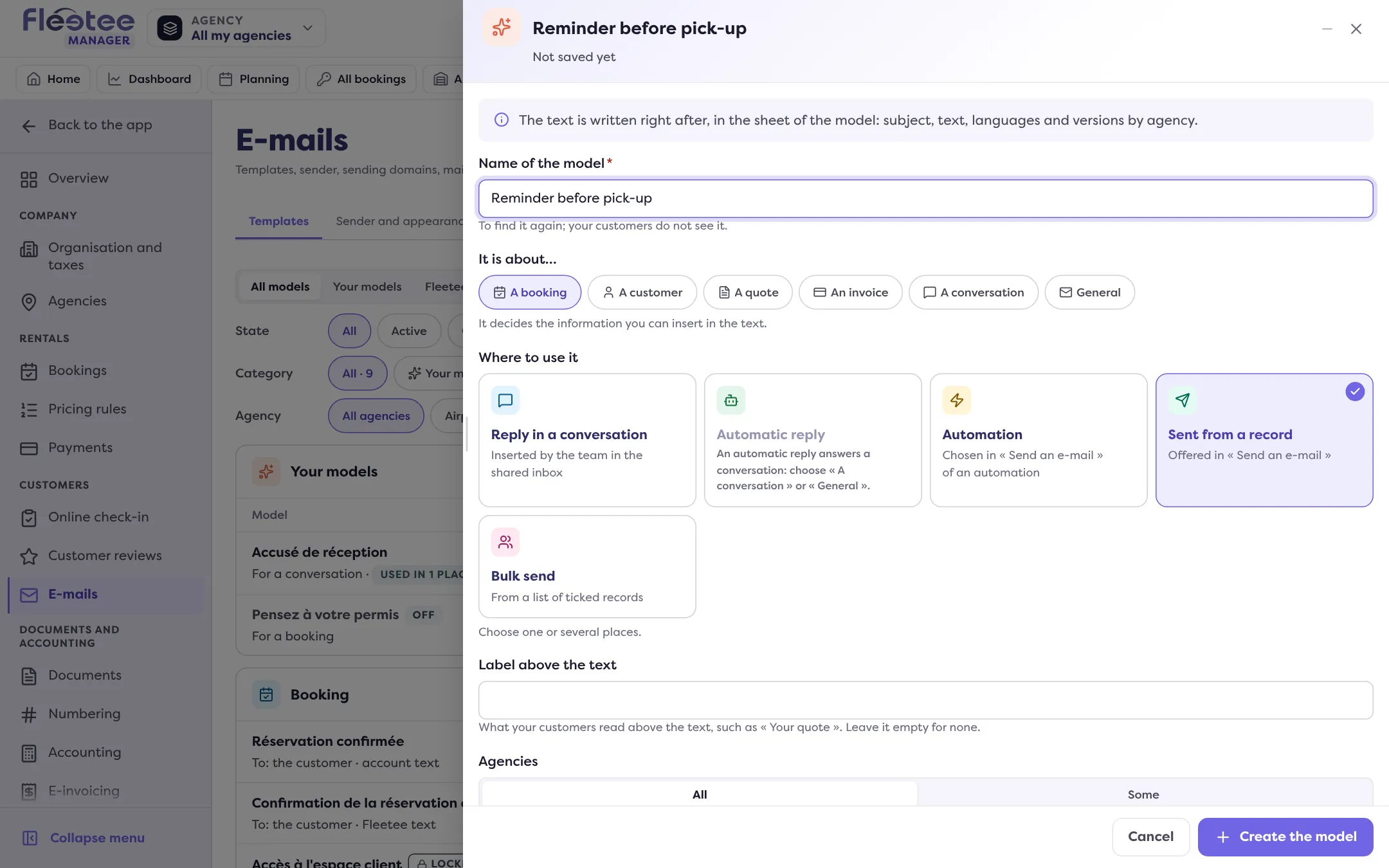
“Name of the model”: 100 characters at most. It helps you find it; your customers do not see it.
Say what it is about
“It is about…”: A booking, A customer, A quote, An invoice, A conversation or General. This choice decides which information you can insert in the text (the customer’s name, the booking reference…).
Choose where to use it
“Where to use it”, one or several places: Reply in a conversation (inserted by the team in the shared inbox), Automatic reply, Automation, Sent from a record (offered in “Send an e-mail”), Bulk send (from a list of ticked records). A place that does not suit what the model is about is refused: remove it.
Add a label (optional)
“Label above the text”: what your customers read above the message, such as “Your quote”. 60 characters at most; empty, there is none.
Choose the agencies
All or Some. A template for every agency is created by an administrator; an agency manager ticks their agencies.
Click “Create the model”
The message says “Model ‘…’ created: now write its text”. The sheet opens.
Write the subject and the message
Write the subject, then the message. The “Variable” button inserts a piece of information (customer first name, booking reference, dates, amount…) filled in when sent. You can write the text in several languages (see Send e-mails in the customer’s language) and by agency.
Check, then save
“Preview” and “Send me a test” show the result (see Check an e-mail template before using it). Click “Save the model”.
After creating it
- “Offered when sending”: switched off, the template is no longer offered when a template is chosen.
- The “Used by” panel shows what sends the template (an automation, an automatic reply). While it is in use, it cannot be deleted: first choose another template in those places.
- “Delete the model” deletes the template and all its texts (languages and agencies). E-mails already sent stay in the history.
- A template offered beyond your agencies can only be changed by an administrator.
A template does not send itself: it goes out when a person picks it, or when an automation or an automatic reply uses it.
Where to find it: Settings › E-mails › Templates › “New model”, or “Create a model from this one”
Where to find it: Settings › E-mails › Templates › “New model”, or “Create a model from this one”
Go further
Updated on 18 November 2026 with version 3.0