

How do I check an e-mail template before using it?
- Manager v3
- Administrator
- Agency manager
In short. In a template’s sheet, “Preview” shows the e-mail as a customer would receive it (computer or phone) and “Send me a test” sends it to your own address. Nothing is sent to a customer or saved.
Before letting a template go out to your customers, look at it. Fleetee offers two checks, in the sheet of each template.
Open the template
In Settings › E-mails › Templates, click the e-mail. In “Text used by”, choose the level to check (the account, an agency) and, in “Language of the text”, the language.
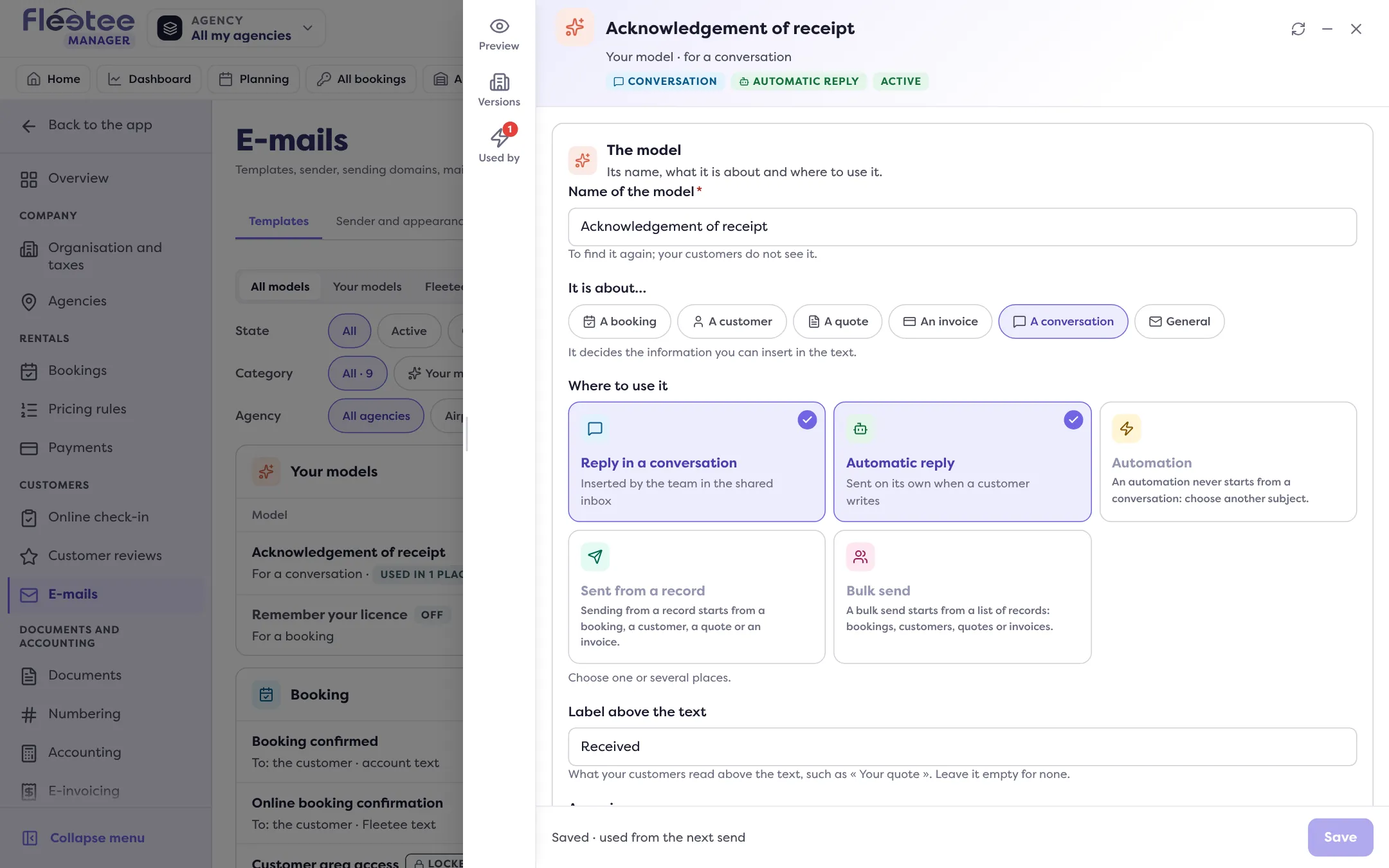
Click “Preview”
The Preview panel shows the e-mail as the customer of the last booking at this level would receive it, with their real values. With no booking, the values are examples (“Without a booking: the values are examples”). Switch between Computer and Phone with “Format”.
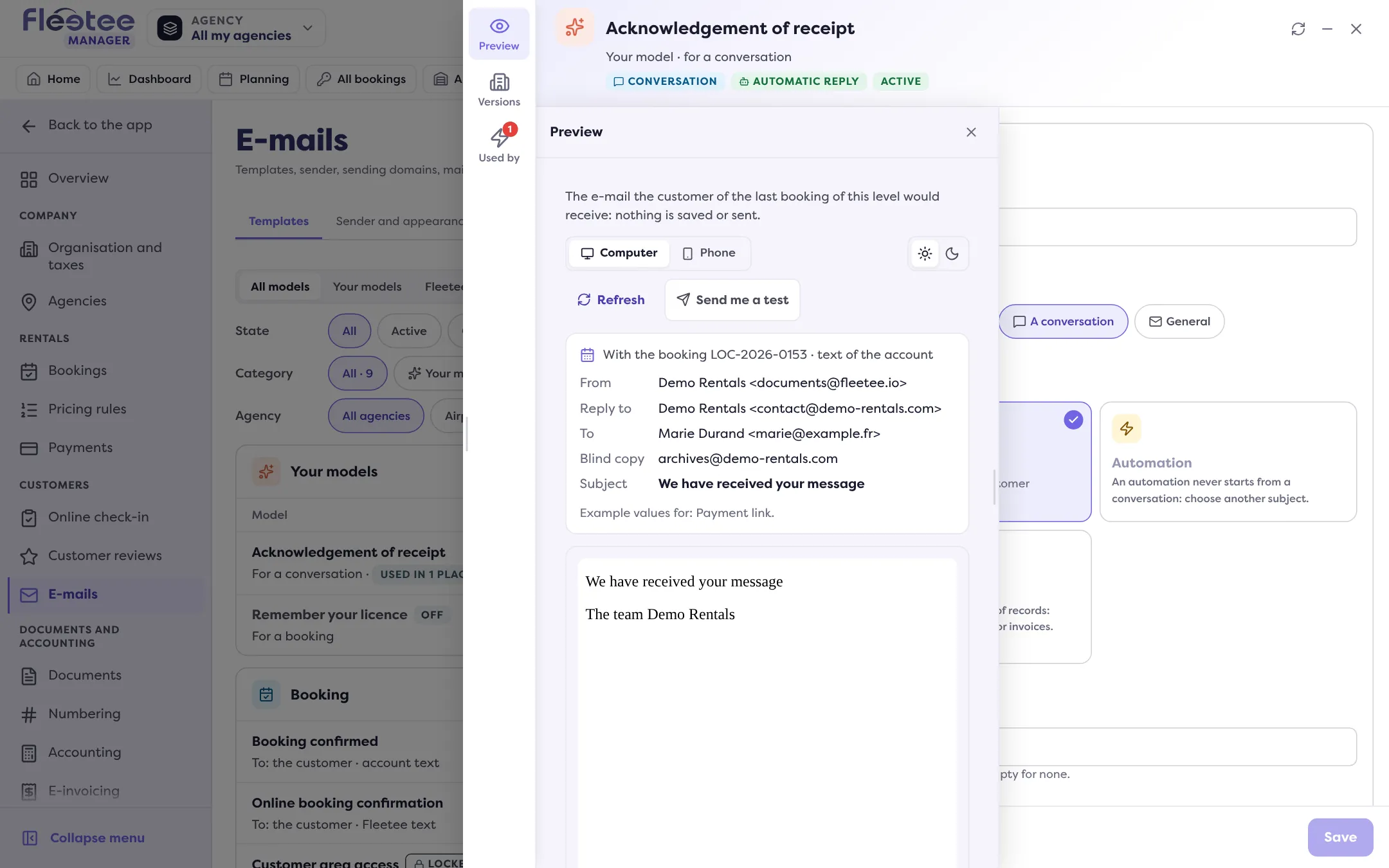
Read the envelope
At the top, the preview shows what the customer will see: From, Reply to, To, Blind copy and Subject, and where the text comes from (Fleetee’s text, the account’s, an agency’s, or text being written). If the customer has no e-mail address on their record, the preview says so.
Click “Send me a test”
Fleetee sends the e-mail to your address: “Test sent to …”. You see it in your mailbox, with your e-mails’ branding. The test is never sent to a customer.
Fix and try again
If you change the text without saving, the preview follows (“Preview of the text being written, not saved yet”). “Refresh” reads the preview again. When the result suits you, click “Save”.
What to look at
- The variables: first name, reference, dates and amounts are filled in properly.
- The text in each language: if a language has no text yet, the preview says “No text in …” and shows the French those customers would receive (see Send e-mails in the customer’s language).
- The branding: logo, colours, signature (see Give my e-mails my brand’s look).
If the test does not arrive
- “The test was not sent: the address … is blocked for your company”: your address is in the blocked addresses of Customers › E-mails. See My customer says they didn’t get an e-mail.
- “You have sent many tests”: wait the time shown.
- “Your account has no e-mail address to send the test to”: add an address to your account.
Where to find it: Settings › E-mails › Templates › a template › “Preview” and “Send me a test”
Where to find it: Settings › E-mails › Templates › a template › “Preview” and “Send me a test”
Go further
Updated on 18 November 2026 with version 3.0