

How do I send e-mails in the customer’s language?
- Manager v3
- Administrator
- Agency manager
In short. Each customer receives the language of their file. Choose your languages in Settings › E-mails › Sender and appearance › Languages, then write each template’s text in those languages, by hand or with “Translate with AI” to proofread.
A customer who speaks English reads their confirmation better in English. Fleetee offers French, English, Spanish, German, Italian, Portuguese and Dutch. A customer receives the language of their file; with no language, or no text in their language, they receive the default language.
1. Choose your languages
Open Settings › E-mails › Sender and appearance › Languages
These settings apply to the whole account. Only an administrator changes them.
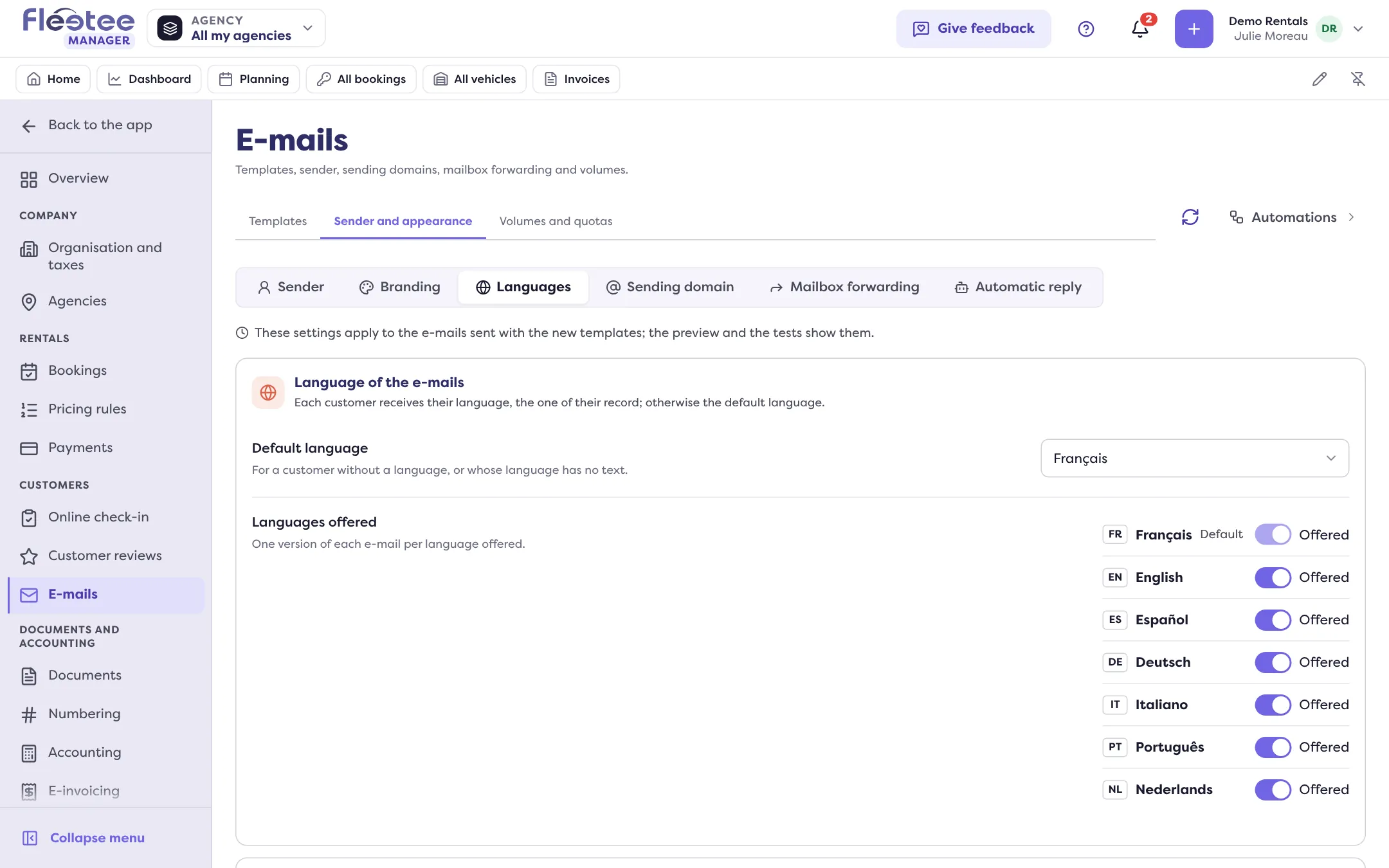
Choose the “Default language”
For a customer with no language, or whose language has no text.
Turn on the “Languages offered”
“Offer …” turns a language on: each e-mail can then have a version in that language. The default language is always offered.
Below the languages, Fleetee counts the texts to translate: the e-mails you wrote in French that have no text in these languages. A click on an e-mail opens it. “All your texts are translated” shows when nothing is missing.
2. Write the text in another language
Open the template
In Settings › E-mails › Templates, click the e-mail.
Choose the “Language of the text”
A language with no text carries the note “no text yet”. The sheet then says: “Your customers who speak … receive the French text”.
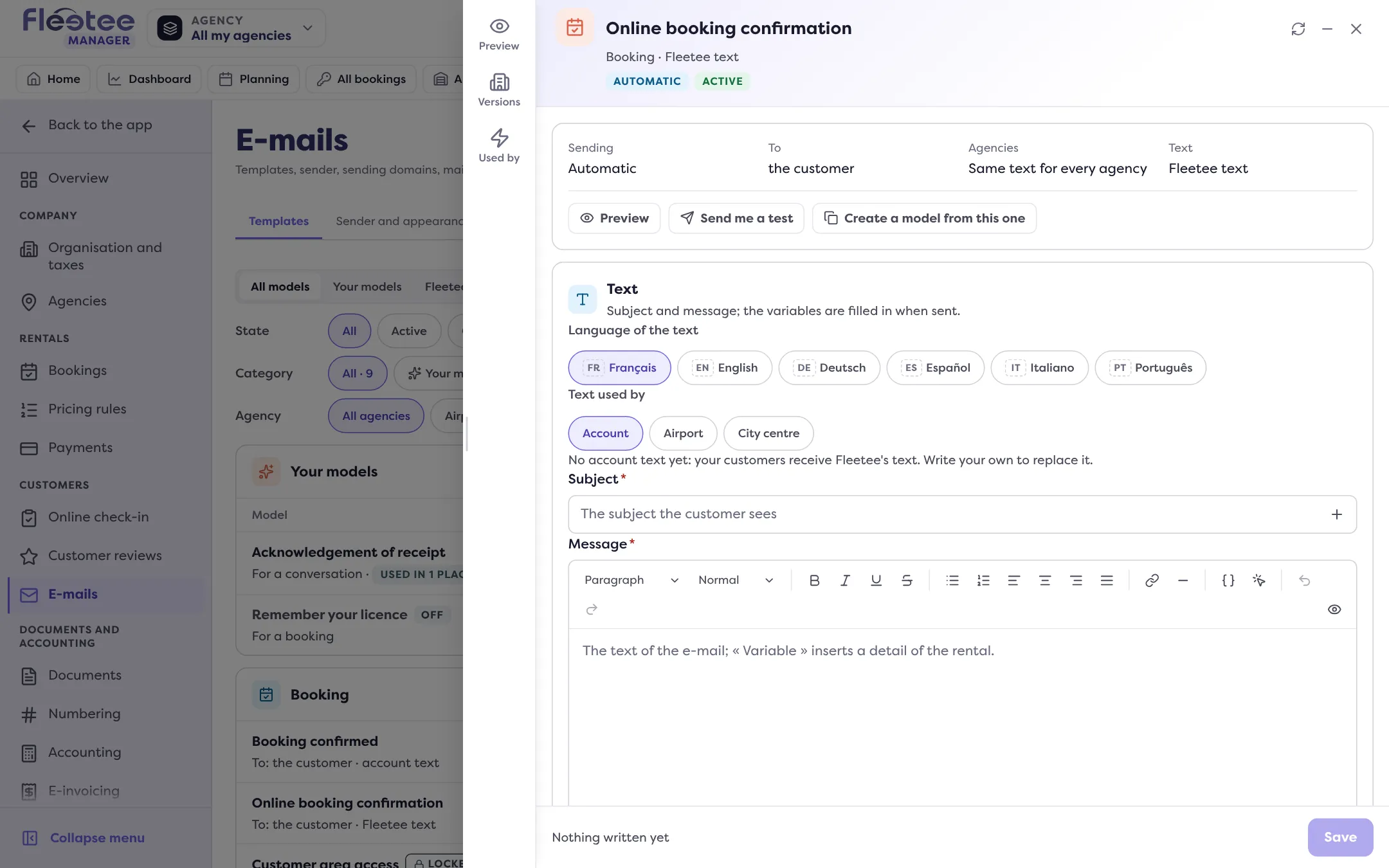
Write it
“Write the text in …” opens the French text as a starting point: translate the subject and the message. Or click “Translate with AI”: a confirmation says the AI translates the French text and that nothing is saved; the translation lands in the editor as a draft. If a text already exists in that language, it is replaced in the editor, without being saved.
Proofread, check, save
“Translate with AI” costs 3 AI credits per template (see What are AI credits and how do I buy more?). The note “Translated by the AI: read it before saving” stays until you save. Check with “Preview” (see Check an e-mail template before using it), then click “Save”: “Text in … saved”.
To remove a language from a template, “Delete the text in …”: customers of that language receive French again.
Good to know
- An e-mail whose text is set by Fleetee (sign-in or access link) is already translated by Fleetee and cannot be translated with the AI.
- Translation is done on request and never saved for you. If it fails, the messages say so (“The AI is not available right now”, “There is no text to translate yet for this template”). Writing the text yourself is always possible.
- A customer’s language is set on their file (Language field, suggested from the dialling code or country when created). See the customer file.
Where to find it: A template’s sheet › Language of the text; Settings › E-mails › Sender and appearance › Languages
Where to find it: A template’s sheet › Language of the text; Settings › E-mails › Sender and appearance › Languages
Go further
Updated on 18 November 2026 with version 3.0