

How do I e-mail a customer or a whole selection?
- Manager v3
- Administrator
- Agency manager
- Rental agent
In short. “Send an e-mail” from a record (booking, customer, quote, invoice) writes to one person. From a list, tick rows then “Send an e-mail”: content, check, send, up to 100 e-mails at once.
Write from a record
A booking, a customer, a quote or an invoice each have a “Send an e-mail” button (for a customer, in the action bar of the file and in the E-mails panel).
Click “Send an e-mail”
The form has four cards: Model, Recipients, Message and Attachments.
Choose a template (or none)
The templates offered are those of your agency, otherwise those of the account. “No model” lets you write freely. Choosing another template replaces the text already written: Fleetee asks “Replace your text?”. The Language follows the customer’s; changing it replaces the text.
Check the recipients
The person concerned is already in To: the renter, a driver or the customer to invoice. Add other people in To, Cc or Bcc (everyone sees the addresses in “To” and “Cc”, never those in “Bcc”). Fleetee flags a probable typo, an undelivered or blocked address (the e-mail is tried anyway); an address that marked your e-mails as spam must be removed to send.
Write the subject and the message
An edited text is for this send only: the template does not change. The variables (name, reference…) are filled in when sent.
Choose the attachments and send
The attachments offered depend on the record (quote, invoice, contract…). Beyond a certain size, a file leaves as a download link valid 7 days. Click “Send”: “E-mail sent to N recipients”. Each recipient counts for one e-mail of your volume.
Write to a whole selection
In the lists of bookings, quotes, customers and invoices, tick the rows then click “Send an e-mail” in the bar that appears. 100 rows at most at a time; beyond that, Fleetee asks you to untick some.
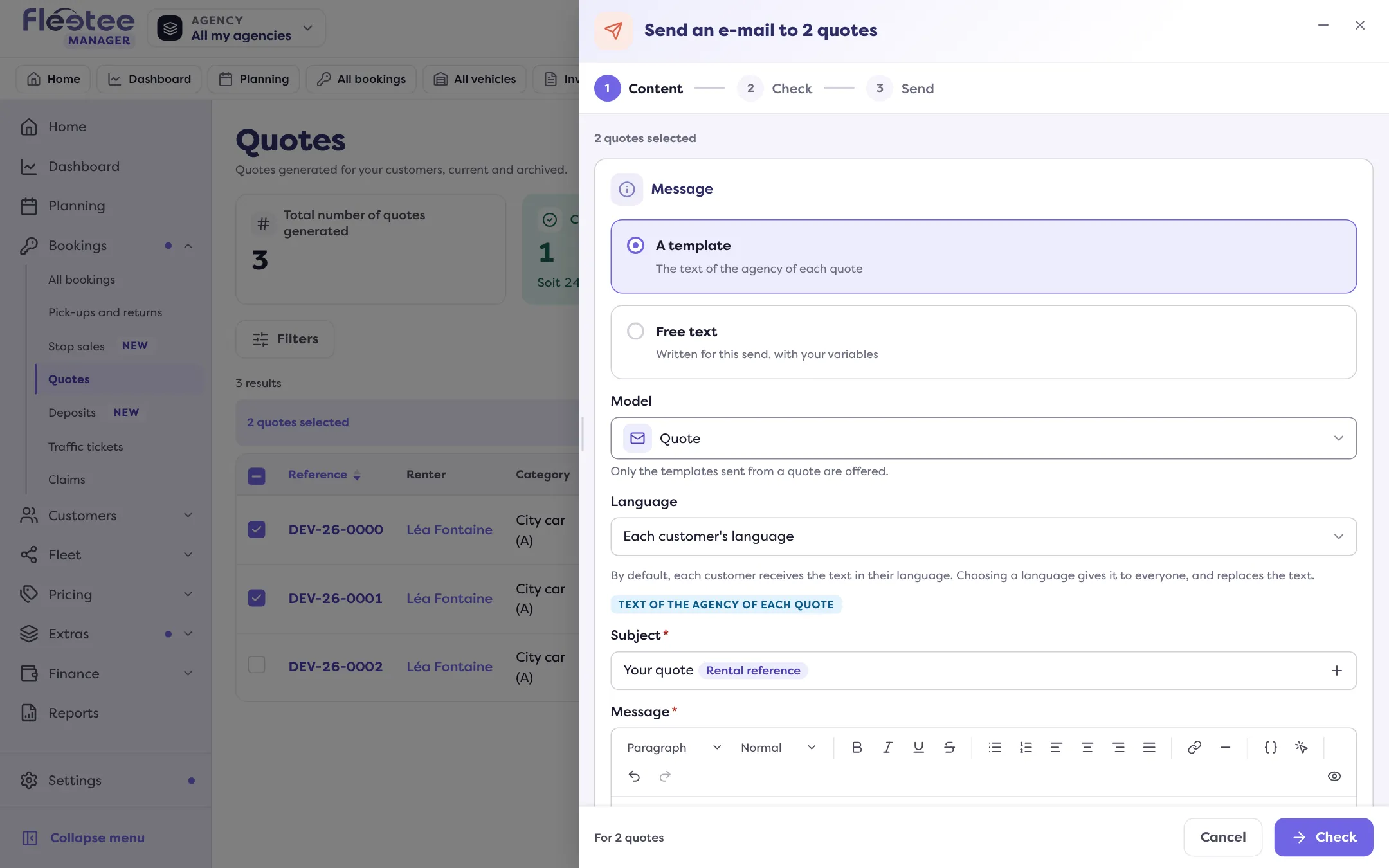
Content
“Start from” “A template” (the text of each row’s agency) or “Free text”. For customers, a grouped send always starts from a free text. Choose who to write to: the renter, the customer to invoice, the drivers. “Each customer’s language” sends each one the text in their language. Each person receives their own e-mail, with their own variables.
Check
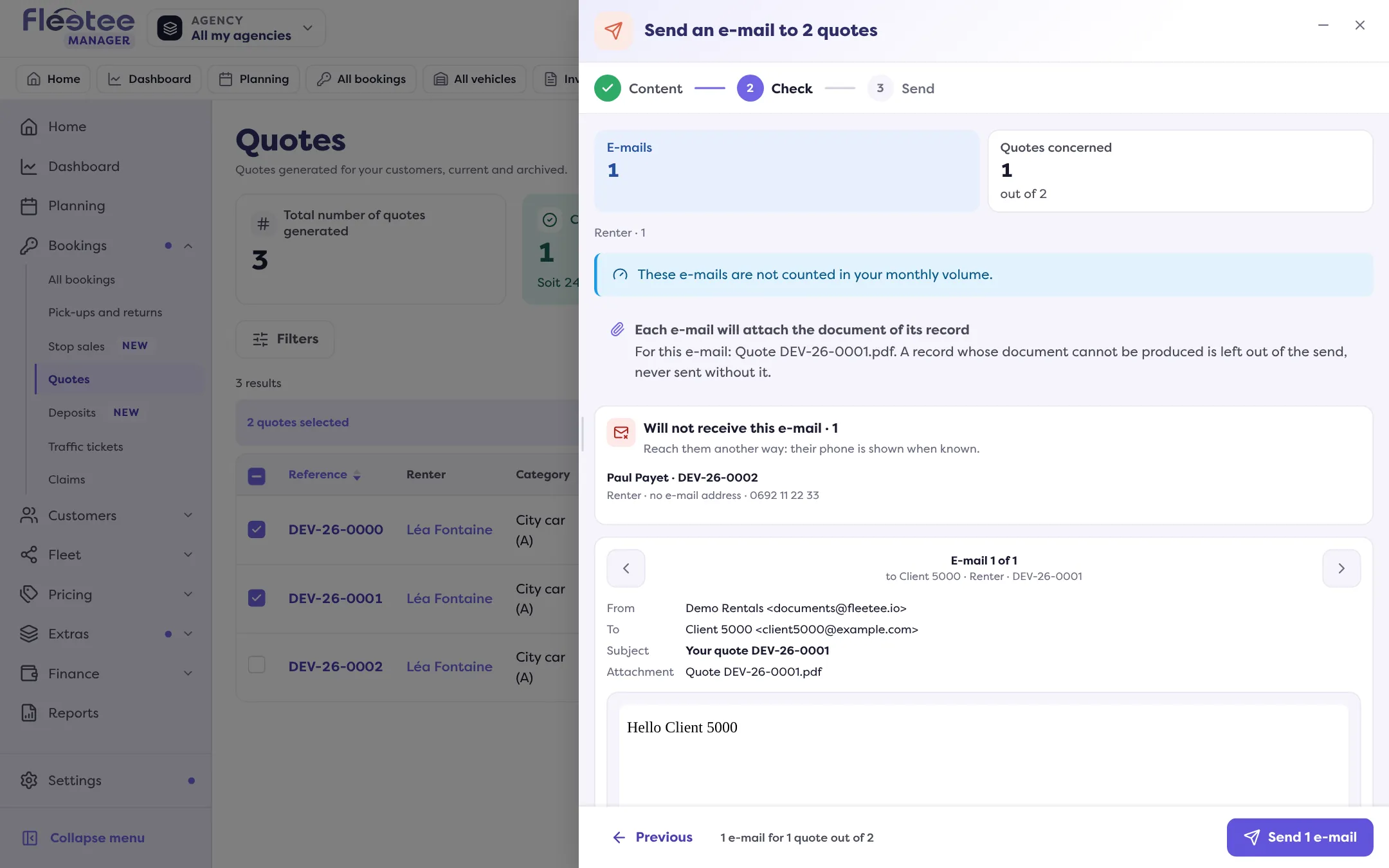
Click “Check”. Fleetee shows a preview of each e-mail (“E-mail 1 of N”) and the “Will not receive this e-mail” list, with the reason: no e-mail address, invalid address, blocked or undelivered, marked your e-mails as spam, template switched off in its agency. Reach them another way: their phone is shown when known.
Send
“Send N e-mails”. Fleetee follows the send (“N sent out of N”) and each e-mail that left appears in the history and in the E-mails panel of its record.
A grouped send is a service message, not a commercial offer: it concerns the ticked rows, with no marketing consent to check. It does not replace a campaign.
If your monthly e-mail volume is reached and your account blocks non-essential e-mails, nothing leaves: Fleetee says so (“The monthly e-mail volume is reached…”). An hourly limit also exists (“Too many e-mails sent by your company in the last hour”).
Where to find it: “Send an e-mail” from a record, or after ticking rows in a list
Where to find it: “Send an e-mail” from a record, or after ticking rows in a list
Go further
Updated on 18 November 2026 with version 3.0