

How do I send my e-mails from my own domain?
- Manager v3
- Administrator
In short. Settings › E-mails › Sender and appearance › Sending domain: add your domain, copy the DNS records at your domain provider, Fleetee checks by itself; your e-mails then leave from contact@your-domain. Administrator only.
By default, your e-mails leave from Fleetee’s address. With your sending domain (for example renter.com), they leave from your own address, for instance contact@renter.com, and your customers reply to you directly.
Only the company administrator manages the sending domain. The feature is opened company by company. While this sending mode is not active on your account, the page says your e-mails keep leaving from Fleetee’s address, even with a verified domain.
Open Settings › E-mails › Sender and appearance › Sending domain
Choose “All my agencies” at the top of the screen: domains apply to every agency.
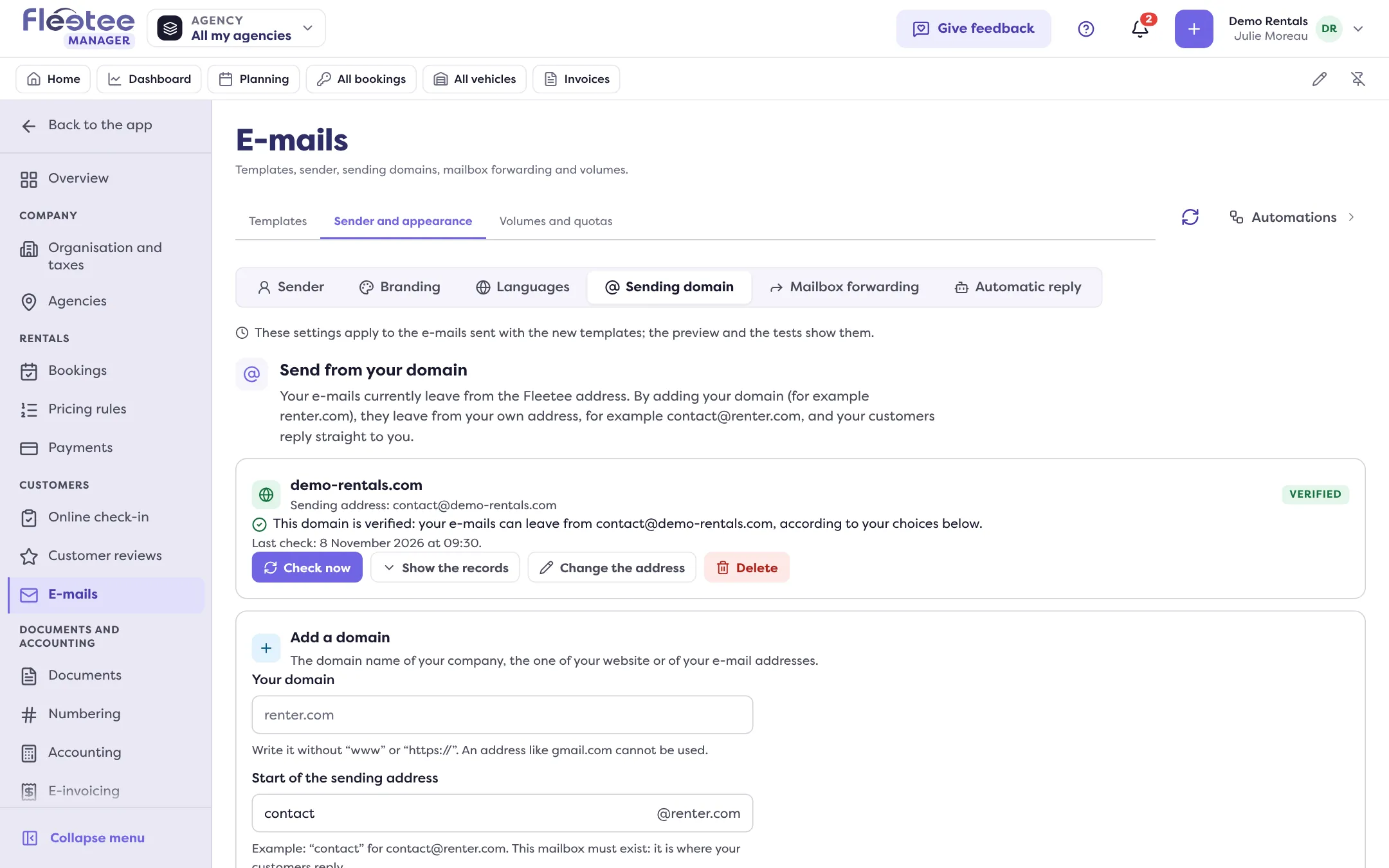
Add the domain
In “Add a domain”, enter “Your domain” without “www” or “https://” (an address like gmail.com cannot be used). Give the “Start of the sending address”: for example “contact” for contact@renter.com. This mailbox must exist: it is where your customers reply. Tick the confirmation (“I confirm that the mailbox … exists and receives its mail”), then click “Add the domain”.
Copy the DNS records
The domain is Waiting for verification and Fleetee shows the records to add, with their type, name and value, and a “Copy” button for each. Add them at the company that manages your domain name (OVH, Gandi, GoDaddy…), changing nothing. They sign your e-mails, allow sending, receive returned e-mails and, optionally (Advised), protect you from spoofing.
Let Fleetee check
Fleetee checks automatically every 30 minutes for 72 hours. You can also click “Check now”. Each record is marked Found, Missing, Different or No answer. When everything is right, the domain becomes Verified: “Domain verified: your e-mails can leave from …”.
Choose the sending address by agency
In “Sending address by agency”, choose for the account, then for each agency, the address your customers see: The Fleetee address, or an address of a verified domain. An agency can follow the account (Like the account). “Change the address” changes the start of the address.
If the domain stays “Not verified”
After 72 hours without the records being found, the domain becomes Not verified. Check each line at your domain provider (the name and value must be identical, with no extra space), then click “Check now”. DNS changes can take time to spread.
Delete a domain
“Delete” removes the domain: it is no longer used to send, and the choices that used it go back to the Fleetee address. Remember to remove its records at your domain provider too.
To change the displayed name and the reply address, see Change the sender name and address of my e-mails. To also receive your usual address’s e-mails in Fleetee, see Receive my usual mailbox’s e-mails in Fleetee.
Where to find it: Settings › E-mails › Sender and appearance › Sending domain
Where to find it: Settings › E-mails › Sender and appearance › Sending domain
Go further
Updated on 18 November 2026 with version 3.0