

How do I add a ready-made automation?
- Manager v3
- Administrator
- Agency manager
In short. Settings › Automations › “Add from a template”: pick a template written by Fleetee, fill in what it leaves to you, add it. It arrives switched off: check it, then switch it on. It becomes yours.
The library gathers automations written by the Fleetee team: a reminder the day before departure, a reminder for an expiring quote, a thank-you after the return, a reminder for an unpaid invoice… You pick one, complete it, and it joins your automations.
Automations are opening gradually. If the page says “Automations are not yet open to your company”, templates cannot be added. An administrator sees all automations; an agency manager sees those of their agencies.
Click “Add from a template”
In Settings › Automations. The list gives each template’s title and what it does. A template already added shows “Already added” (or “Added N times”).
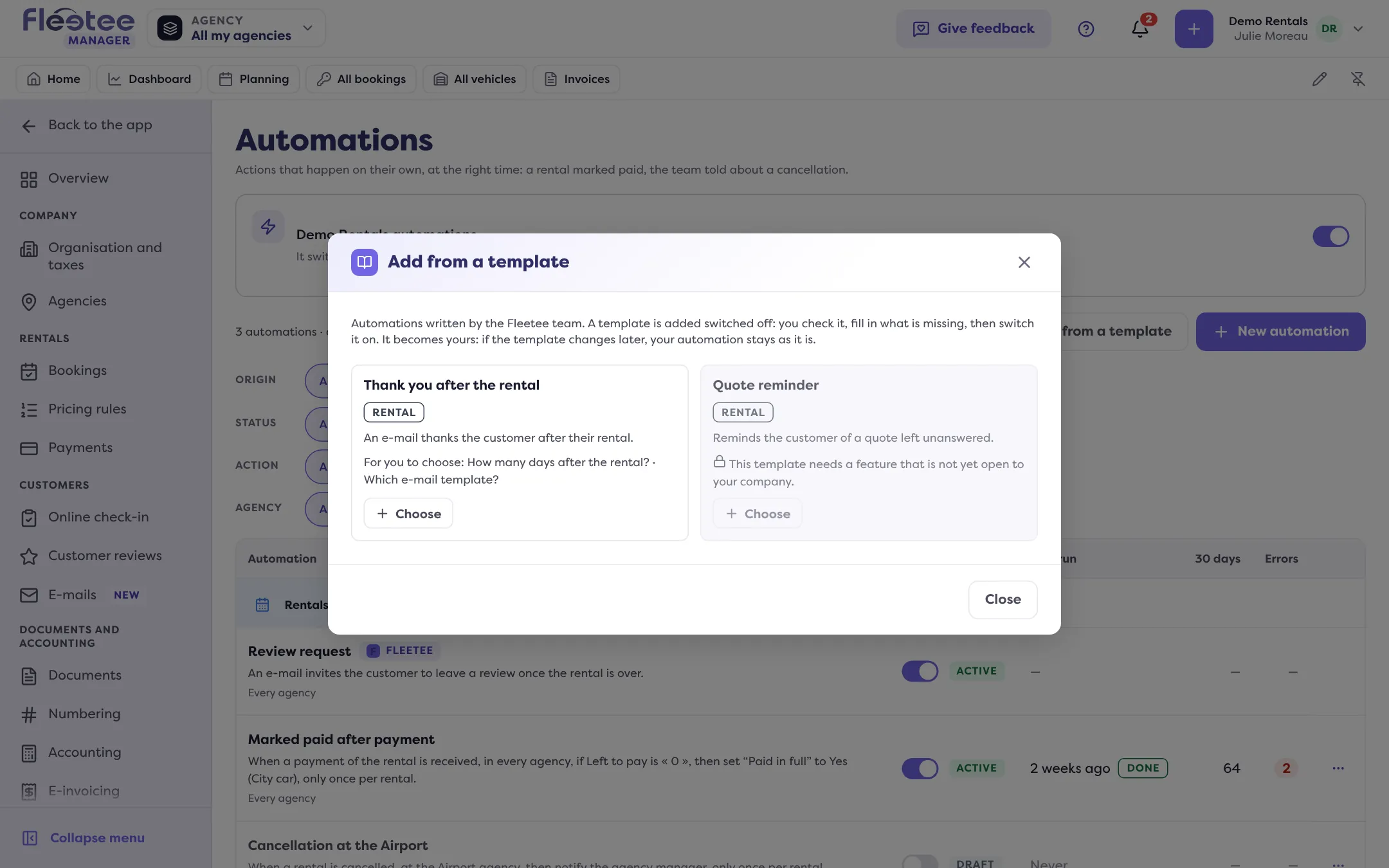
Click “Choose”
On the template you want. A template that needs a feature not yet open to your company is flagged.
Fill in what the template leaves to you
The note “For you to choose” lists the questions: for example the e-mail template to send (picked among those of your company’s E-mail centre, see Create my own e-mail template), a delay or a property. You can also fill them in later, in the automation. Give it an “Automation name” if you wish.
Click “Add”
The message says: “Automation added, switched off. Check it, then switch it on.” If choices are still to be made, the message says so (“N choices are left to make”).
Check and switch on
Open the automation. The “To complete before switching it on” banner lists what is missing. Try it on a booking, then activate it like any automation.
Good to know
- The automation is created switched off: nothing is sent until you have checked it and switched it on.
- It becomes yours. If the template changes later, your automation does not move. Fleetee flags “A newer version exists”; to get it, add the template again.
- Some templates replace an automatic e-mail of Fleetee. Their description says so: check before switching the automation on, so your customers do not receive two e-mails. See the e-mails Fleetee sends by itself.
- The e-mail template chosen must be made for automations.
Where to find it: Settings › Automations › “Add from a template”
Where to find it: Settings › Automations › “Add from a template”
Go further
Updated on 18 November 2026 with version 3.0