

How do I reply automatically to customers outside opening hours?
- Manager v3
- Administrator
- Agency manager
In short. Settings › E-mails › Sender and appearance › Automatic reply: turn it on, choose “Outside opening hours” (or Always, During an absence) and the model sent. It goes out when a customer writes to the shared inbox, once per 24 h.
The automatic reply is an e-mail sent by itself when a customer writes to the shared inbox: “We received your message, we will answer as soon as we open”.
It comes with the shared inbox.
Create or pick a model
Only the models made for the Automatic reply (see Create my own e-mail template) are offered. If there is none, the page offers “Create a model”.
Open the Automatic reply
In Settings › E-mails › Sender and appearance, part Automatic reply. “Settings for” picks the account or an agency (an agency manager sets their own).
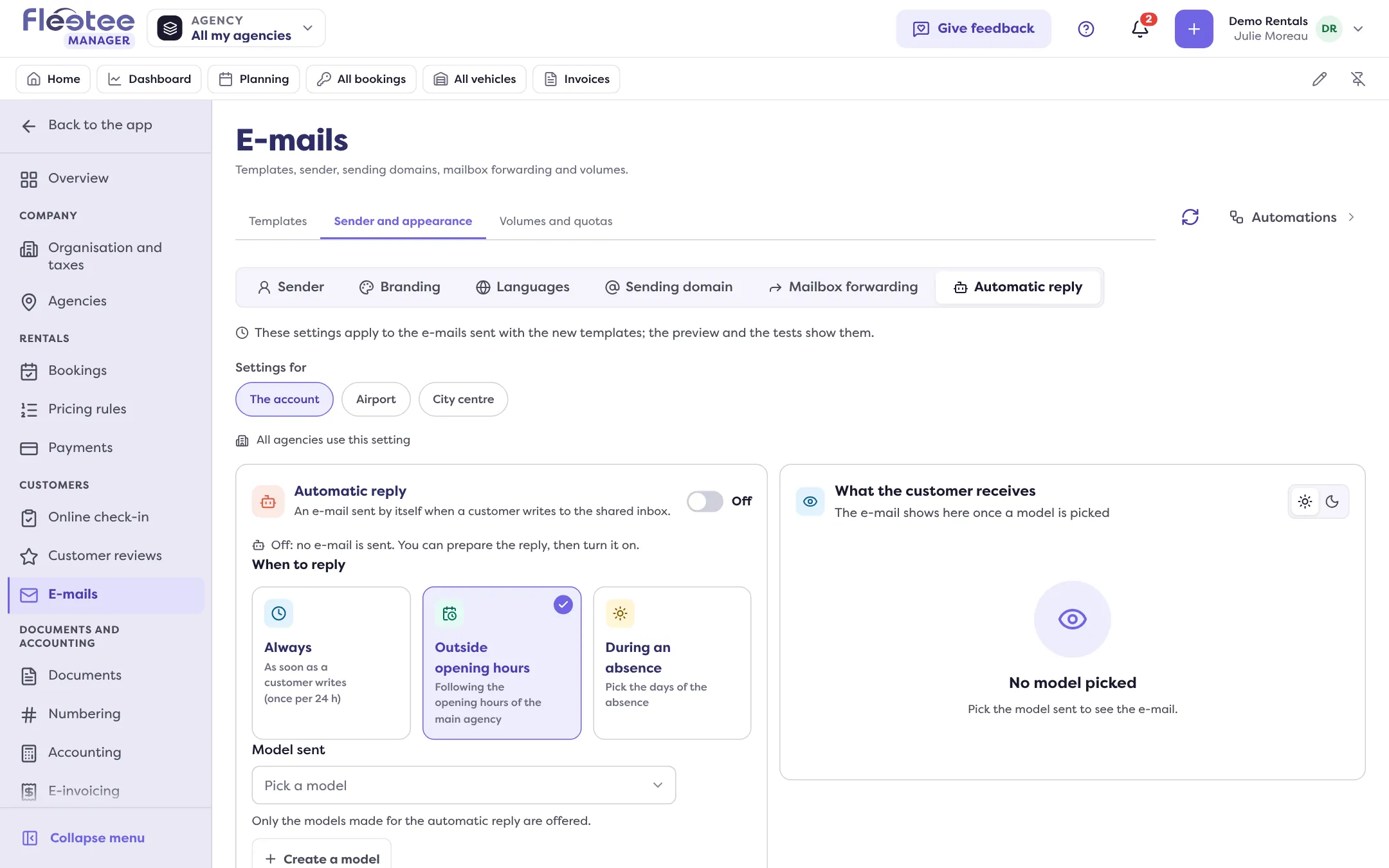
Choose “When to reply”
Always: as soon as a customer writes. Outside opening hours: following the agency’s opening hours (for the account, those of the main agency). During an absence: choose the days of the absence, first and last day included.
Choose the “Model sent”
The “What the customer receives” panel shows the e-mail with the “Letter” look, more personal.
Turn it on
“Turn on the automatic reply”. While off, nothing is sent: you can prepare the reply, then turn it on. Each setting is saved as soon as you change it.
The safeguards
- One automatic reply per customer every 24 hours at most.
- Never to automatic messages (out-of-office, robots, “no reply”).
- Never to blocked addresses.
If the chosen model is switched off or no longer offered, the page says “Model unavailable”: pick another one. To test the text, see Check an e-mail template before using it.
Where to find it: Settings › E-mails › Sender and appearance › Automatic reply
Where to find it: Settings › E-mails › Sender and appearance › Automatic reply
Go further
Updated on 18 November 2026 with version 3.0