

What does the e-mail centre show?
- Manager v3
- Administrator
- Agency manager
- Rental agent
In short. Customers › E-mails brings together three tabs: Overview (sent, delivered, not delivered and blocked addresses over 30 days), History of every send, and Blocked addresses. Each figure opens the matching list.
The e-mail centre answers one question: what does your company send to its customers and its team, and does it arrive? It replaces the old screen of sent e-mails.
Overview
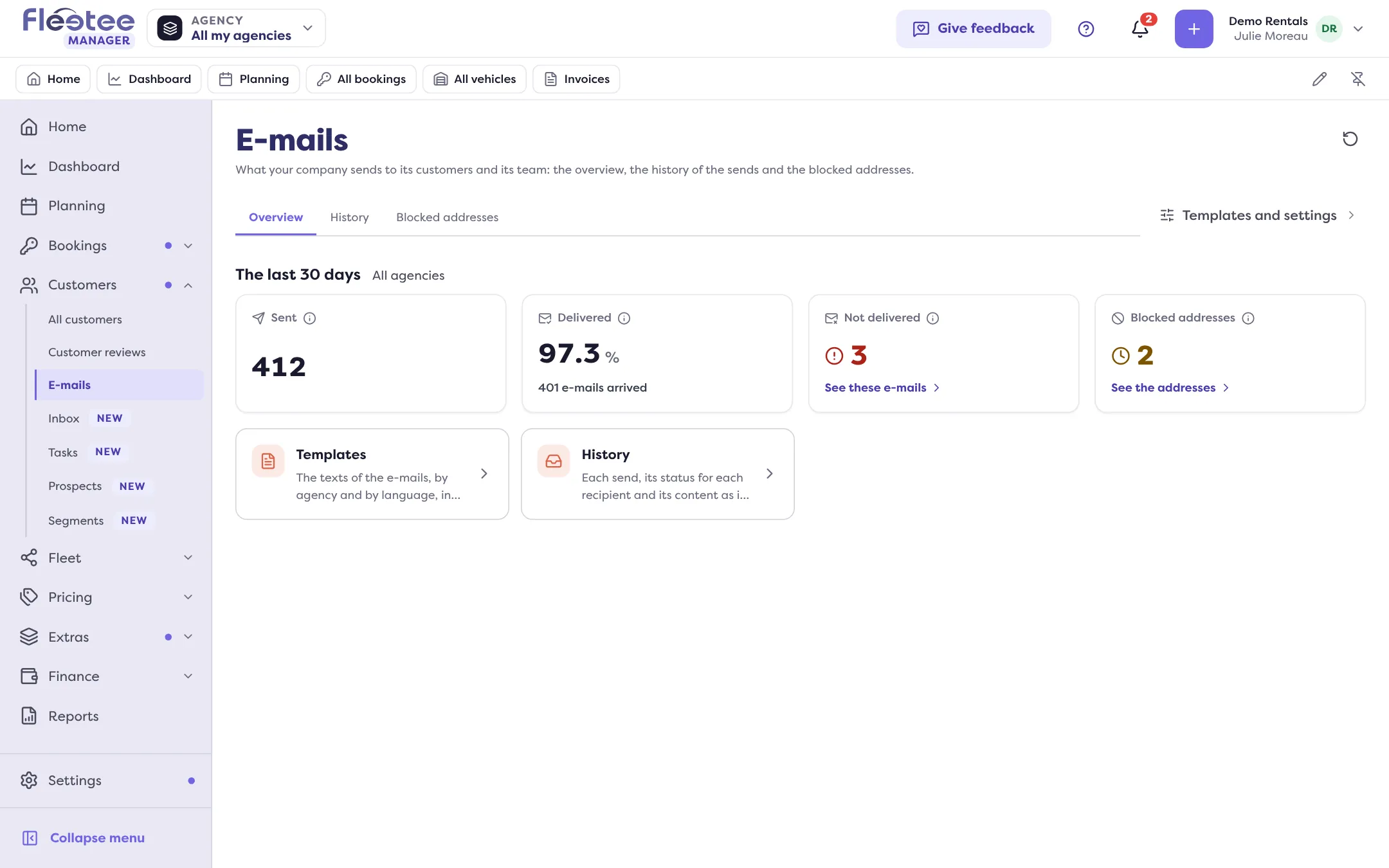
The Overview tab gives four figures for the last 30 days:
- Sent: e-mails that left Fleetee for your customers and your team; each recipient counts for one.
- Delivered: the share of sent e-mails accepted by the recipient’s mailbox (“N e-mails arrived”).
- Not delivered: address that does not exist, refused by the mailbox or failed send. “See these e-mails” opens the history already filtered.
- Blocked addresses: addresses that no longer get the non-essential e-mails (address that does not exist, marked as spam, unsubscribed). “See the addresses” opens the list.
The title reminds you of the scope: All agencies, Your agencies or Agency …, depending on the agency chosen at the top of the screen. Two cards lead to Templates (the texts of the e-mails, by agency and by language, in Settings) and to History.
History
Each send, its status for each recipient and its content as it left. See How do I resend an e-mail or unblock an address?.
Blocked addresses
The list of addresses that no longer get the non-essential e-mails, with the reason and the date. An administrator can put them back into service. See How do I resend an e-mail or unblock an address?.
What the centre does not show
The texts and settings are managed in Settings › E-mails: Templates, Sender and appearance and Volumes and quotas. The “Templates and settings” link of the centre leads there. The e-mail volume included in your plan is read in “Volumes and quotas”: see How many e-mails does my plan include?. To find out why a customer does not receive an e-mail, see My customer says they didn’t get an e-mail: what should I check?.
Where to find it: Customers › E-mails › Overview
Where to find it: Customers › E-mails › Overview