

How do I cancel an invoice with a credit note?
- Manager v3
- Administrator
- Agency manager
In short. A validated invoice is never deleted: it is cancelled with a credit note. Open the invoice, “Cancel the invoice”, choose the amount (total or partial) and what happens to the payments, then “Generate the credit note”. An issued credit note can no longer be changed.
This is reserved to the administrator and the agency managers. With another role, ask one of them to do it.
A credit note is the document that cancels all or part of an invoice already validated. The invoice keeps its number; the credit note has its own. A draft, on the other hand, can be deleted: it does not need a credit note.
Open the invoice
From Finance › Invoices or the rental’s Invoices panel.
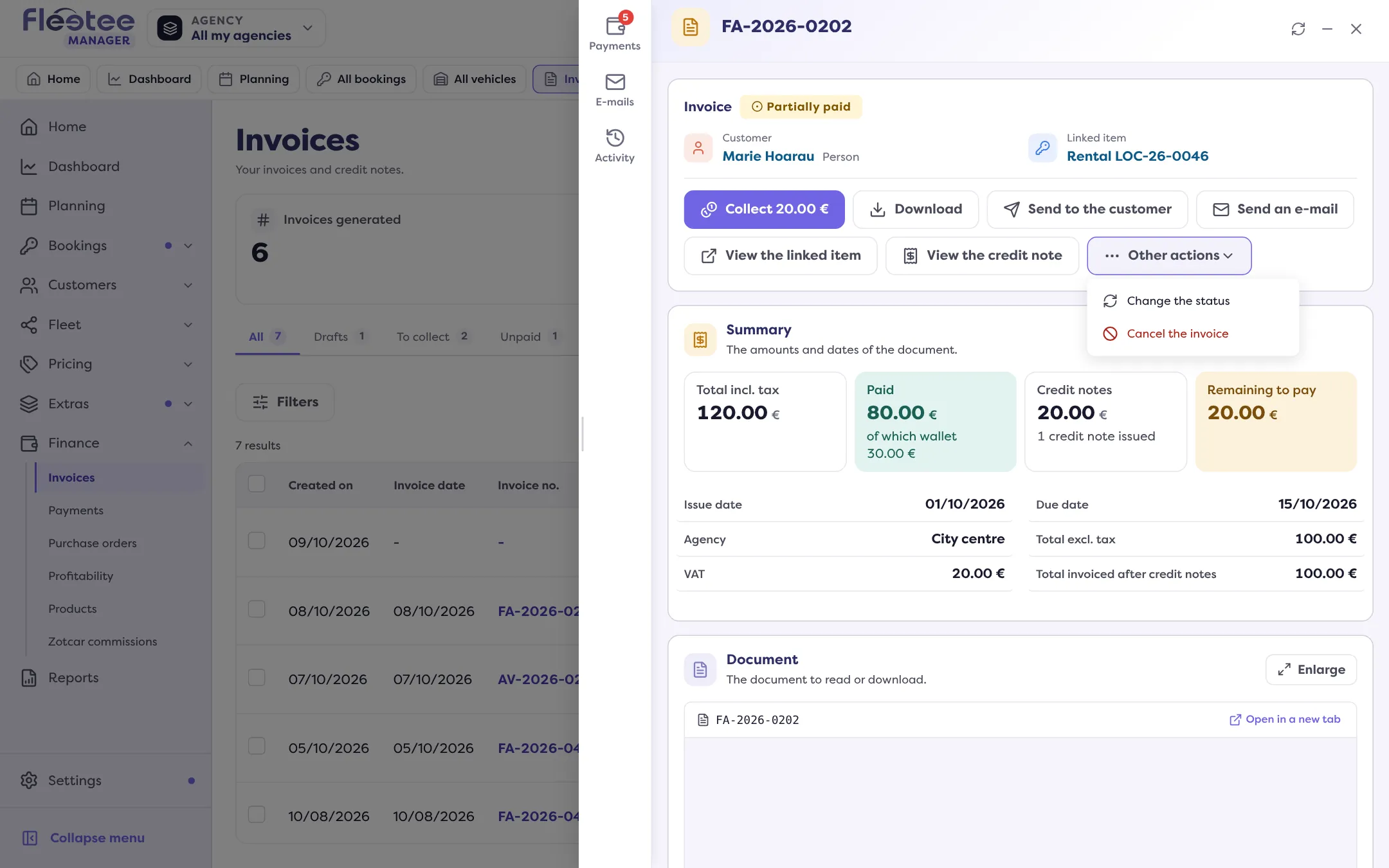
Click “Cancel the invoice”
The “Cancel the invoice” panel opens, in three steps: Amount, Payments, Credit note. A summary on the right updates at each change.
Amount step: total or partial
Under “What amount do you want to cancel?”, choose Total or Partial. For a partial credit note, enter the “Amount to cancel (incl. tax)”, at most the “Balance that can be cancelled”. Give the “Date of the credit note”, which cannot be before the invoice’s issue date. If a credit note has already been issued on this invoice, a total cancellation is no longer possible: only a partial credit note remains available.
Payments step: what happens to the payments?
If payments are attached to the invoice, choose one of the three treatments (see below). With no payment, the credit note is simply issued, with no cash movement. You can add an internal reason, optional: it is added to the invoice’s history and does not appear on the credit note.
Credit note step: check, then generate
The credit note preview shows. Click “Generate the credit note”, then confirm: “A credit note of … will be issued on invoice … The invoice will become “…”. This action cannot be undone.”
What happens to the payments?
- Credit the customer’s wallet (recommended): the amount is credited to the customer’s wallet, usable later. No money goes out.
- Refund the customer: one refund per payment, with the method of each refund. Real money goes out. Reserved to the company administrator and the branch manager.
- Do not refund: the payments are detached from the invoice and can be allocated to another invoice. Nothing is refunded or credited.
When the credit note is covered by what is still due, the payments stay attached to the invoice: no cash movement.
If a payment was collected online, Fleetee records the refund but does not trigger it with the payment platform: you have to make it yourself from its interface.
A few special cases:
- A deposit cannot be credited to the wallet: it can only be refunded. A payment by deposit is given back from the deposit (read How do I keep part of a deposit for charges?).
- A payment spread over several invoices cannot be credited to the wallet.
- The wallet uses attached to the invoice are detached and automatically credited back.
What the credit note shows
The credit note reproduces the template of the invoice it settles: the template is never a choice, and editing, disabling or deleting a template does not change a credit note already issued. It carries neither the payment terms, nor the late payment penalties, nor the invoice conditions, nor the bank details.
When the button is missing or refused
- “This invoice cannot be cancelled by a credit note: draft, credit note or invoice already closed.”
- “Already cancelled in full: the credit notes issued already cover the whole invoice.”
- For a down payment deducted by a group’s invoice: first make the total credit note of the group’s invoice (or delete its draft), then the down payment’s.
Once the credit note is generated, the invoice moves to the status announced in the confirmation. You can send the credit note to the customer with “Send to the customer”, like an invoice: read How do I validate an invoice and send it to the customer?.
Where to find it: Invoice › “Cancel the invoice” › “Generate the credit note”
Where to find it: Invoice › “Cancel the invoice” › “Generate the credit note”