

How do I reply to customers from the shared inbox?
- Manager v3
- Administrator
- Agency manager
- Rental agent
In short. Customers › Inbox: your customers’ replies land here for the whole team. Assign a conversation (“I'll take it”), reply or write an internal note, then close it. The inbox must be open for your company.
When a customer replies to an e-mail sent by Fleetee, their reply lands in the Inbox, for the whole team, rather than in one person’s mailbox. Each conversation is tied to its booking, quote or customer.
The inbox is not switched on for every company. If it is not for yours, the page says “The inbox is not open”: customers’ replies can still be read from the file of each booking.
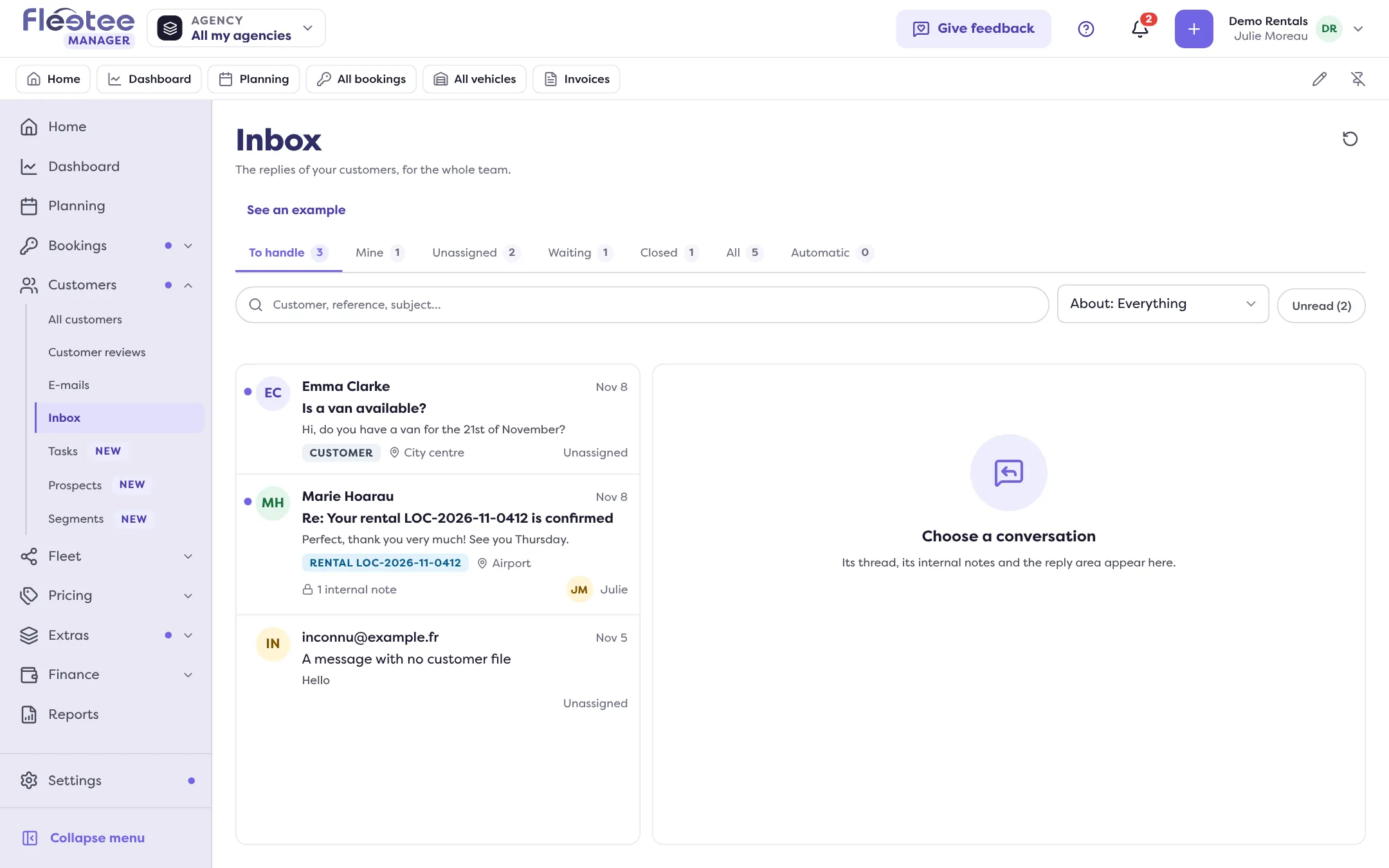
Open Customers › Inbox
The tabs sort the conversations: To handle, Mine, Unassigned, Waiting, Closed, All and Automatic. Search for a customer, a reference or a subject (2 characters at least), filter by “About” (rentals, quotes, customers, invoices, traffic tickets, claims, prospects) or by Unread.
Open a conversation
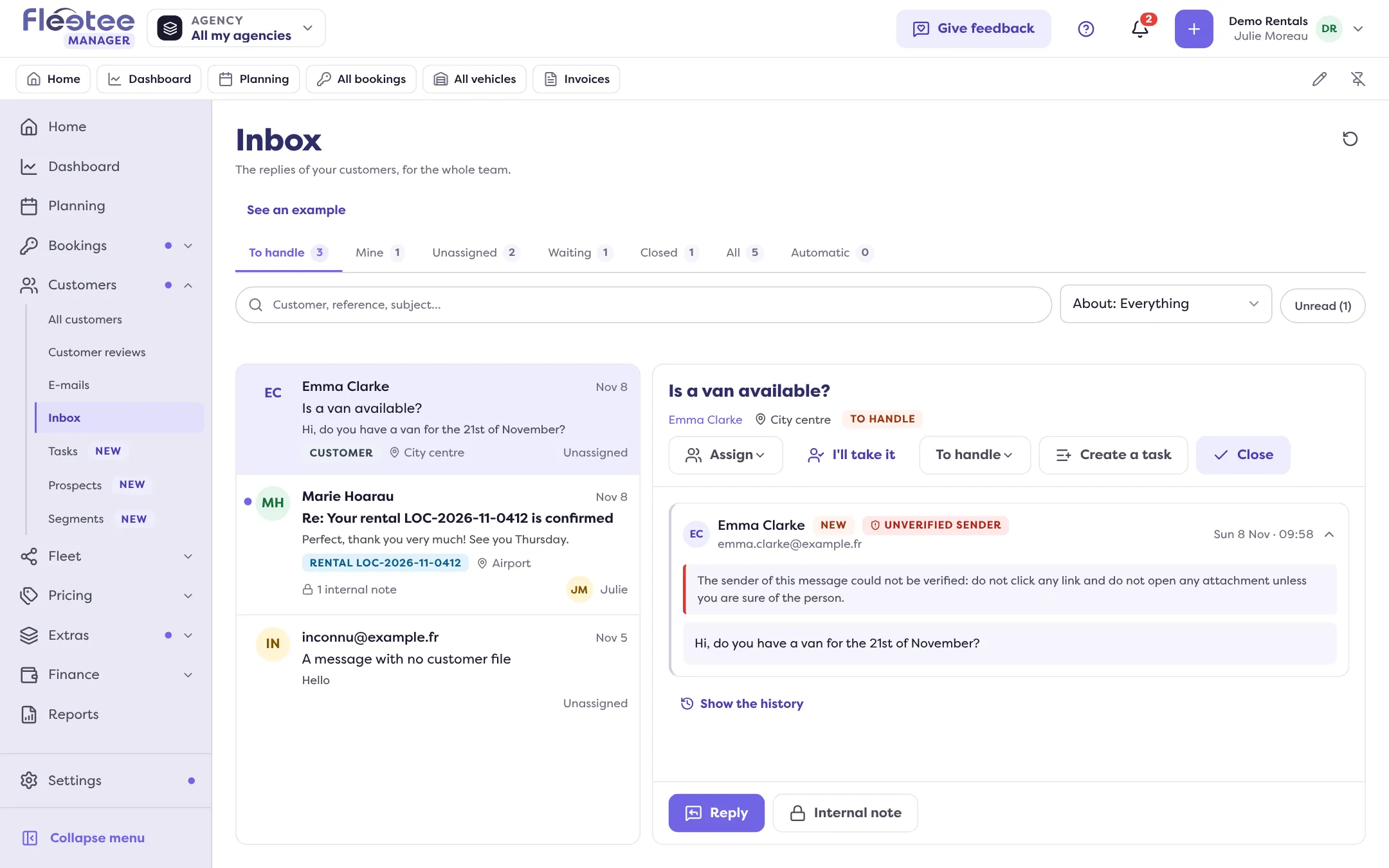
You see the thread of messages, the team’s internal notes and, at the bottom, the reply area. A sender whose identity could not be verified is flagged: do not click any link and do not open any attachment unless you are sure of the person.
Assign it
“I'll take it” assigns it to you; “Assign to” picks a colleague (a colleague with no access to the conversation’s agency is flagged). “Unassign” frees it. The Mine tab gathers your conversations, Unassigned those waiting for somebody.
Reply or write a note
The “Reply or note” area has two modes. Reply sends an e-mail to the customer (subject, Cc and Bcc possible); Internal note stays between colleagues, never sent to the customer, and @ tells a colleague. After sending, the conversation goes Waiting for the customer; “Send and close” closes it.
Close or reopen
“Close” marks the conversation handled; “Reopen” puts it back to handle. A Waiting conversation goes back to To handle by itself when the customer replies. “Show the history” lists the assignments, the status changes, the notes and the replies.
Good to know
- A reply counts in your e-mail volume: the area shows “N e-mail counted”.
- Someone who is not a customer yet shows with the Prospect pill. To reply to them, convert them into a customer or attach them to an existing customer (Customers › Prospects).
- To also receive e-mails written directly to your address, turn on mailbox forwarding in Settings › E-mails › Sender and appearance › Mailbox forwarding. The list then shows “Forwarding active: N e-mails received today”.
- A conversation’s replies also show in the booking’s E-mails panel and, for a customer, in their Timeline.
Where to find it: Customers › Inbox
Where to find it: Customers › Inbox
Go further
Updated on 18 November 2026 with version 3.0