

How do I offer unlimited mileage or mileage stages?
- Manager v3
- Administrator
- Agency manager
In short. In Extras › Mileage, “Add a stage”: allowed kilometers (per day, per month, per hour or for the whole booking) or unlimited, price or free, and categories. Each stage is a product you offer the customer; set them per price list.
A mileage stage says how many kilometers a rental allows, and what it costs. Offer for example a free “200 km per day” stage, a paid “300 km per day” stage and an “Unlimited mileage” stage. Stages are set per price list: first choose the price list at the top of the page.
Open Extras › Mileage
The Mileage stages page lists the price list’s stages: Name, Included mileage, Price and Categories. A stage is named automatically, for example “200 km stage” or “Unlimited mileage stage”.
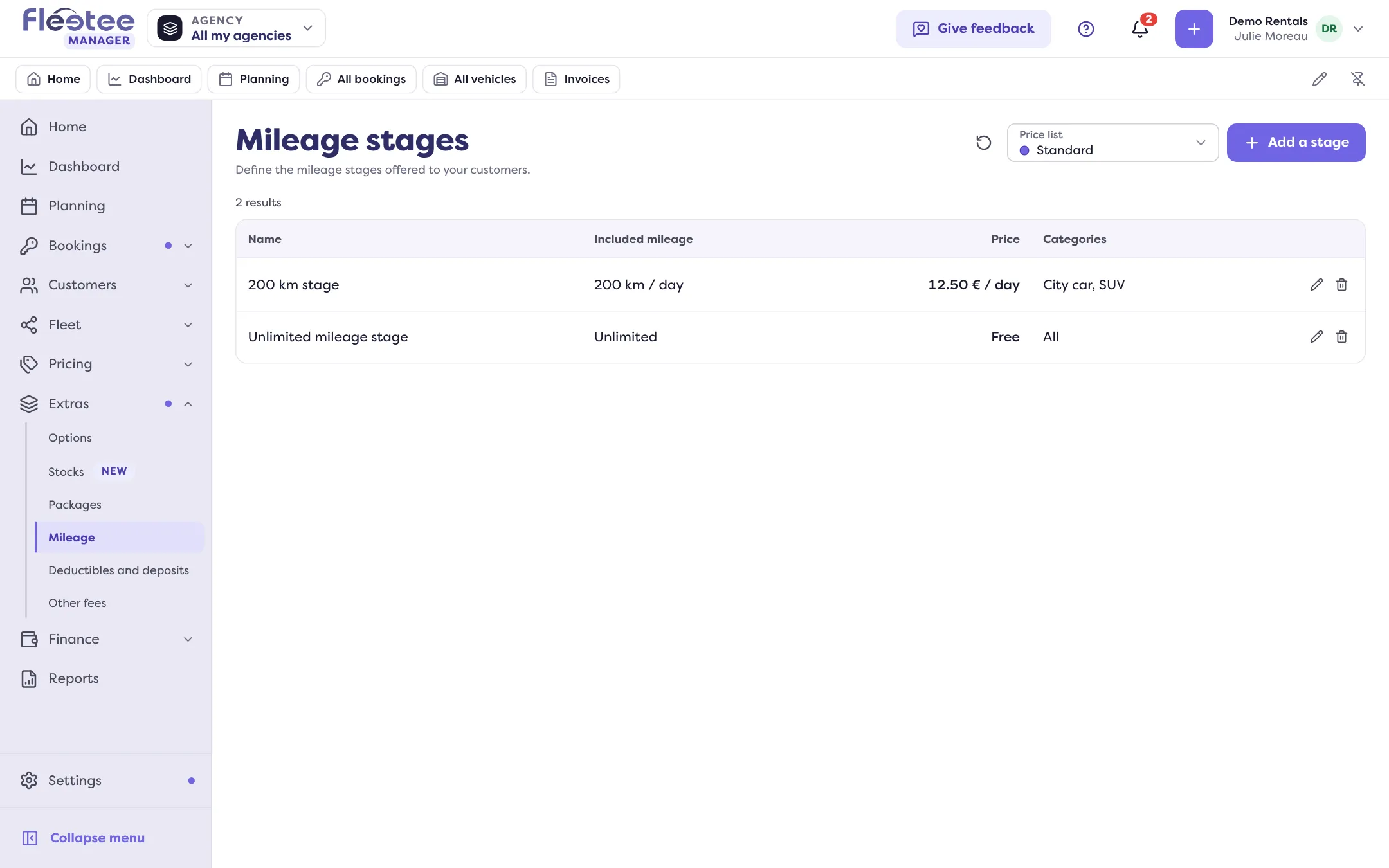
Click “Add a stage”
The “Add a stage” panel opens.
Mileage
Choose the Mileage type: the unit of the limit (per day, per month, per hour, depending on the price list, or for the whole booking). Then Limited, with the number of Kilometers, or Unlimited: “No mileage limit. This stage grants unlimited mileage.”
Price
Paid with a Price, or tick “Free (included in the booking price)”.
Categories
Choose the categories this stage can be used with: “Define the categories this stage can be used with.”
Click “Save”
Message: “Mileage stage created successfully.”
The product name and taxes
Each stage is an accounting product: its name follows the stage mileage (“200 km stage”, “Unlimited mileage”). Its taxes are set in the same window.
Edit or delete
Click a stage’s line to Edit it, or use “Delete” (“Do you want to delete the mileage stage …?”).
A package can also carry an included mileage: read Create a package.
Where to find it: Extras › Mileage
Where to find it: Extras › Mileage
Go further
Updated on 18 November 2026 with version 3.0