

How do I create a package (weekend, week…)?
- Manager v3
- Administrator
- Agency manager
In short. In Pricing › Rate packages, “Add a tariff package”: start days, duration, included mileage, categories, then the price of the whole rental per season. A package replaces the computed price of a rental that meets all its criteria; the cheapest applies.
A package is an overall price for a typical rental: “weekend from Friday to Sunday”, “week”… It replaces the computed price of a rental that meets all its criteria. A package belongs to a price list: first choose the price list at the top of the page.
Open Pricing › Rate packages
The Tariff packages page lists the price list’s packages: Name, Start days, Start time, Duration, Categories, Mileage. With no price list, create one first: Create a price list.
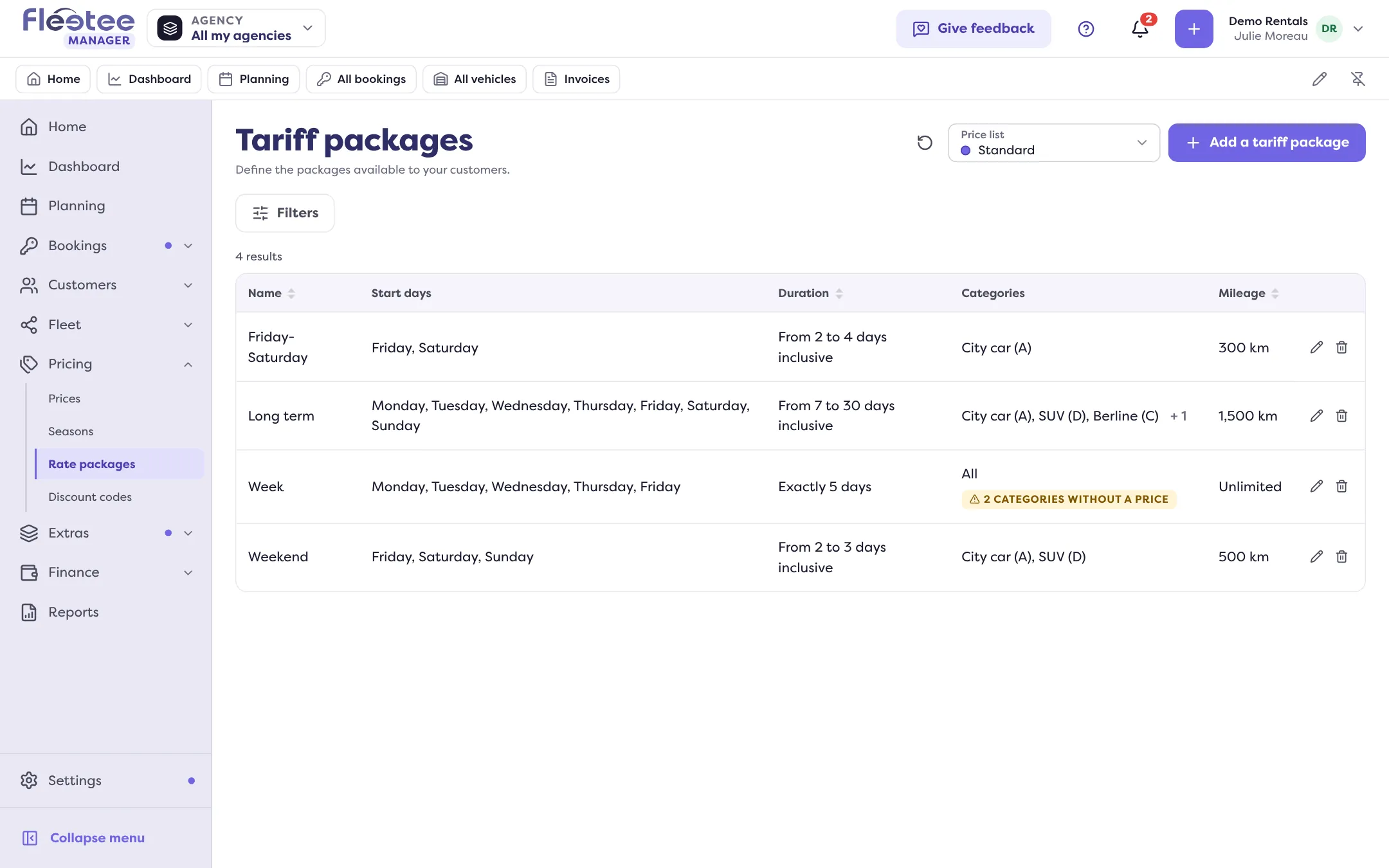
Click “Add a tariff package”
The “Add a tariff package” panel opens. It recalls: “A package replaces the computed price of a booking that meets all its criteria.”
Name the package
Enter the Package name (required), for example “Weekend”.
Say when it applies
Under “When does it apply?”:
- Start days: the day the rental starts. The shortcuts Weekdays, Weekend and Every day tick several days.
- Start time: “At the earliest” and “At the latest” (for hourly pricing).
- Booking duration: Exactly one duration, or Between two durations (the maximum must exceed the minimum).
- Included mileage: Unlimited, Limited (with the kilometres included) or “Not specified for this package”.
Choose the categories
All categories, or a selection. “Categories created later will have to be priced here.”
Enter the package prices
The “Package price” grid gives the price of the whole booking, according to the season of its start date: Low season, Mid season, High season and one column per custom season. “Copy the first row to all” and “Same price for every season” are quicker. Every price is required: “Fill in every price of the package.”
Click “Save”
Message: “Package created successfully.”
If several packages fit
The panel flags overlaps (“This package overlaps other packages”) and recalls the rule: “When several packages match, the cheapest one applies.” An overlap does not prevent saving.
A category with no price
A category created after the package has no price: “the package does not apply to them”. The list shows “… categories without a price”; open the package and fill in its prices.
Edit or delete
Click the package’s line to Edit it, or use “Delete” (“Do you want to delete the package …?”).
Where to find it: Pricing › Rate packages
Where to find it: Pricing › Rate packages
Go further
Updated on 18 November 2026 with version 3.0