

How do I apply a price list to a customer or a type of customer?
- Manager v3
- Administrator
- Agency manager
- Rental agent
In short. On the customer record (“Edit”), choose their Price list. For several customers at once, tick them in Customers › All customers then “Assign a price list”. The customer’s price list takes priority over the agency’s.
Give a customer (or a whole clientele, such as your professionals) a separate price list: their next rentals will be priced with it. First create the price list: Create a price list.
For one customer
Open the customer record
In Customers › All customers, click the customer.
Click “Edit”
The “Edit customer” panel opens.
Choose their Price list
The Price list field lists your company’s price lists. Choose the customer’s.
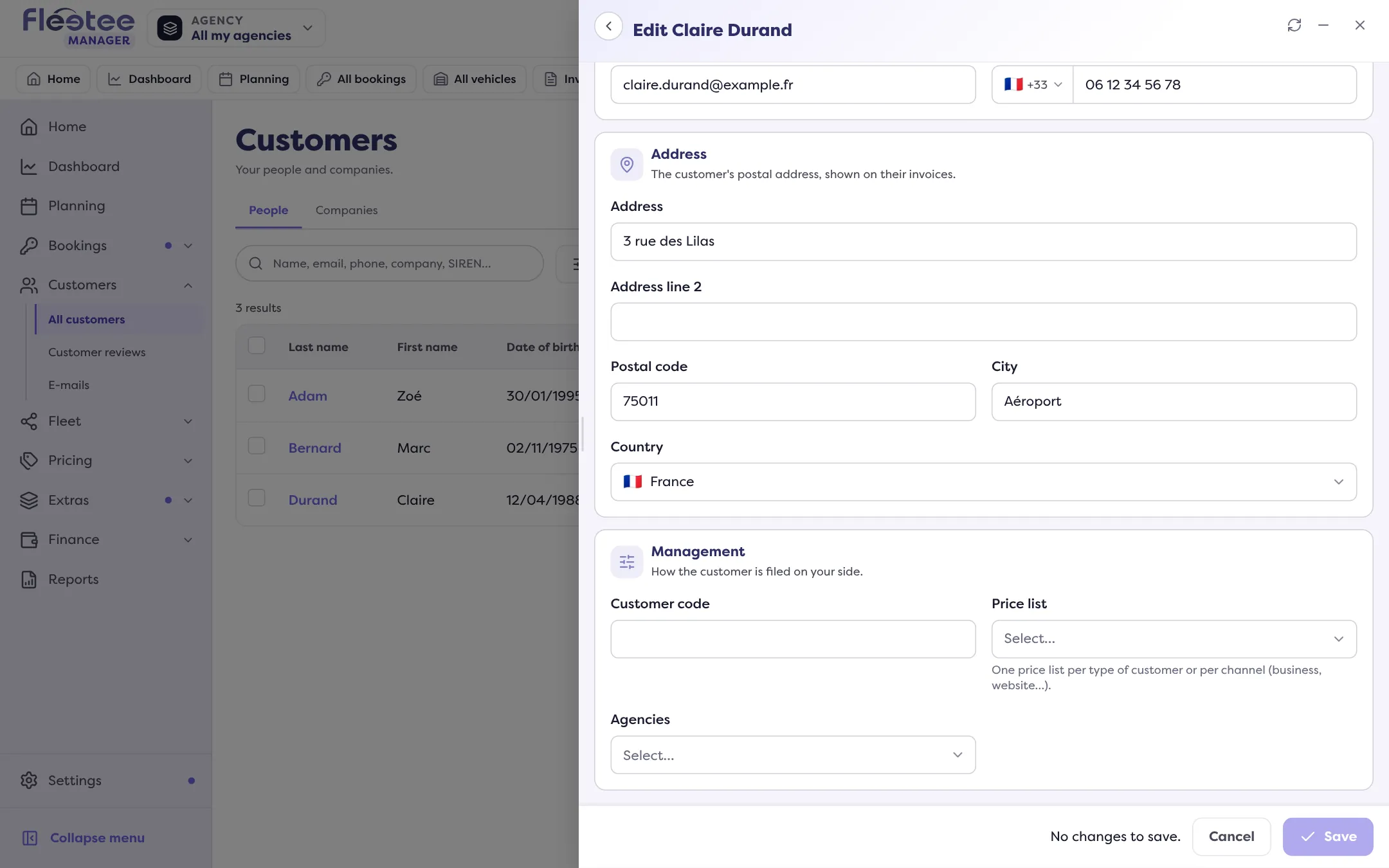
Click “Save”
The record shows the price list (Price list). The column of the same name in the customer list can also be displayed.
When creating a customer, the Price list field is in the form. When importing customers, the column is also called Price list.
For several customers at once
Tick the customers in the list
Tick up to 50 customers: “Select up to 50 items.”
Click “Assign a price list”
In the action bar that appears, choose the Price list, then “Continue”.
Confirm
“Assign the price list “…” to … customers?” Click “Confirm assignment”. Each customer is marked Changed, Already assigned, Refused or Result to check.
This price list will be suggested for their next rentals: existing rentals and invoices stay unchanged. For a customer company, it also stays the choice suggested by default to its drivers.
How Fleetee uses it
When a rental is created, the customer’s price list takes priority over the start agency’s, the duration’s and the default one. The form shows it: “Customer price list”. Read How do prices work in Fleetee?. For a rental already created, the price list is changed in the rental page: “Change the price list”.
Where to find it: Customers › All customers › customer record › “Edit” › Price list
Where to find it: Customers › All customers › customer record › “Edit” › Price list
Go further
Updated on 18 November 2026 with version 3.0