

How do I create a price list and choose the default one?
- Manager v3
- Administrator
In short. In Pricing › Prices › Price lists, “Add a price list”: start from scratch or copy one, name it, choose including or excluding tax and the frequency. The default price list is the first in the list, in Settings › Pricing rules › Order of the groups.
A price list is a complete set of prices. Create a new one for a particular clientele (professionals, partners…) or channel. Only an administrator can add, duplicate or delete a price list.
Open the list of price lists
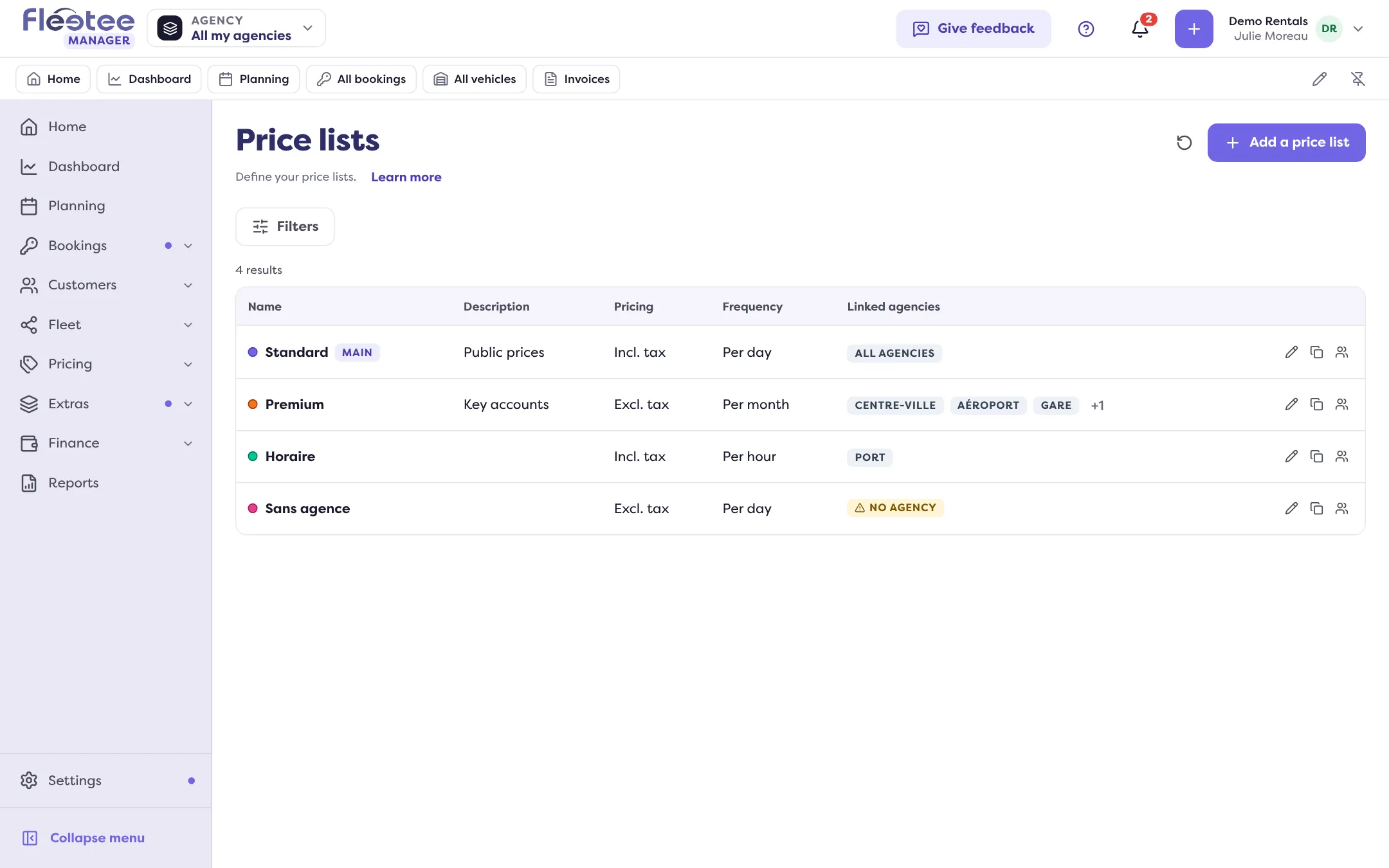
In Pricing › Prices, the “…” menu offers “Manage price lists”. The Price lists page shows for each one the Name, the Public name, the Pricing (excluding or including tax), the Frequency and the Attached agencies. A Main badge marks the main price list.
Click “Add a price list”
The question is “How do you want to start?”: “Start from scratch” (you set the prices right after, with the guide) or “Copy a price list” (prices, seasons, options… taken from an existing price list, which you then adjust).
If you copy, choose the starting prices
Under “Prices of the new price list”, choose The same, Cheaper by … % or More expensive by … %. Once saved, “Adjust prices” opens with this percentage: you see the effect on every price before confirming. Options keep their prices.
Fill in the information
The Price list name (required), a Public name, a Description, the Pricing (Incl. tax or Excl. tax) and the Pricing frequency (per day, per month or per hour). Also choose the agencies it is attached to.
Click “Save”
Message: “The price list has been created.” Then enter its prices: Enter my prices.
Changing the Frequency or Excl./Incl. tax later does not convert the prices already entered: they are read in the new unit. Check them.
Duplicate a price list
The price list’s menu offers “Duplicate”. Tick what the copy takes: season calendar, category prices, rate packages, options, deductibles and deposit, kilometer stages, packages, return fees. Some items need others (“Also tick … to copy this item”). Duplication can take up to two minutes: keep the window open. If a copied option uses a stock, choose “Same stock”, “New stock” or “No stock”.
Choose the default price list
The default price list is the first active price list in the list. It is offered for a new rental, and taken when no duration rule fits.
Open Settings › Pricing rules
The “Order of the groups” card lists your price lists. The first one carries the Default badge.
Change the order
Drag a row by its handle, or use a row’s “⋯” menu to put it first or last.
Click “Save the order”
Message: “Order saved”. The order is also the one of the lists and of the website.
Delete a price list
The price list’s panel offers “Delete”, after confirmation. Its prices, packages, kilometer stages, deductibles, options and fees are no longer accessible; the customers and settings that use it stay attached to it. The Main price list cannot be deleted.
Where to find it: Pricing › Prices › Price lists; Settings › Pricing rules › Order of the groups
Where to find it: Pricing › Prices › Price lists