

How do I set deductibles and the deposit amount per category?
- Manager v3
- Administrator
- Agency manager
In short. In Extras › Deductibles and deposits, Deposits tab: “Add a deposit” with its amount and categories; Franchises tab: “Add a franchise” with its amount, price and linked deposit. The amount of a deposit can no longer be changed.
- The franchise (deductible) is the amount left for the customer to pay after damage. It can be free or paid.
- The deposit is the amount left as a guarantee at the start, to cover possible damage.
Both are set per price list: first choose the right price list, at the top of the Franchises and deposits page.
Add a deposit
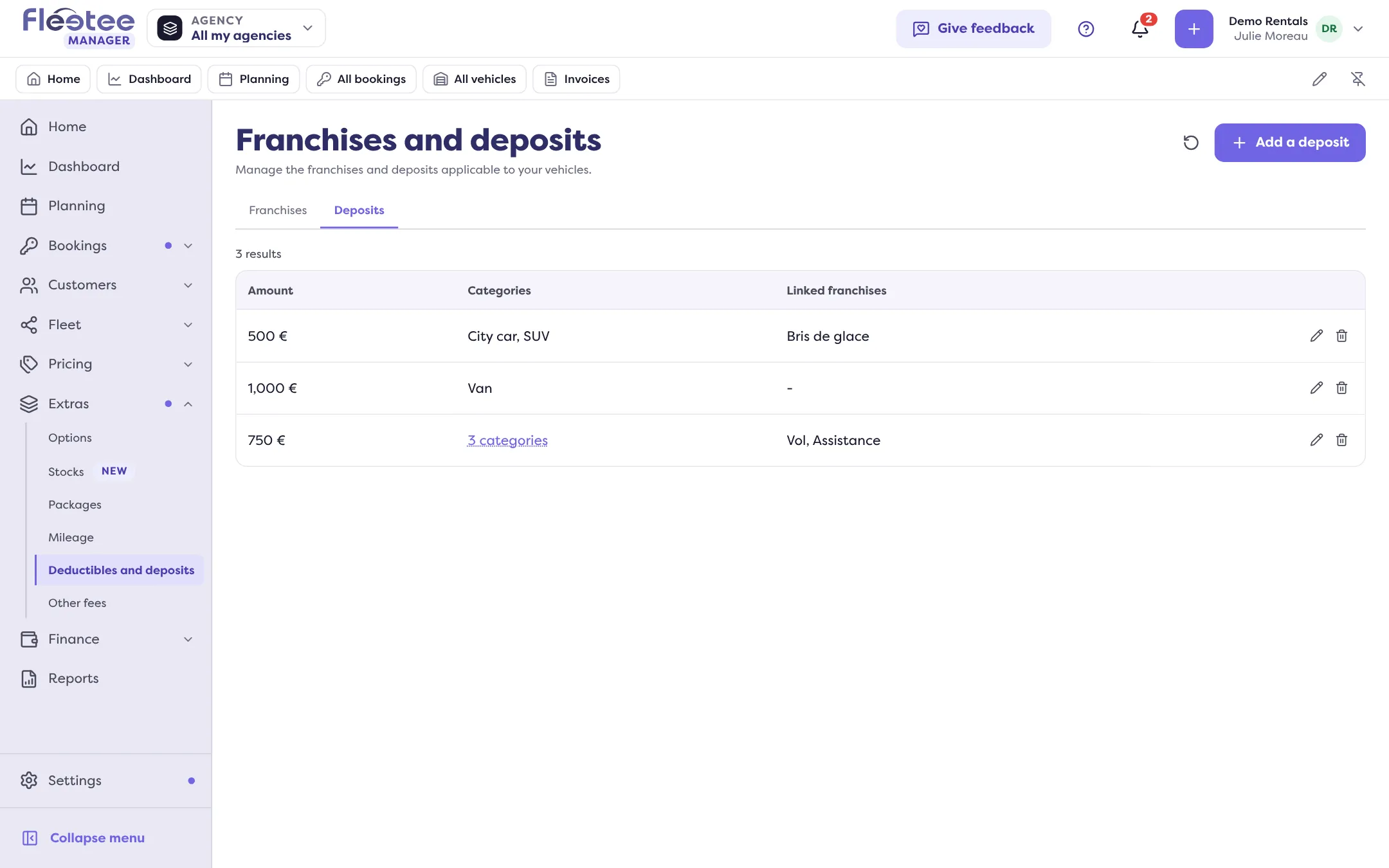
Open Extras › Deductibles and deposits, Deposits tab
Click “Add a deposit”.
Enter the deposit amount
“Deposit amount”: zero or more. Once the deposit is created, this amount is fixed: rentals use it directly. To change it, “Create a new deposit”.
Choose the categories
The categories this deposit applies to. The same amount can serve several categories.
Click “Save”
The deposit appears in the list, with its amount, its categories and the linked franchises.
With Swikly or Gando, if the company’s currency is not the euro, these providers charge in euros: enter the euro amount of each deposit (“Set an amount in EUR for the provider”, then “Amount charged by the provider”). Without it, the deposit is not asked of customers; the list flags “EUR amount to fill in”.
Add a franchise
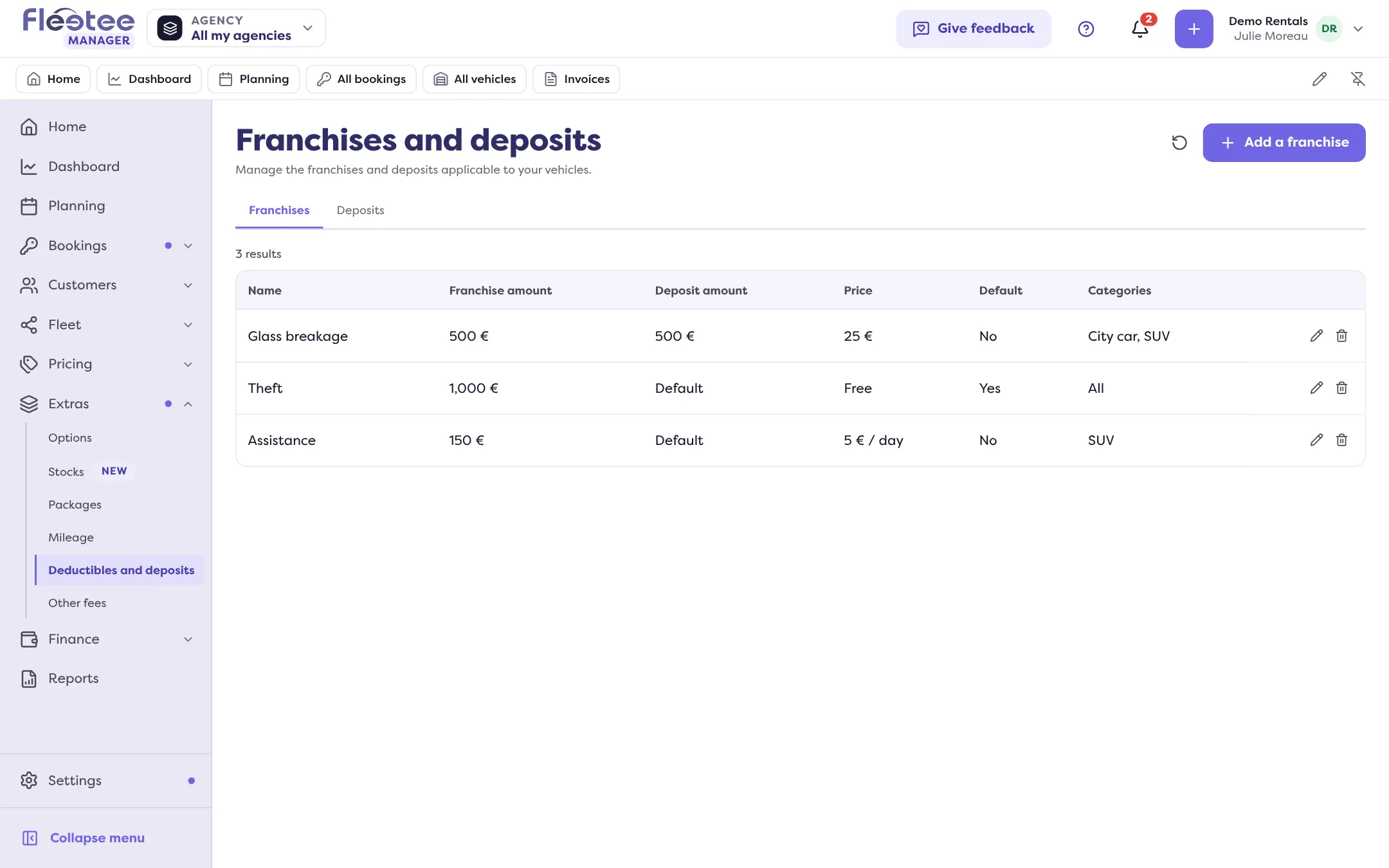
Open the Franchises tab and click “Add a franchise”
The panel includes the parts Franchise, Price and Deposit, then the categories.
In “Franchise”, give the name and the amount
The franchise’s name and its “Franchise amount” (zero or more). Tick “Include by default in new bookings” so that it applies automatically. “Details” shows on the rental agreement. With a booking website, “Website display order” sorts the franchises: the lowest values come first.
In “Price”, choose free or paid
Tick “Free (included in the booking)”, or enter a “Price” and a “Price type”: “Per day” (or per hour, per month, according to the price list) or “Per booking”.
In “Deposit”, link a deposit
Choose the deposit required with this franchise, or “Default”. The franchise list then shows the “Deposit amount”.
Choose the categories, then “Save”
The categories this franchise can be used with.
You can create several levels: a standard franchise (high amount, free), a partial buyback (reduced amount, paid per day) or a total buyback (amount at zero, paid at a higher price).
Where does it show?
- On the rental, in Pricing & payments, the Deposit block shows the Planned deposit. Read How do I read a booking’s Deposit block?.
- The customer pays it during their online check-in, if the online deposit is on: How do I turn on online deposits?.
- Before you delete a franchise included by default, the confirmation reminds you that it is included by default in new bookings.
Where to find it: Extras › Deductibles and deposits
Where to find it: Extras › Deductibles and deposits
Go further
Updated on 18 November 2026 with version 3.0