

Why isn’t the calculated price the one I expected?
- Manager v3
- Administrator
- Agency manager
- Rental agent
In short. A rental’s price comes from its price list, the prices per duration and season, the options, the reductions and, if the dates change, the recalculation method. Check these causes one by one on the rental page.
Check first
Open the rental page, Pricing & payments
The table details each item in Excl. tax, Taxes and Incl. tax: the vehicle, the package, the options, the mileage, the deductibles. Under the Subtotal come the Discounts, the Total after discount, the taxes and the Total incl. tax.
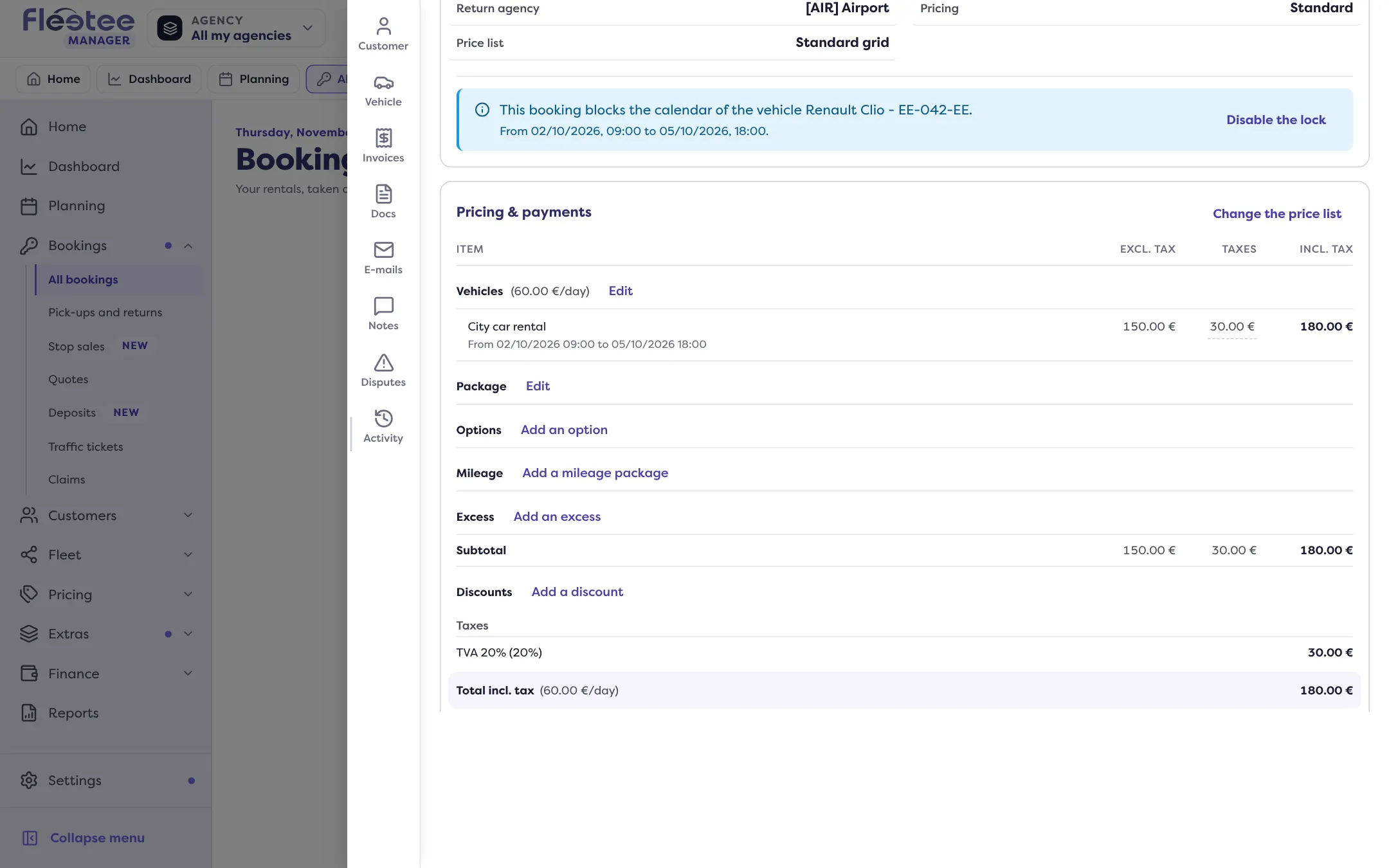
Spot the item that differs
A pencil next to each item opens its edit: “Change the rate”, “Change the price list”, “Add an option”, “Add a discount”…
Rental agents see the rental’s price, but Settings › Pricing rules (causes 1 and 2) is open to the administrator only, and Pricing › Prices (cause 3) to the administrator and the agency managers. If the cause is there, ask one of them to check it.
Cause 1: the rental is not in the price list you expected
The price list sets the prices of the rental and of its items (options, stage, deductibles, package). A new rental takes the price list of the duration rule that matches its duration, otherwise the default price list (the first of the list), in Settings › Pricing rules. An agency that has its own price lists only applies the rules of these lists, otherwise its fallback list.
To do: on the rental page, “Change the price list”. Products without an equivalent in the new list are removed from the rental, the reductions are kept, and prices typed by hand are not carried over: adjust them afterwards. Once the rental invoice is validated, the price list can no longer be changed.
Cause 2: the dates changed
When you change a rental’s dates in Fleetee Manager, the price follows the calculation method chosen in Settings › Pricing rules, “When the duration of a booking changes”:
- Keep the initial rate and only calculate the difference with the current rates: the extra days are at the current rate, the days already booked keep their rate (5 days at €20 + 2 days at €25: €150);
- Recalculate the whole booking at the latest rate: if your rates changed, the new rate applies to the whole booking (7 days at €25: €175);
- Apply an average rate based on the initial price: the initial price gives the average daily rate, applied to the extra days (7 days at €20: €140);
- Choose the method at each change: the agent chooses at each change of dates.
Cause 3: the price grid itself
In Pricing › Prices, look at the rental’s category, duration and season:
- a cell left empty inherits the base price (grey italics, “inherited”);
- a cell “to set” has no price: the vehicle’s minimum price applies;
- a calculated period price follows the base price minus its reduction: if you change the base price, it changes too;
- the season depends on the rental’s dates and on the seasons calendar.
Read How do I enter my category prices per hour, day or month?.
Cause 4: a price typed by hand
On the rental, “Change the rate” allows a Manual price (excl. or incl. tax) or a Tariff package. A price typed by hand stays as it is: it is not carried over when the price list changes. A rental with an unknown price (for example imported) shows “Price unknown”: “Enter the price of this booking explicitly. An amount of 0 means it is free.”
Cause 5: excl. tax or incl. tax
A price list is entered including tax or excluding tax. If you change this setting, the prices already entered are not converted: they are read as excl. tax or incl. tax amounts. Check the Excl. tax and Incl. tax columns of the table.
Cause 6: an option, a package, a reduction
- Option: “On the rental” (one price) or “Per day”; “Maximum price” caps a per-day option. An option with a behaviour changes quantity by itself (drivers, for example). Read How do I create extras (child seat, additional driver…)?.
- Tariff package: the table shows “Package rate: name”; the price follows the package, and the extra days are calculated separately (“N additional days” in the price breakdown).
- Reduction: each reduction lowers the booking’s total. A global reduction does not apply to return fees or cancellation fees.
- Deductible: a paid deductible is added, per day or per booking. Read How do I set deductibles and the deposit amount per category?.
Cause 7: the return fees
Return fees and cancellation fees are shown in their own section (“Return fees incl. tax”, “Cancellation fees incl. tax”), after the table: do not look for them in the items’ Total incl. tax.
Still a gap?
Write to support with the rental number, the price you expected and the price shown.
Go further
Updated on 18 November 2026 with version 3.0