

How do I send the customer a payment link?
- Manager v3
- Administrator
- Agency manager
- Rental agent
In short. When creating a rental, choose Payment › “Payment link”: the customer receives a ready-to-pay link by e-mail. On an existing rental, use “Add a payment”. You need a linked provider and the customer’s e-mail address.
The payment link lets your customer pay online, with the provider of the company or of the start agency. The amount left to pay on the rental only goes down once the customer has paid the link.
When creating a rental
Open “Create a rental” and go to the Payment step
The step is called Payment and confirmation. It offers three choices: No payment (invoice later), Record a payment and Payment link (sent to the customer).
Choose “Payment link”
A message says where the link goes: “The Stripe payment link will be sent to …”. If your settings propose a default link, the step says so: “Proposed by your payment settings: the down payment, 30% of the total. You may choose another payment.”
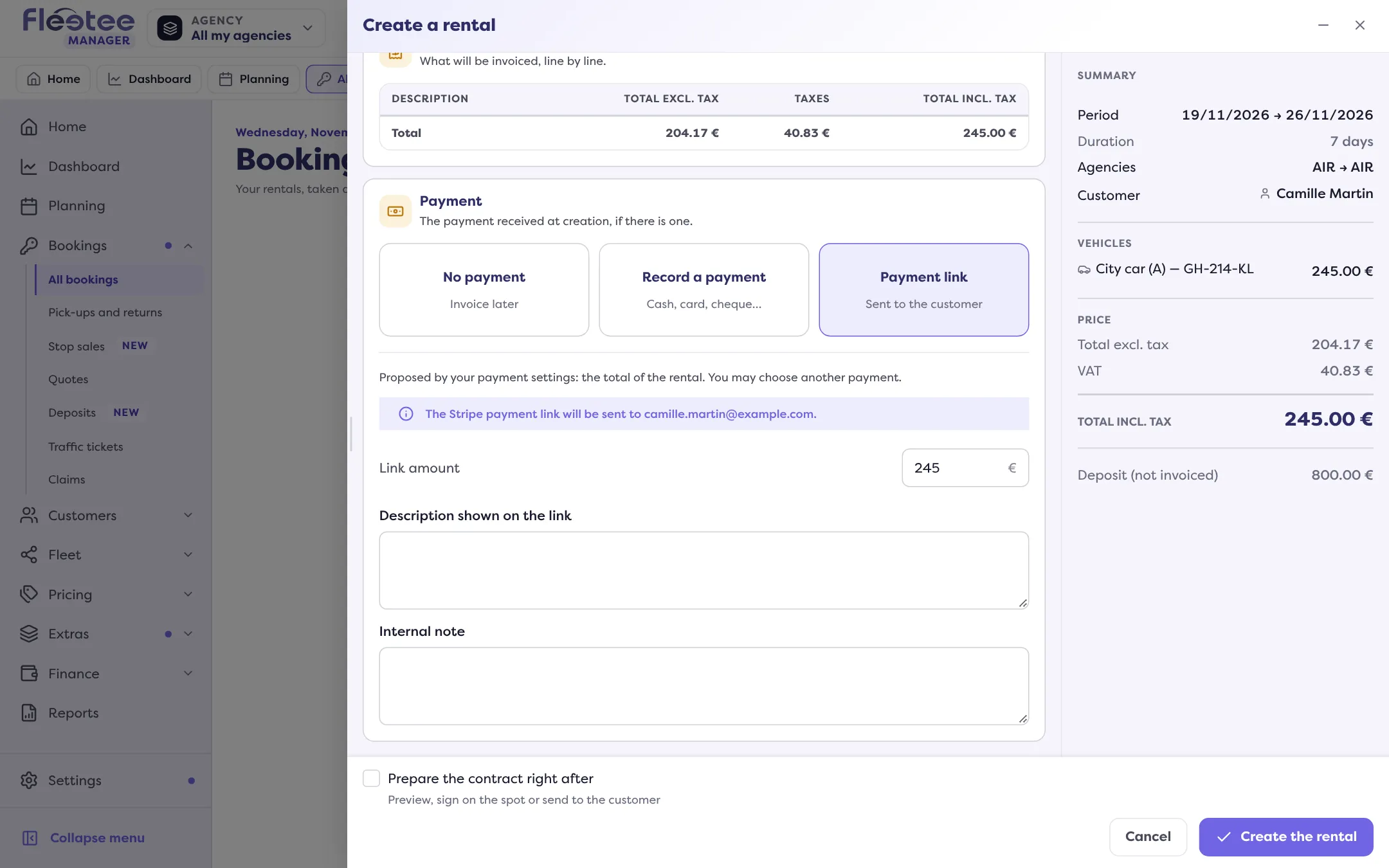
Check the amount
The “Link amount” field takes what is proposed: change it if needed. With Stripe, “Description shown on the link” is the text the customer reads; “Internal note” stays for your team.
Click “Create the rental”
The rental is created and the link is sent to the customer by e-mail.
It does not go out? The three cases
- No provider: the step says “Set up online payment to send a link.” and offers “Set up”. Your rental in progress is kept; a payment you typed will have to be entered again. Read Connect your payment account.
- Payment switched off for the agency: “Online payment is turned off for this agency.”
- No e-mail address: “The customer has no email address: the link will not be sent.” Click “Add email address”. Some providers refuse to create the link without this address: the rental is then not created, and you can “Continue without payment”.
If the rental is created but the link did not go out, the Manager says so: “Booking created, payment link not sent”. Try again from “Add a payment” on the rental’s details page.
On an existing rental
Open the rental page
In Pricing & payments, click “Add a payment”.
Choose “Payment link”
Under “How does the customer pay?”, choose “Payment link”. If online payment is not on for the start agency, the choice is unavailable.
Click “Send the payment link”
The link goes to the customer’s address. It shows in the payments as a pending “Payment link”.
Find, resend, delete a link
In the rental’s payments, a pending link offers:
- “Open the link” and “Copy the link”;
- “Resend the payment link”: you edit the e-mail’s subject, recipient and text, then “Send the link”. The link is added automatically at the end;
- “Delete the payment link”, after confirmation.
Where to find it: “Create a rental” › Payment › “Payment link”
Where to find it: “Create a rental” › Payment › “Payment link”
Go further
Updated on 18 November 2026 with version 3.0