

How do I connect my Stripe, PayZen or Swikly account to Fleetee?
- Manager v3
- Administrator
- 0:56
In short. In Settings › Connectors, open the provider’s card and follow its panel: Stripe connects at Stripe with no key, PayZen and its siblings ask for the shop and its keys, Swikly for its manager account. Link once, use everywhere.
A payment or deposit account is linked once, in Settings › Connectors. Every setting then uses it, without you typing a key again. Only the company administrator manages connectors.
Open Settings › Connectors
The tabs are Payments, Deposits, E-invoicing, Booking channels, E-mails, Calendars and Digital key. Open Payments for online payment, Deposits for a deposit.
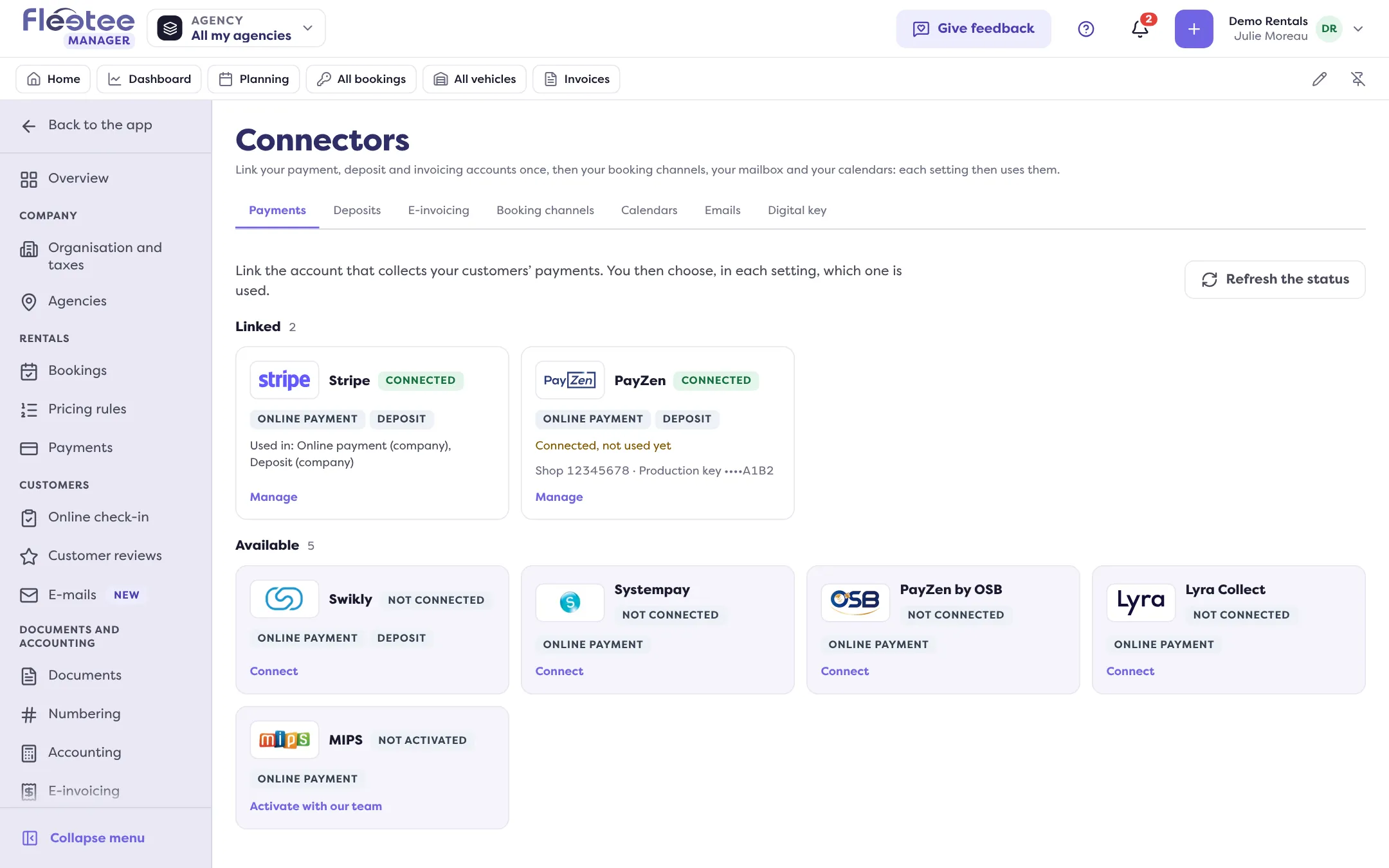
Click the provider’s card
Connectors already linked are under Linked, the others under Available. A card not yet linked offers “Connect”; a linked card offers “Manage”. Each card recalls its uses: online payment, deposit.
Follow the provider’s panel
The panel depends on the provider: see below.
Choose it in Settings › Payments
Linking an account does not turn it on. In the panel, “Open Payments” takes you to the choice of provider: read Set up online payment, online deposits and down payments.
Stripe
No key to type: click “Connect my Stripe account”. You are taken to Stripe to sign in or create your account, then you come back to Fleetee.
The panel then shows the account status: Online payment available or Online payment unavailable, Payouts enabled or Payouts pending. If Stripe needs more, click “Complete my Stripe profile”. “Refresh the status” reads the account again.
PayZen, Systempay, PayZen by OSB, Lyra Collect
These providers are linked with your shop:
- Shop identifier;
- Production key;
- Test key, with the “Test mode” switch.
The keys are in the provider’s back office, under Settings › Shop › Keys. A key already entered is never shown in full again: only its last four characters are. Click “Save”.
While test mode is on, no real payment is collected. Turn it off before opening the payment to your customers.
For deposits with PayZen, your contract must include the “Booking and rental” option. PayZen turns it on for your shop, after a distance selling contract from your bank: allow several days. Until it is done, your renters see a refusal on the payment page.
Swikly
One account serves online payment and deposits. Before linking:
- ask Swikly support to enable the payment feature on your account (it is not on by default);
- your Swikly account must be validated: until it is, nothing is collected.
In Swikly, open Apps and Integrations › Applications, choose your rental sector, then Fleetee › Connect, and allow the connection. Then copy two values from the “Manager account” block into Fleetee: the manager account identifier (the first value, in the long format with dashes) and the link secret (16 characters, keep it confidential). The currency must be the one of your Swikly account.
Gando (deposits)
Gando guarantees the deposit with a card imprint, without holding the renter’s funds, for the whole company. Click “Activate Gando”: the signup opens in a new tab. Your account shows in Fleetee once Gando has confirmed the signup, which can take a few minutes. “Check now” reads the status again.
MIPS
MIPS is turned on with the Fleetee team, once your MIPS contract is signed: the card offers “Activate with our team”, and the panel gives the address to write to.
An account of its own per agency
For Stripe, PayZen, Systempay, PayZen by OSB, Lyra Collect and Swikly, the panel lists the accounts under Accounts and offers “Add an own account” for an agency. An agency without its own account cannot use that provider for itself alone: it follows the company. The company’s account never replaces an agency’s.
Where to find it: Settings › Connectors › Payments or Deposits
Where to find it: Settings › Connectors, Payments or Deposits tab
Go further
Updated on 18 November 2026 with version 3.0