

How do I ask for a down payment when booking?
- Manager v3
- Administrator
- Agency manager
In short. In Settings › Payments, “Down payment of the rentals” card › “Edit”: ask for the full payment or a percentage from 10 to 90%, choose the taxes, then the link offered at creation. Set it for the whole company or per agency.
The down payment is what a rental asks for when it is created in Fleetee Manager. On your booking website, the down payment paid online is another setting, the website’s, unless you choose below to follow the Manager’s.
Open Settings › Payments
The Down payment of the rentals card shows the current down payment, for example “Down payment of 30%” or “Full payment”.
Click “Edit”
The “Down payment of the rentals” panel opens.
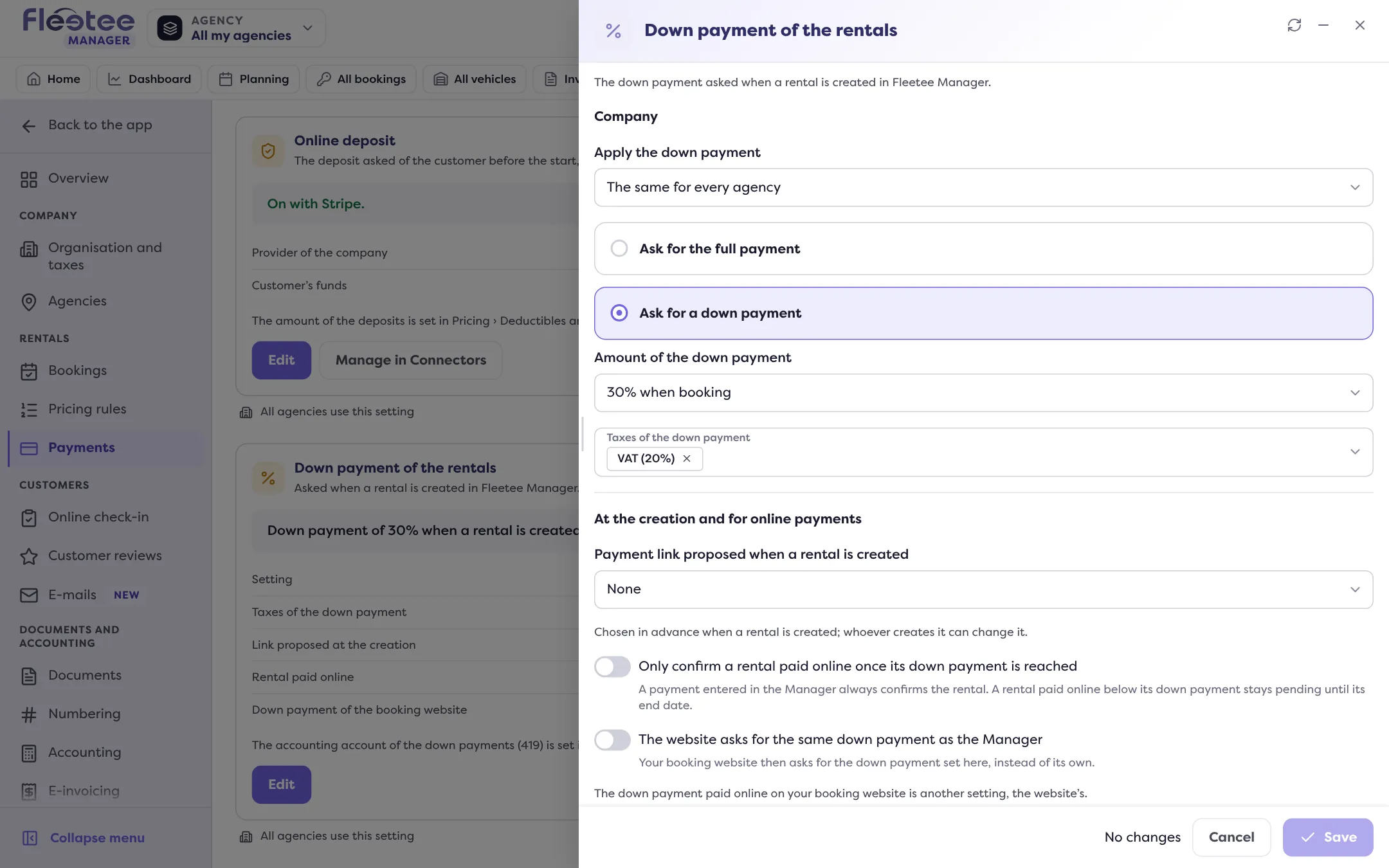
Choose who it applies to
In “Apply the down payment”, keep “The same for every agency”, or choose “Per agency” then the agency in “Setting to change”. An agency without a setting of its own takes the company’s: saving creates one for it.
Choose what the rental asks for
Under “What the rental asks for”, choose “Ask for the full payment” or “Ask for a down payment”. For a down payment, enter the “Amount of the down payment”: from 10% to 90%, in steps of 10% (“30% when booking”). A down payment of 0% is refused.
Choose the taxes of the down payment
The “Taxes of the down payment” field offers the company’s taxes. If none is saved for this down payment, the company’s default taxes are proposed.
Click “Save”
The card shows the new down payment.
At the creation and for online payments
Under “At the creation and for online payments”, the same panel sets what surrounds the down payment:
- Payment link proposed when a rental is created: None, The down payment or The total. It is chosen in advance: whoever creates the rental can change it. Read Send the customer a payment link.
- Only confirm a rental paid online once its down payment is reached: Yes or No. A payment entered in the Manager always confirms the rental. A rental paid online below its down payment stays pending until its end date.
- Create the down payment invoice automatically: a down payment invoice is created once for each down payment received, online or entered in the Manager, never for a payment that settles the rental.
- The website asks for the same down payment as the Manager: your booking website then asks for the down payment set here, instead of its own. This choice also needs the right to set the booking website. Where the down payment asks for the full payment, the website asks for the total.
For an agency, save its own down payment first: the choices of this section can then be set.
Good to know
- The accounting account of the down payments (419) is set in Settings › Accounting, “Chart of accounts” section, under “Advances and down payments received”.
- Only an administrator can customise the down payment per agency. An agency manager sets the down payment of their agencies with “Set my agencies”.
Where to find it: Settings › Payments › Down payment of the rentals › “Edit”
Where to find it: Settings › Payments › Down payment of the rentals
Go further
Updated on 18 November 2026 with version 3.0