

How do I set up online payment, online deposits and down payments?
- Manager v3
- Administrator
- Agency manager
- 0:58
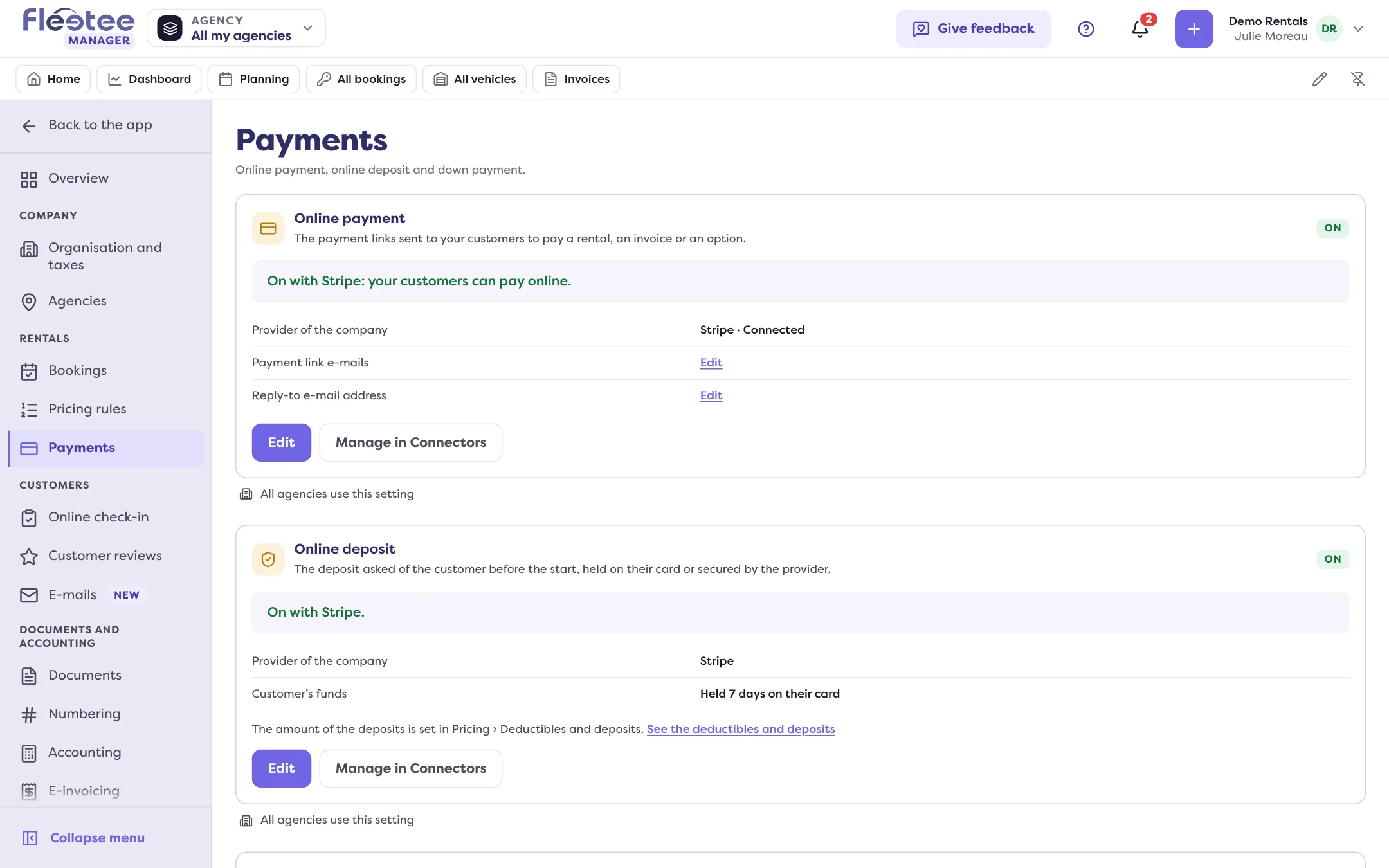
In short. In Settings › Payments, three cards say what your accounts are used for: online payment, online deposit and down payment of the rentals. Each applies to the whole company or to some agencies, and opens with “Edit”.
The Payments page says what your payment accounts are used for. The accounts themselves (keys, Stripe connection…) are linked once in Settings › Connectors: read Connect your Stripe, PayZen or Swikly account. You never type a key here.
The three cards
- Online payment: the payment links sent to your customers to pay a rental, an invoice or an option. The badge reads On, Off or To finish.
- Online deposit: the deposit asked of the customer before the start. The badge reads On or Off.
- Down payment of the rentals: the down payment asked when a rental is created in Fleetee Manager.
Each card states its situation in one sentence, for example “On with Stripe: your customers can pay online.”, and offers “Edit”. On the Online payment card, “Manage in Connectors” opens the provider’s account.
Turn on online payment
Link the provider’s account first
In Settings › Connectors, link Stripe, PayZen, Systempay, PayZen by OSB, Lyra Collect, MIPS or Swikly. Without a linked account, online payment does not work.
On the Online payment card, click “Edit”
The “Online payment” panel opens.
Turn the payment on and choose the provider
Turn on “Turn the online payment on”, then choose the “Provider of the company”. Without a provider, the panel refuses: “Choose a provider to turn the online payment on.”
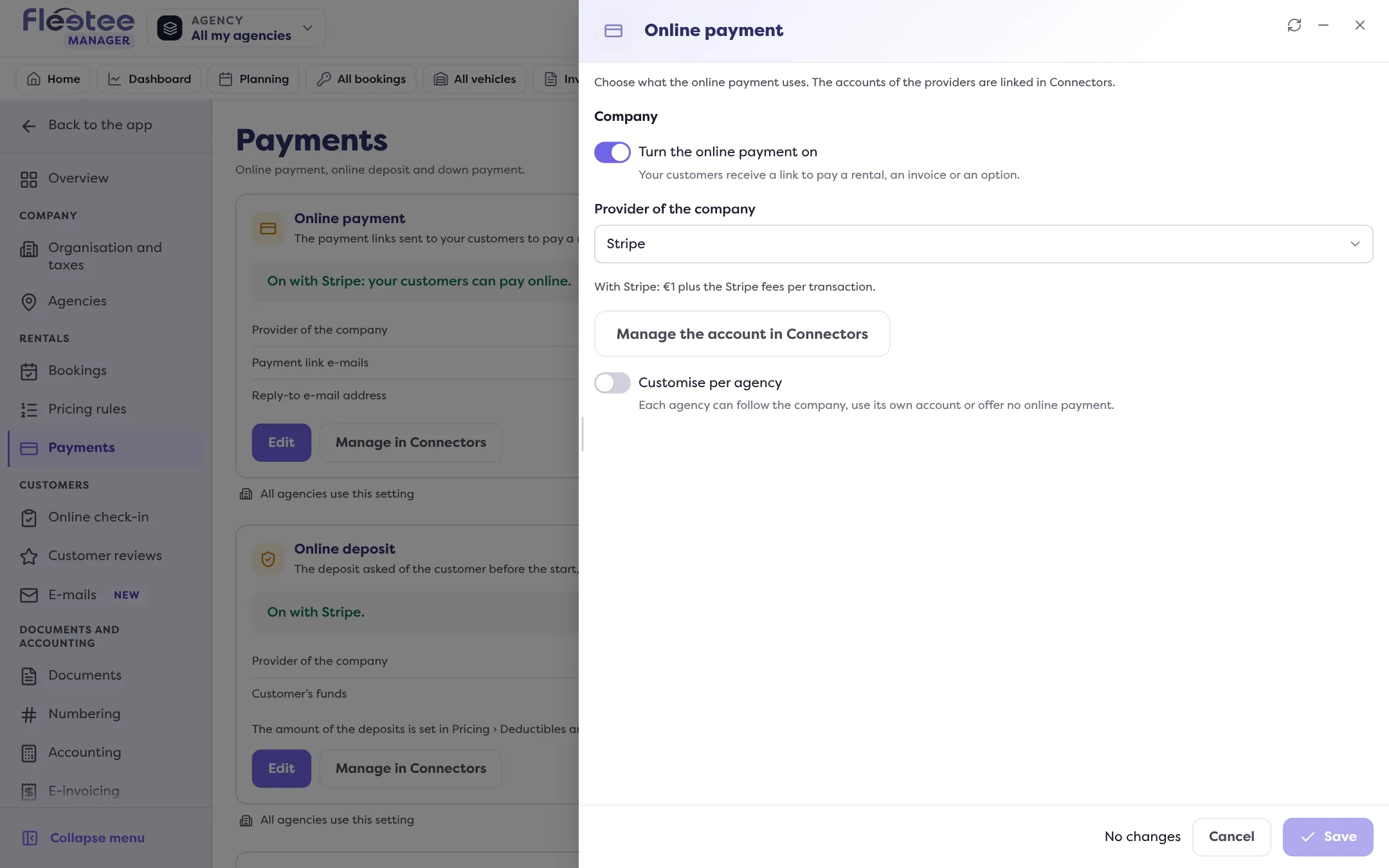
Click “Save”
The card moves to On. If the provider’s account is not ready, it shows To finish and points you to Connectors.
A different provider per agency
In the panel, “Customise per agency” lets each agency follow the company, use its own account or offer no online payment. Then pick the agency in “Setting to change” and its provider:
- Same as the company;
- No online payment;
- a provider, only if the agency has its own account there. Otherwise it follows the company.
If you turn the customisation off, the agencies’ choices are kept but no longer apply: every agency uses the company’s provider.
Online deposit and down payment
The two other cards also open with “Edit”. The step-by-step guides are in Turn on online deposits and Ask for a down payment when booking.
Payment link e-mails
The Online payment card recalls the payment link e-mails and the reply-to e-mail address, for the company and the agencies. They are written in Settings › E-mails: the link on the card takes you there.
Who can change what?
- The administrator sets the company and every agency.
- The agency manager sets their agencies with “Set my agencies”, and only if the company customises per agency. The company’s settings stay read-only for them.
- During a takeover, a preview of the company or a test rental, the page cannot be read: open it outside these modes.
With an agency chosen at the top of the screen, each card shows what applies to that agency. Choose “All my agencies” to see the company again.
Where to find it: Settings › Payments
Where to find it: Settings › Payments
Go further
Updated on 18 November 2026 with version 3.0