

How do I record a payment taken at the counter?
- Manager v3
- Administrator
- Agency manager
- Rental agent
In short. On the rental page, Pricing & payments › “Add a payment”: choose “Record a payment”, enter the amount, method, agency and date, then “Save the payment”. The amount left to pay is recalculated.
A payment taken at the counter (cash, card, cheque, transfer…) is recorded on the rental. It comes off the amount left to pay.
Open the rental page
In Pricing & payments, the Payments block lists what is already collected and the Left to pay. There is no payment on a quote: convert it to a rental first.
Click “Add a payment”
The “Add a payment” panel opens. It recalls what is left to pay on the rental.
Choose “Record a payment”
Under “How does the customer pay?”, you also have “Payment link”, “Wallet” (if the customer has credit) and “Do not record a payment”.
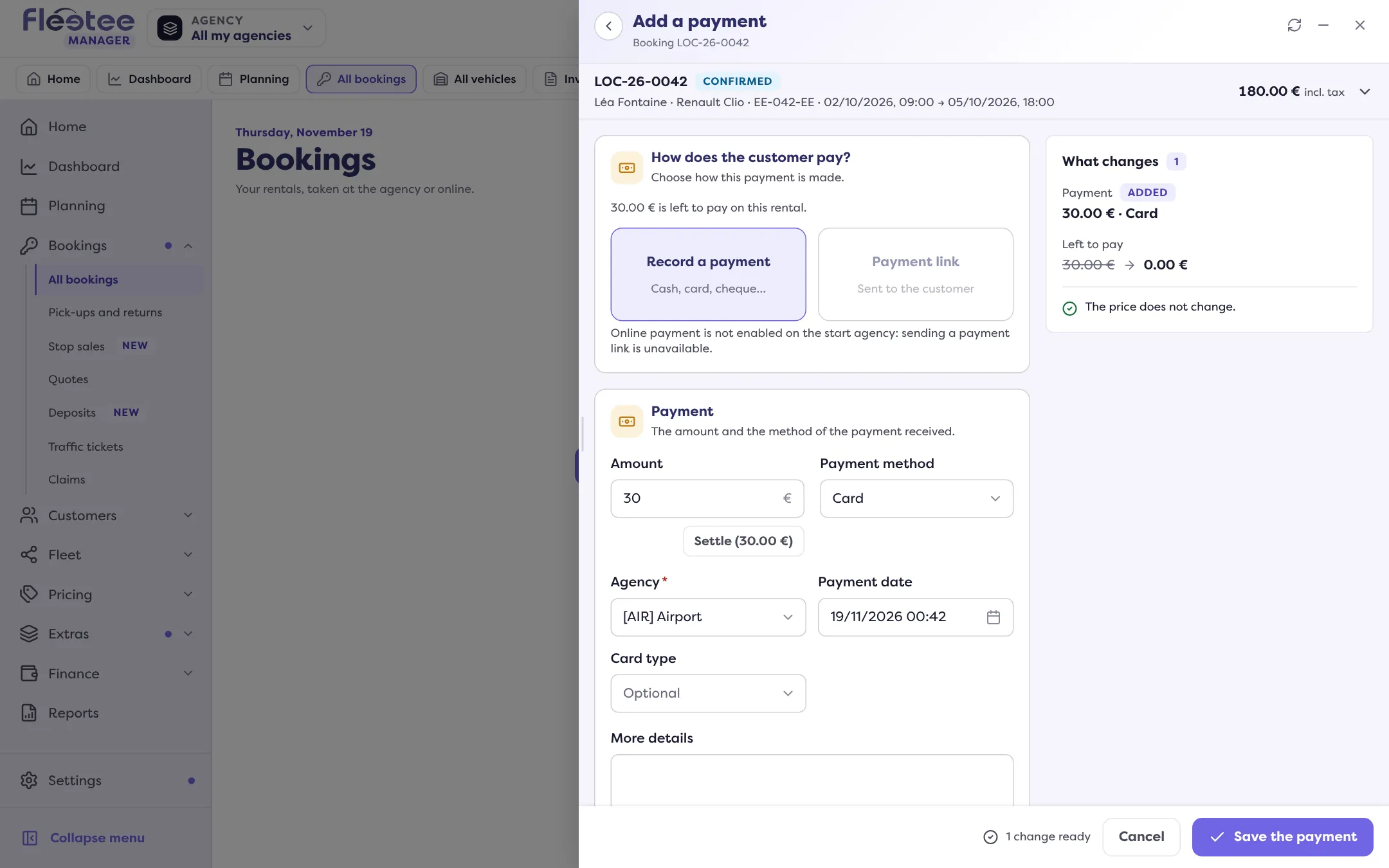
Enter the amount and the method
The amount is suggested from what is left to pay (“Suggested amount: …”). Choose the “Payment method”: cash, cheque, bank transfer, card, holiday voucher or tourist voucher, as well as your own methods.
Complete the payment fields
Choose the agency (required) and the payment date. For a cheque, a holiday voucher or a tourist voucher, enter the document number. For a card, you can give the card type (Visa, Amex, Mastercard, Maestro, debit card). “More details” is a free comment.
Click “Save the payment”
The payment shows in the list, and the amount left to pay goes down. Message: “Payment saved”.
Good to know before saving
- If the amount is more than what is left to pay, the panel warns you: there will be an excess.
- If the payment date is in the future, it says so too.
- A payment entered on a rental that is “Awaiting payment” or “Reserved” confirms it: the panel announces it before saving (“The rental will move to the status "Confirmed".”).
- If the customer has invoices to settle, the “Invoices to attach” section lets you tick the ones this payment covers, up to its amount.
- When the rental has several customers (renter, billing customer), “Payment on behalf of” chooses the one the payment is attached to.
Afterwards
Each payment in the list has an Actions menu: view the details, download the receipt, copy the reference, cancel the payment. To give back or keep a deposit, read How do I read a booking’s Deposit block?.
Where to find it: Rental page › Pricing & payments › “Add a payment”
Where to find it: Rental page › Pricing & payments › “Add a payment”
Go further
Updated on 18 November 2026 with version 3.0