

How do I refund a customer?
- Manager v3
- Administrator
- Agency manager
In short. Open the payment to refund (Finance › Payments), click “Cancel the payment” then “Refund”: amount, method, date, confirmation. Fleetee records the refund; for an online payment you still have to make it at the payment provider.
Refunding a customer is reserved to the administrator and the agency managers. With another role, ask one of them.
A refund is made on a payment: you give back all or part of what the customer paid. You can also keep the money for them, on their wallet.
Open the payment
In Finance › Payments, click the line. You can also use the rental page: in Pricing & payments, the Actions menu of the payment line offers “Cancel the payment”.
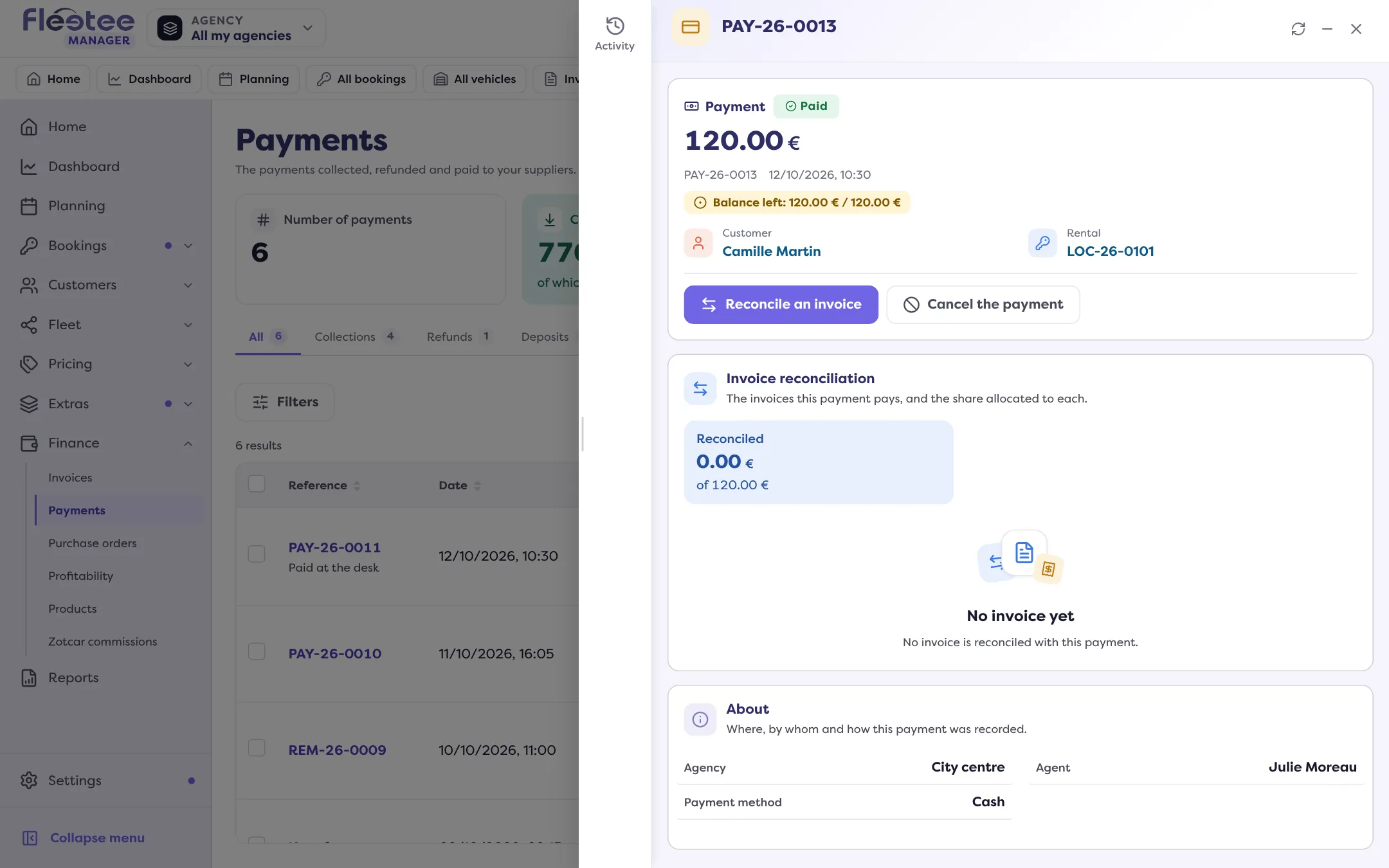
Click “Cancel the payment”
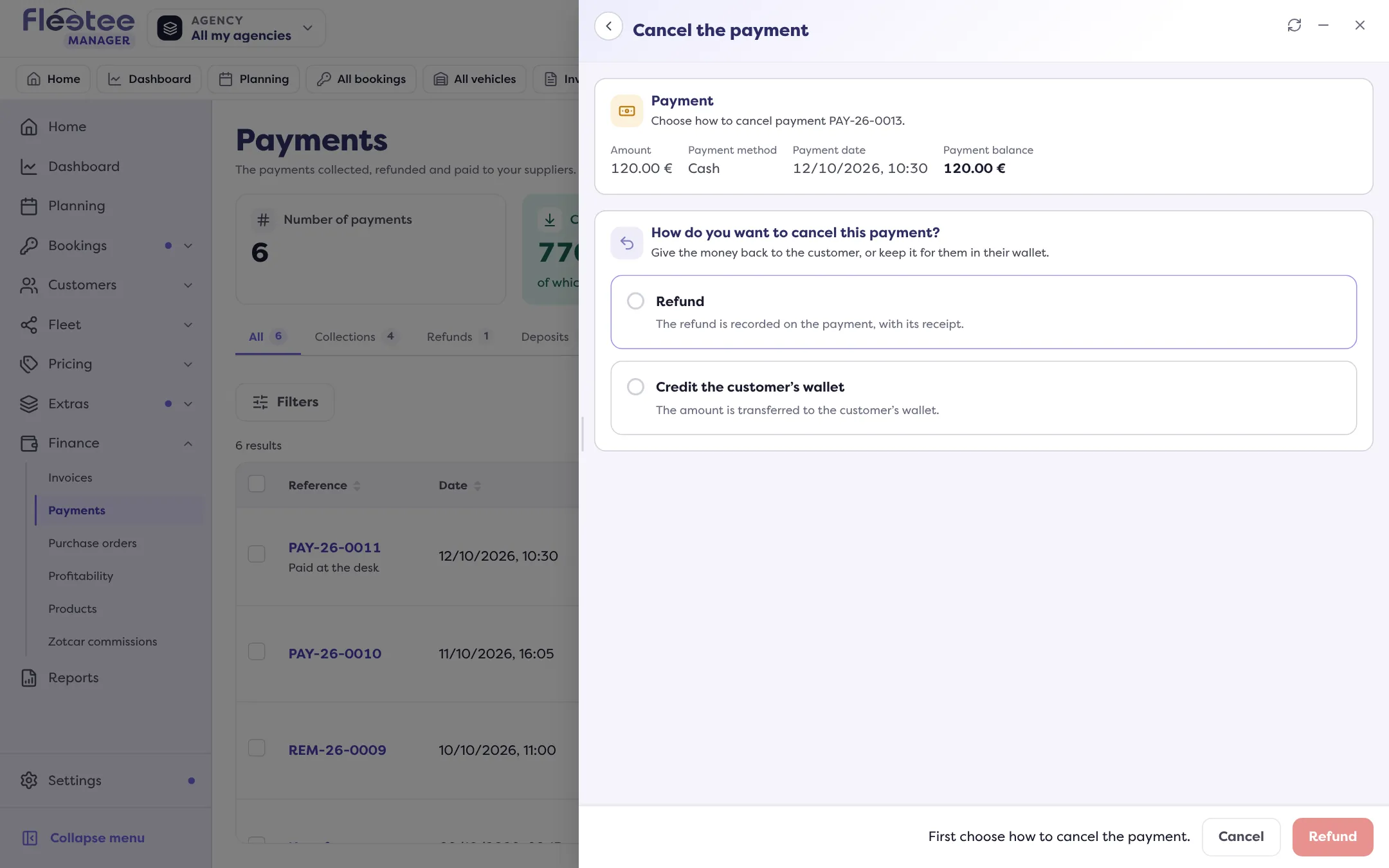
The panel recalls the Amount, the Payment method, the Payment date, what is already refunded or credited to the wallet, and the Payment balance.
Choose “Refund”
The question is “How do you want to cancel this payment?”. “Refund” records the refund on the payment, with its receipt. The other choice is “Credit the customer’s wallet”.
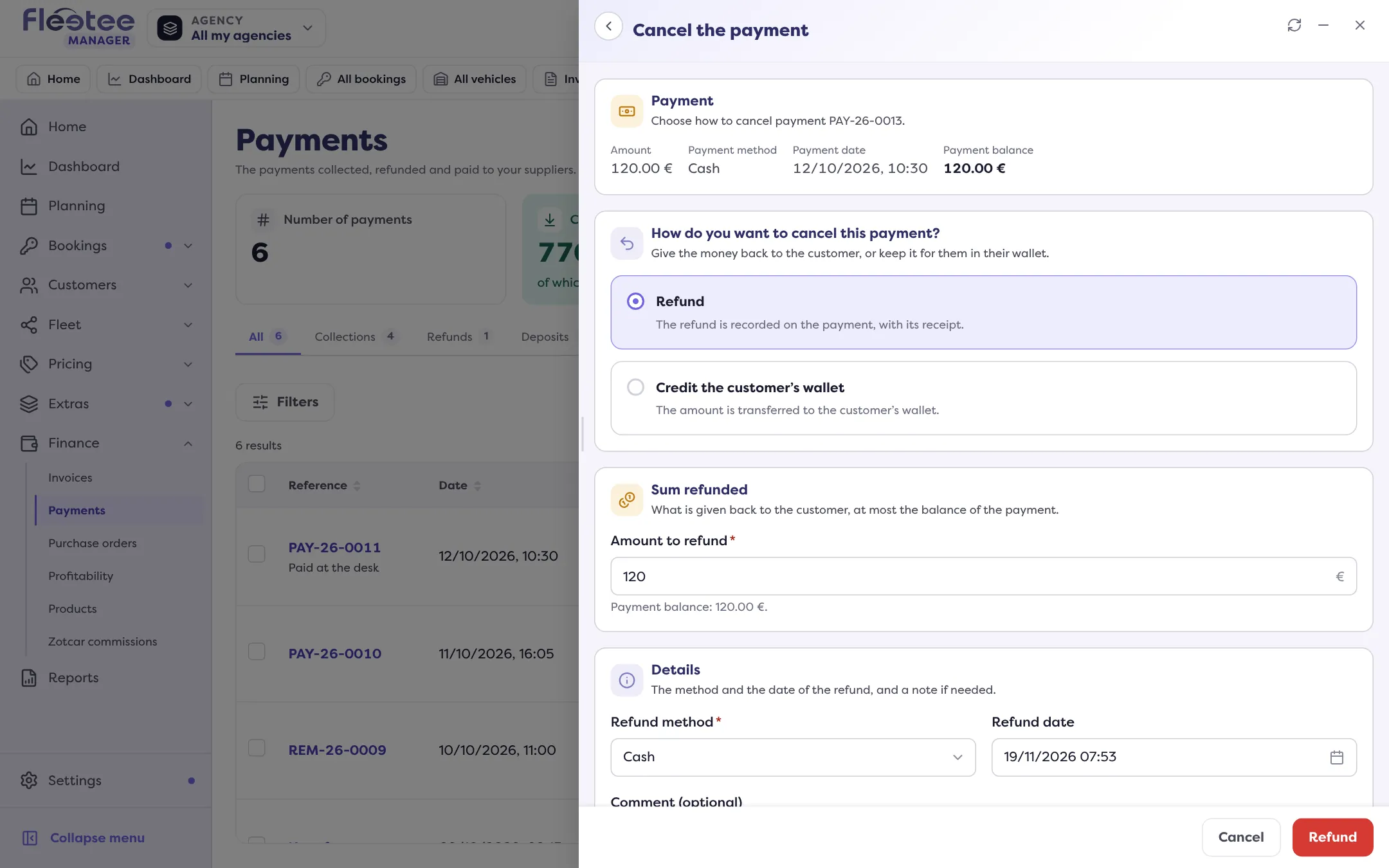
Fill in the refund
Enter the “Amount to refund” (at most the payment balance: a partial refund is possible), the “Refund method”, the “Refund date” and, if needed, a comment.
Confirm
Click “Refund”, then “Refund …” in the “Confirm the refund” window. Manager announces “Refund recorded: …”.
This operation is final: it cannot be undone from Fleetee. Check the amount and the method before confirming.
A payment made online
When the payment was collected online, the panel says so: Fleetee only records the operation. No refund is triggered at the payment provider: make it yourself from its interface, without going through Fleetee.
If the payment is reconciled with an invoice
The confirmation warns that the allocation to the invoice is reduced if the remaining balance no longer covers it, and that the invoice may go back to “partially paid” or “awaiting payment”. If the invoice is already validated, the normal route is a credit note: at the “Payments” step, you choose to refund the customer or credit their wallet. Read Cancel an invoice with a credit note.
When cancelling is not offered
- “Refunding this payment is not available with your profile.”: refunds are reserved for the administrator and the agency manager. An agent can only release a deposit.
- “This payment was not collected: there is nothing to refund or to credit.”
- “This payment is fully used up (refunded or transferred): no amount is left to cancel.”
- “This payment is managed by Zotcar: it cannot be cancelled from Fleetee.”
For a deposit, the button is “Release the deposit”: read Return the deposit. A deposit cannot be credited to the wallet.
Where to find it: Finance › Payments › the payment › “Cancel the payment”
Where to find it: Finance › Payments › the payment › “Cancel the payment” › “Refund”
Go further
Updated on 18 November 2026 with version 3.0